SharePoint: Register App & Generate Token
Register App
Following are the steps to register App,
- Sign in to your Azure Account through the Azure portal.
- Select the Azure Active Directory.
- Select App Registrations.
- Select New Registration.
- Name the application. Select a supported account type, which determines who can use the application.
- Under Redirect URI, select Public Client/native (mobile & desktop) for the type of application you want to create and provide valid URL. For example,
https://automationedge.com. For more information about redirect URI setup, seehttps://docs.microsoft.com/en-us/azure/active-directory/develop/reply-url - Select Register.
](/plugins/advanced/4/assets/images/Share1-9ce0c7675b37f339976c7d4669971d13.png)
Provide API Permission
- Copy Client.
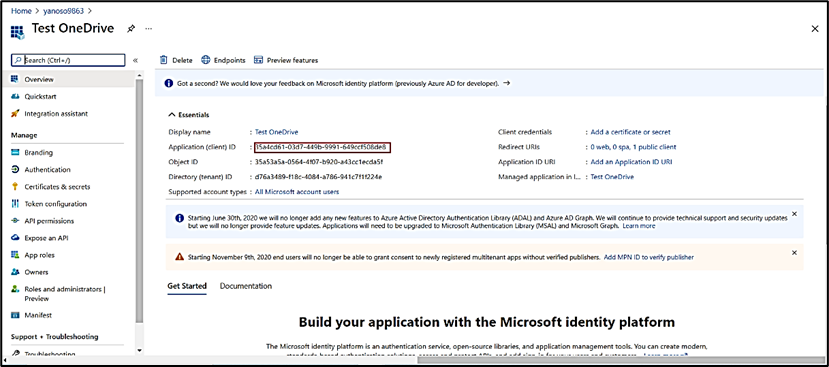
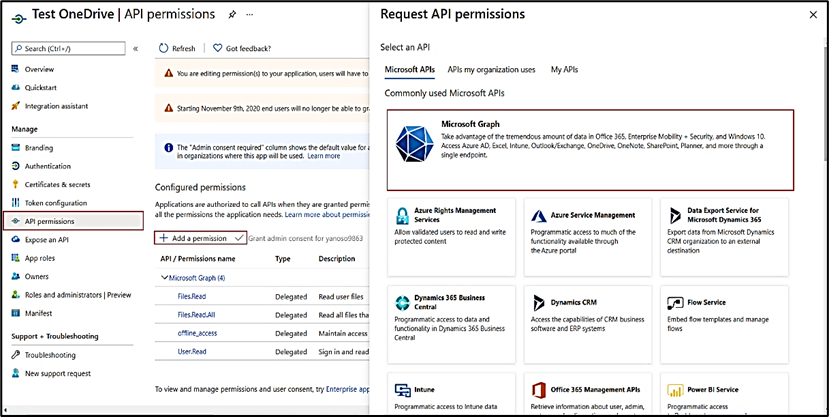
- Click on API Permission.
- Click on Add Permission.
- Click on Microsoft Graph.
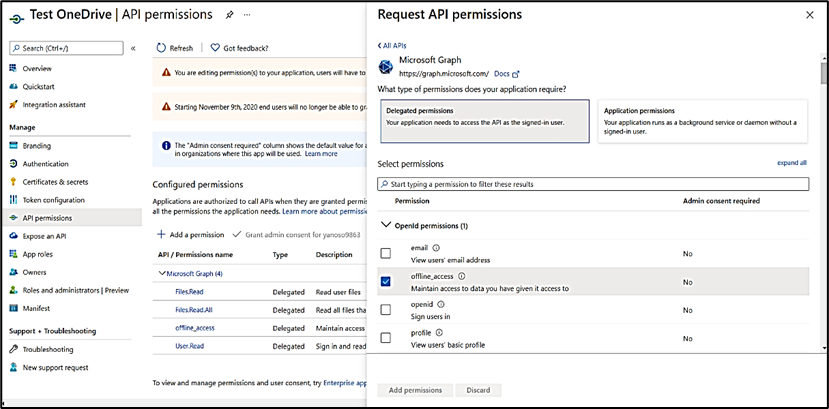
- Provide all required permissions.
Delegated offline_access permission is mandatory to generate the refresh token.
For more information, see https://docs.microsoft.com/en-us/azure/active-directory/develop/quickstart-register-app#register-an-application
How to generate Refresh Token URL and Run in Browser
- Get an authorization code
- To start the sign-in process with the code flow, use a web browser to load the following URL request:
GET
https://login.microsoftonline.com/common/oauth2/v2.0/authorize?client_id={client_id}&scope={scope} &response_type=code
Example: https://login.microsoftonline.com/common/oauth2/v2.0/authorize?client_id=bc096046-323f-4f98-91e6-fc1f28canks&scope=Files.Read Files.Read.All offline_access User.Read Sites.Read.All &response_type=code
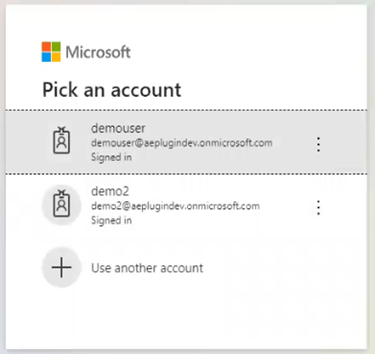
- After running in the browser the below login screen will appear, log in with the user who has created the app.
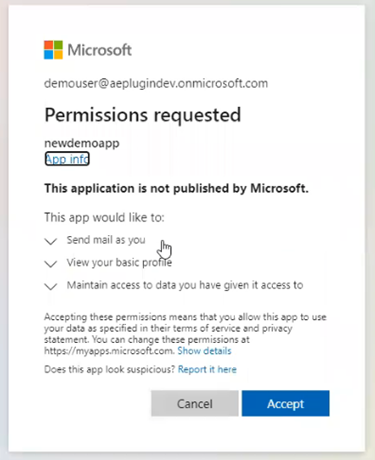
- After login below screen will appear, on below screen click on Accept button.
- After clicking on accept button you will redirect to URI provided during app creation, once you are redirected, you will get the code in address bar as shown in below screen shot.

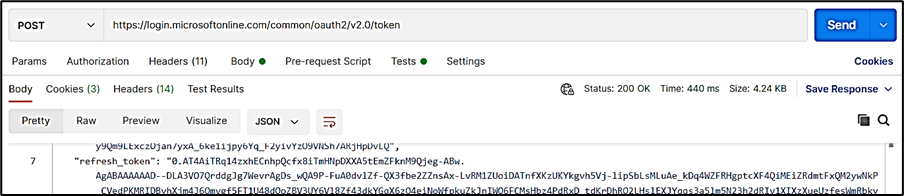
- Redeem the code for access tokens and refresh token. After you have received the code value, you can redeem this code for a set of tokens that allow you to authenticate with the SharePoint API. To redeem the code, make the following request:
POST
https://login.microsoftonline.com/common/oauth2/v2.0/token
Headers: Content-Type: application/x-www-form-urlencoded
Body: x-www-form-urlencoded (key value pair)
client_id={client_id}
code={code}
grant_type=authorization_code
For more information, see https://docs.microsoft.com/en-us/onedrive/developer/rest-api/getting-started/graph-oauth?view=odsp-graph-online#code-flow
Example: Postman Request:

Postman Response: