Create Project
Description
This step creates a new project in Jira. You provide the project name, key, and other configuration details. Use this step in workflows that automate project setup for new teams, initiatives, or clients.
Configurations
| Field Name | Description |
|---|---|
| Step Name | Name of the step. This name has to be unique in a single workflow. |
Connection
For the connection field details, click Connection Fields
Input tab
| Field Name | Description |
|---|---|
| Input Fields | |
| Project Key | Provide a project key for the new project. |
| Project name | Provide the name of the new project to be created. |
| Project type | Provide a project type. The list of project types can be populated using the Get button described below. |
| Button: Get | Clicking on this button brings up a list of project types (viz. software, ops,service_desk, business). |
| Project Template Key | Select a valid project Template Key based on the type of project selected. The list of Project Template Keys can be populated using the Get button described below. |
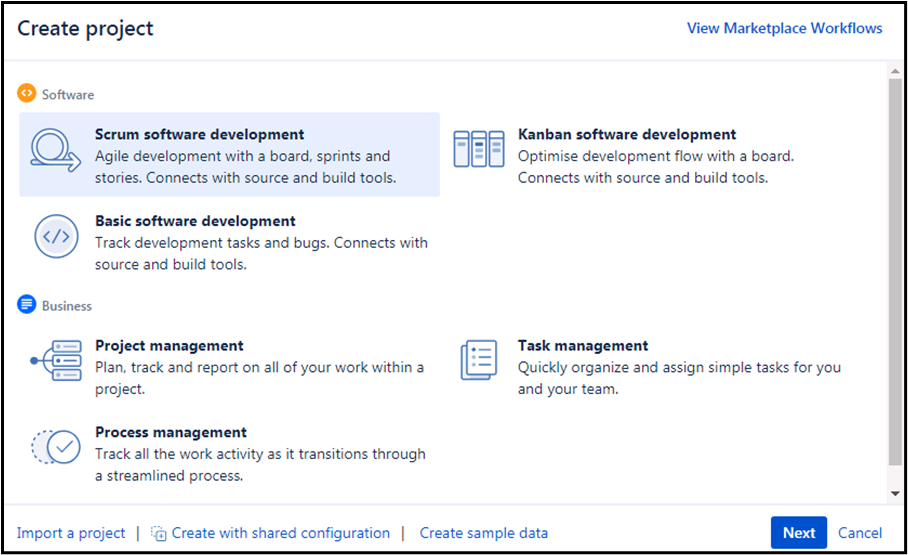
| Button: Get | Clicking on this button brings up a list of project Template Keys as below, - com.pyxis.greenhopper.jira:gh-scrum-template - com.pyxis.greenhopper.jira:gh-kanban-template - com.pyxis.greenhopper.jira:basic-software-development-template - com.atlassian.jira-core-project-templates:jira-core-project-management - com.atlassian.jira-core-project-templates:jira-core-task-management - com.atlassian.jira-core-project-templates:jira-core-process-management |
| Project description | Provide the description of the new project to be created |
| Project lead(Username/Account ID) | Mention the Username(/Account ID) who will be set as the lead for the new project.(This will accept only valid users on JIRA) |
| Button: Get Username | Clicking on this button brings up the list of JIRA usernames. |
| URL | Provide a URL for online help |