Windows
The Windows plugin lets you perform system administration tasks on remote Windows machines. It supports managing services (start, stop, restart, pause, resume, get status), checking disk utilization, running DOS commands, managing PowerShell sessions, and performing system shutdown and restart operations. The plugin connects using PowerShell remoting with hostname, username, and password. Use this plugin when your workflows need to automate Windows server maintenance, monitor system health, or manage services remotely.
Prerequisites:
• Enable WinRM Protocol and set trusted host list value to * on local as well as target system, refer Appendix 6: Power Shell Remote Connection. • WMI access on local and target machine (Required for Windows: Create Event Log, Restart Machine and Shutdown Machine steps). This is discussed below. • PowerShell version 5 and above. This is discussed below.
Following are the steps to provide WMI access on local and target machines.
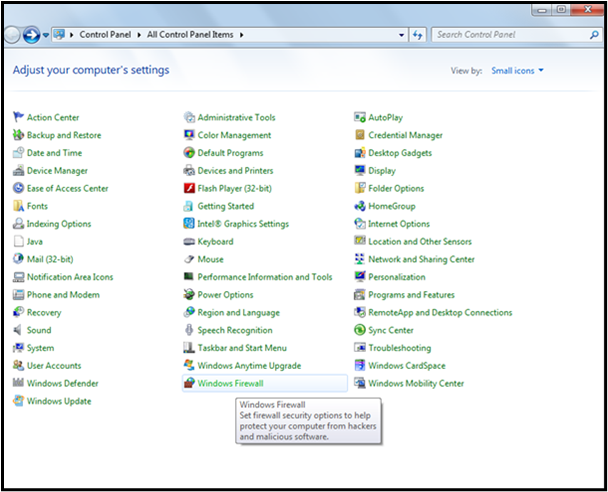
- Under Control Panel click Windows Firewall
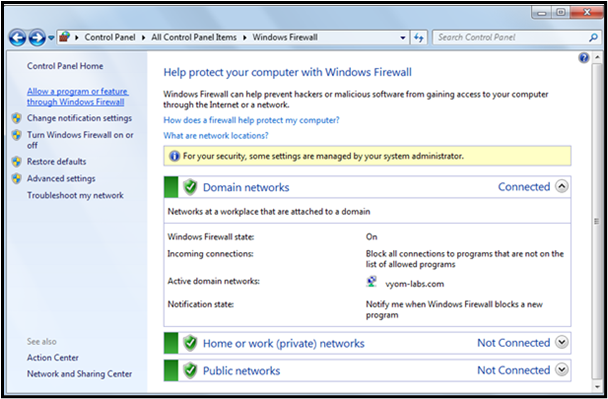
- Click the link – Allow a program or feature through Windows Firewall.
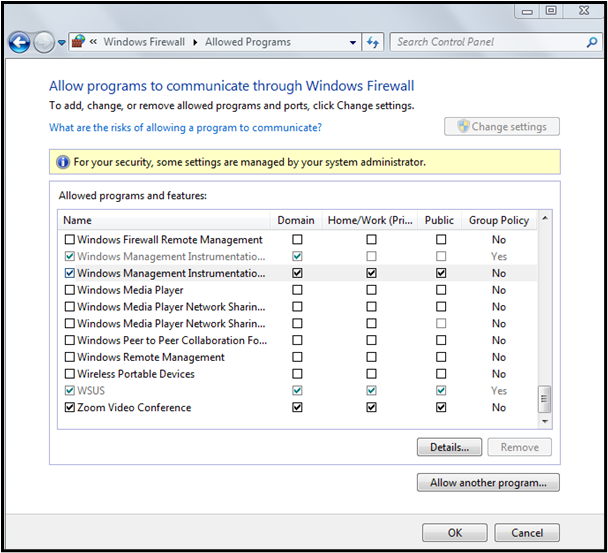
- Enable to allow Windows Management Instrumentation (WMI) at all levels as shown below.
Following are the steps to setup Power Shell version 5 or above, A. Set PowerShell Execution Policy:
- Open PowerShell command prompt in Run as administrator mode (Go to Start-> Search PowerShell -> Right Click on Windows PowerShell -> Click Run as administrator option)
- Change execution policy of computer to allow running PowerShell scripts by using below: command: Set-ExecutionPolicy unrestricted –Force
- Check if execution policy is changed by using below command: command: Get-ExecutionPolicy
B. Updating PowerShell Version:
- Download Windows Management Framework from below url: (to update to Windows PowerShell version 5.1or higher) https://www.microsoft.com/en-us/download/details.aspx?id=54616
System requirements:
- WMF 5.1 requires Microsoft .NET Framework 4.5 or above. You can install Microsoft .NET Framework 4.5 or above by following the instructions at Installing the .NET Framework.
- Use a 64-bit version of Windows.
- Need to restart machine once “Windows Management Framework 5.1“installation is completed.
Note: Open PowerShell by right clicking and select Run As Administrator
- Check if PowerShell version is updated to 5.1 or higher using below command: Command: $PSVersionTable
Expected output:
| Name | Value |
|---|---|
| PSVersion | 5.1.14409.1005 |
| PSEdition | Desktop |
| PSCompatibleVersions | 1.0, 2.0, 3.0, 4.0... |
| BuildVersion | 10.0.14409.1005 |
| CLRVersion | 4.0.30319.42000 |
| WSManStackVersion | 3.0 |
| PSRemotingProtocolVersion | 2.3 |
| SerializationVersion | 1.1.0.1 |