Work with Users
System Administrators are the super users and have access to the entire AutomationEdge system. The System Administrator can create users with the following roles:
-
System Administrator
-
License Administrator
-
(Tenant) Admin
In the chapter, you will learn about how to add new users with System Administrator or License Administrator or Admin roles, or delete users, upload license, and understand the various user states.
The chapter includes the following topics:
- User List
- Tenant Users
User List
In the topic, you will learn about managing users with System Administrator or License Administrator roles.
The topic includes the following sections:
- Add new users
- Upload license
- Delete users
Add New User
You can create new users with a System or License Administrator role.
- SSO user type is not supported for Sysadmin role.
- Sysadmin users cannot use Process Studio.
To add a new user:
-
Navigate to the Users -> User List menu. The System Users page appears.
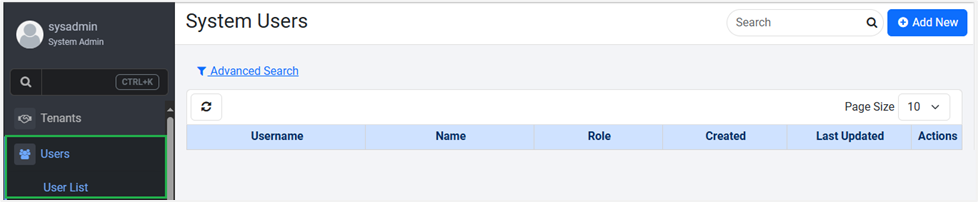
Figure 31 :Users -> User List -> System Users page
-
Click Add New. The Add New User dialog appears.
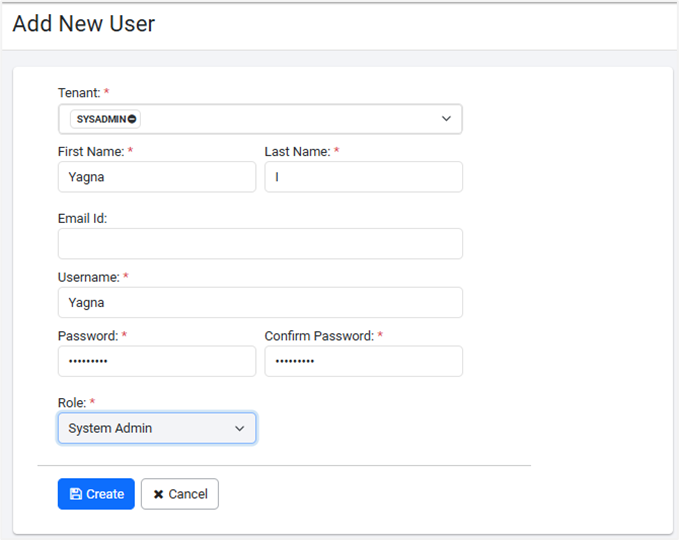
Figure 32: Add New User dialog
-
Enter the field details:
| Field Name | Description |
|---|---|
| Tenant* | Select the tenant under which you want to add the system user. |
| First Name* | Enter a first name for the system user. |
| Last Name* | Enter a last name for the system user. |
| Email Id | Enter the system user’s email ID. Note: -If you enter the email ID, then the Send verification link over email checkbox is available. |
| Send verification link over email | Select the checkbox to send a verification email link to the user. Users can verify the sign in details through the link, which will activate the user account. Users will receive message confirming that the verification is successful. Users can also reset their password after they activate the account. Important: To use the field, the user must set the email configuration details in the Email Configuration section. The link will be active for 24 hours only. Note: Ensure that the proper URL is added to the ae.portal.baseURL property in the ae.properties file. Reach out to your support team if you face any issues when accessing the URL. |
| Username* | Enter the system user’s sign in name. |
| Password* | Enter the password with which the tenant user will sign in. |
| Confirm Password* | Reenter and confirm the password with which the system user will sign in. |
| Role* | Select the role you want to assign to the system user. Select from: License Admin or System Admin. |
* indicates a mandatory field.**
- Click Create. The user is created and the details are displayed on the System Users page.
Upload license
You can upload a license for the tenant if you are assigned the License Administrator role. The System Administrator can create users with a License Administrator role.
For details about the License Administrator role, see Roles → System Defined Roles.
To upload a license
-
Sign in as License Administrator. The Tenants page appears.
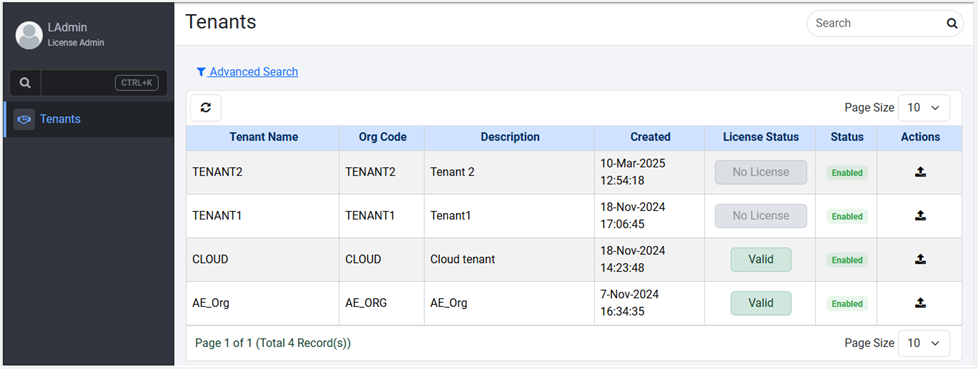
Figure 33: License Admin sign in → Tenants page
-
On the page, select the tenant for which you want to upload the license, and then in the Actions column, click
 . The Upload License dialog appears.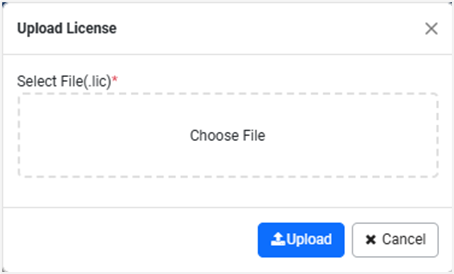
Figure 34: Upload License dialog
-
Click Choose File. The file open dialog appears.
-
Select the license file, and then click Upload. The license is uploaded for the selected tenant.
Delete users
You can delete users, if required.
To delete users
-
In the menu, click Users → User List. The System Users page appears.
-
On the page, select the user you want to delete, and then in the Actions column, click
 . The Confirm User Deletion dialog appears.
 -
Click Delete. A User deleted successfully message appears.
You cannot delete the super user, that is, the default AutomationEdge System Administrator.
Tenant Users
In the topic, you will learn about managing tenant users.
The topic includes the following sections:
- Add new tenant users
- Understand tenant user states
- Delete tenant users
Add new tenant user
You can create new users with Admin role.
To add new tenant users:
-
In the menu, click Users > Tenant Users. The Tenant Users page appears.
-
Click Add New. The Add New User dialog appears.
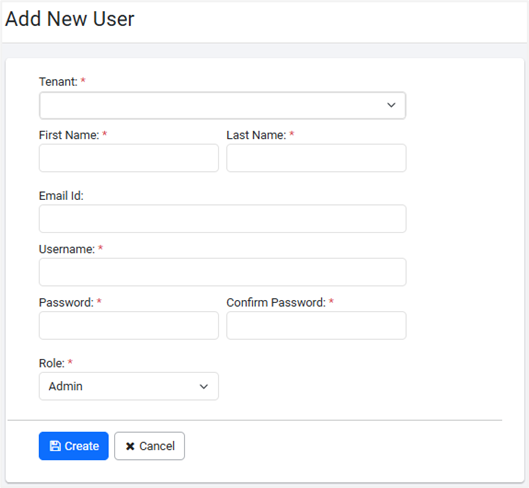
Figure 35: Add New User
The System Administrator can create Native user types.Native User is the default value. Details of the users are kept in AE-DB. User authentication done by AE.
- Enter the following field details:
| Field Name | Description |
|---|---|
| Tenant* | Select or search for the tenant in which you want to create the user. Note: In the search box available in the field, you can fetch the tenant of your choice with ease.  Figure 36: Search dialog |
| First Name* | Specify a first name for the tenant user. |
| Last Name* | Specify a last name for the tenant user. |
| Email Id | Enter the tenant user’s email ID Note: The Send verification link over email field becomes available only if you specify the email address. |
| Send verification link over email | Select the checkbox to send a verification email link to the user. Users can verify the sign in details through the link, which will activate the user account. Users will receive message confirming that the verification is successful. Users can also, reset their password after they activate their account. Important: To use the field, user must set the email configuration details in the Email Configuration section. The link will be active for 24 hours only. Note: Ensure that the proper URL is added to the ae.portal.baseURL property in the ae.properties file. Reach out to your support team if you face any issues when accessing the URL. |
| Username* | Enter the tenant user's sign in name. |
| Password* | Enter the password with which the tenant user will sign in. |
| Force Change | When selected, the system forces the user to change the password on next login. |
| Role* | Select Admin role, which is the Tenant Admin role. |
* indicates a mandatory field.
- Click Create. The user is created and the user details appear on the Tenant Users page.
The state of a new user is UNVERIFIED.
To change the state of the new user to ACTIVE:
-
Access AE sign in page. Enter the user's credential details in the username and password field.
-
Click Sign In. The Change Password page appears.
After the user signs in for the first time, changing the password is a mandatory step.
-
Enter the old and new password, and then click Change. The password is updated successfully, and you are signed out of AE.
For details, see Change the password. -
Re-login using your user credentials, that is, username and the new password. The status of the user changes to ACTIVE.
Understand Tenant User State
In the topic, you will learn about the various tenant user states.
Following are the possible states of the user accounts:
-
Unverified
A newly created user account is an UNVERIFIED state. When the user tries to log in for the first time, a dormancy check is applied, and if the account happens to be dormant, then the account state changes to DISABLED otherwise, to ACTIVE.
-
Active
A user performs in a usual way when in this state.
-
Locked
A user account locks on crossing the max Number of Attempts for unsuccessful login set in the Settings -> Sysadmin Policy. The schedules configured by the locked user may continue to run.
-
Dormant
If a user account has had no activity for an extended period, it goes to the dormant state. Set the Dormancy Period (In months) in the Settings -> Sysadmin Policy (after which if an account has had no activity becomes dormant). A dormant account can be enabled or disabled by the System or Tenant Administrator.
-
Disabled
A user can be manually disabled. A confirmation pop-up for disabling user displays. If a user is disabled, their schedules get automatically disabled.
-
Deleted
A User Account is in the DELETED state when an Administrator deletes the account. The User is soft-deleted (Disabled in the background). This state is not display on the UI.
-
Enabled
A user can go to enabled state from disabled, dormant or locked state. Once the user logs in, the state changes from Enabled to Active.
User States Inter relationships
Check the following image that depicts the inter relationship between the User States,
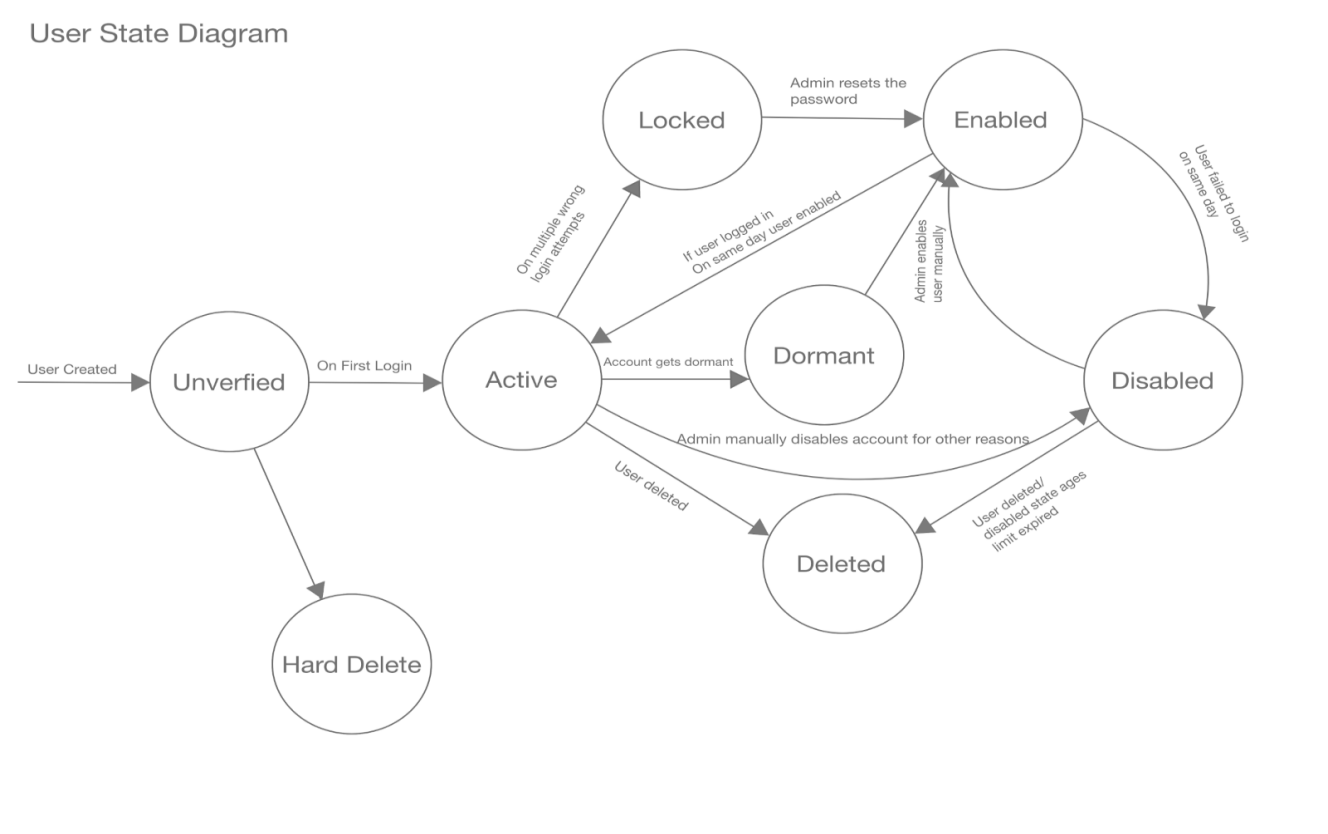
Figure 37: User State inter-relationships representation
User State -- Login behaviour
Additionally, to complement the previous User State interrelationship diagram, the following diagram illustrates the login behavior of users within various states.The diagram depicts the different user states.
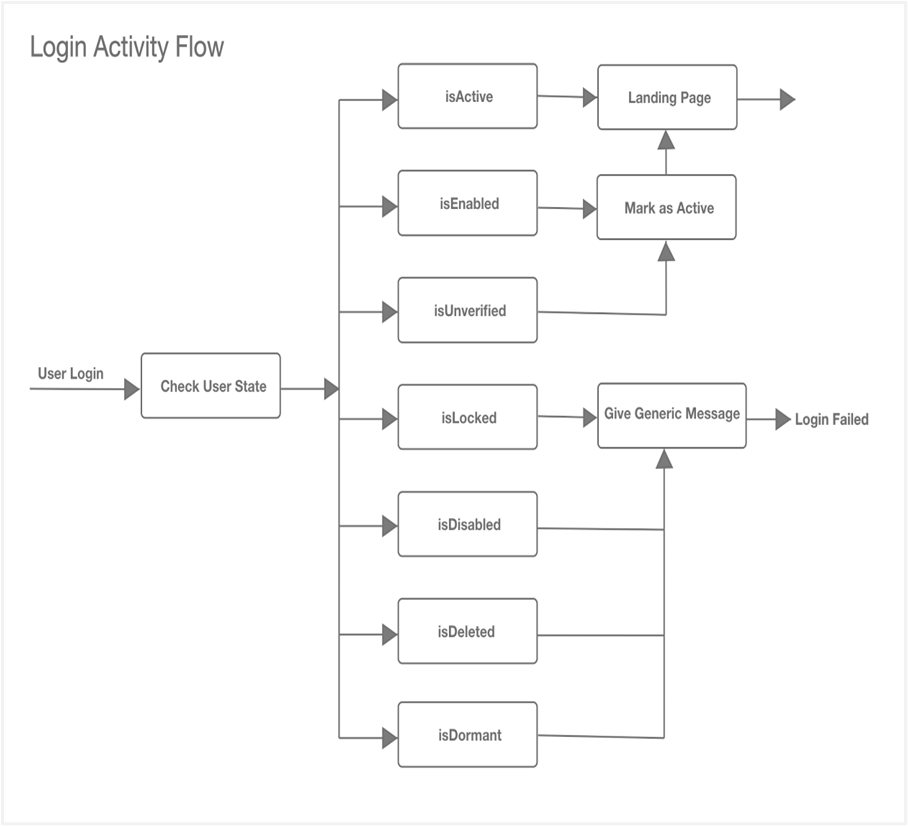
Figure 38: User login activity
-
If the user is in Active state, then after login, user goes to the AutomationEdge UI landing page.
-
If a user is in an Enabled or Unverified state upon login, user account is marked as Active and user goes to the AutomationEdge UI Landing page.
-
If a user is in Locked, Disabled, Dormant or Deleted state, then after login, a generic failure message appears.
To change the state of any user, click the state link in the Status column complete the steps to change the user state.
Unlock User
The System Administrator can unlock Admins and other tenant users.
To unlock a tenant user:
-
In the menu, click Users -> Tenant Users menu. Tenant users page appears.
-
In the Status column, click the LOCKED link corresponding to the tenant user you want to unlock. A Select Action dialog appears.
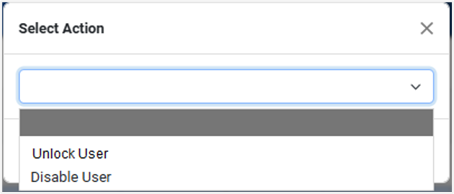
Figure 39: Select Action Dialog
- In the dialog, select Unlock User. The Unlock User dialog appears.
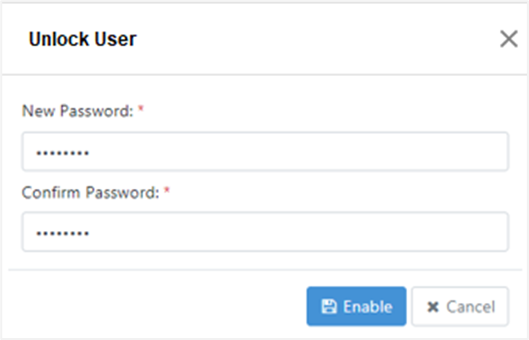
Figure 40: Unlock User Dialog
- Enter the new password and confirm password. A User unlocked successfully message appears, and you are taken back to the login page.
- After the user signs in to AE, you need to change the password, and the user state changes to ENABLED.
- Sign in again after changing the password, and the user state changes to ACTIVE.
Enable User
You can enable dormant or disabled tenant users.
To enable a tenant user:
- In the menu, click Users -> Tenant Users menu. Tenant users page appears.
- In the Status column, click the DORMANT Or DISABLED link corresponding to the tenant user you want to enable. A Select Action dialog appears.
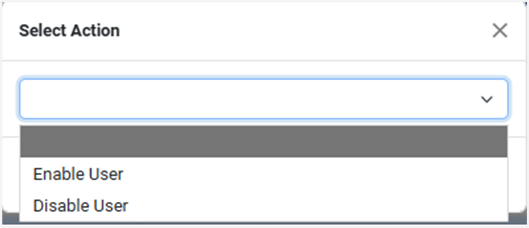
Figure 41: Select Action dialog
- In the dialog, select Enable User, and then click Next. The Enable User pop-up appears.
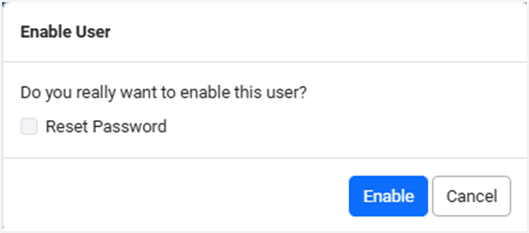
Figure 42: Enable User pop-up
- Click Enable. User enabled successfully message appears.
- Sign in with the user credentials. After signing in, change the password and the user state changes to ACTIVE.
- You can also enable a dormant or disabled user and then select Reset Password checkbox for a new password, if required. Enter the new password, and then click Enable.
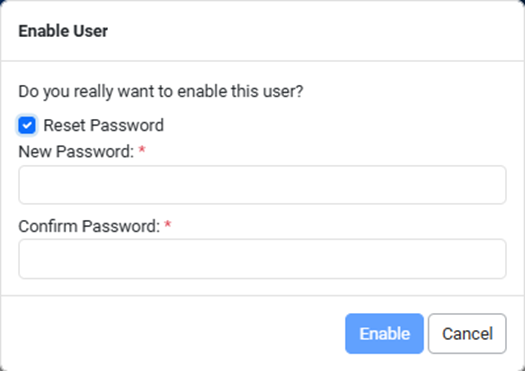
Figure 43: Enable User Dialog
- The Reset Password option is unavailable for SSO and LDAP users.
Disable or Delete User
System Administrators can manually disable or delete active users.
To disable or delete a tenant user:
-
In the menu, click Users->Tenant Users. Tenant Users page appears.
-
In the State column, click the ACTIVE link corresponding to the tenant user you want to Disable or Delete. A Disable User dialog appears.
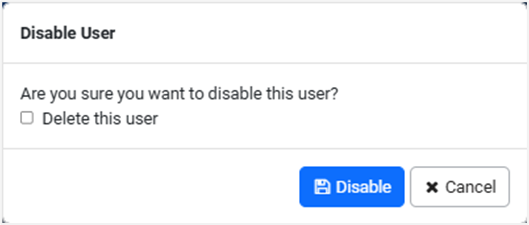
Figure 44:Disable User Dialog
-
Click Disable. User account disabled successfully message appears.
- If you select the Delete this user checkbox, then you need to provide a period in days after which the user is deleted (it is a soft delete).
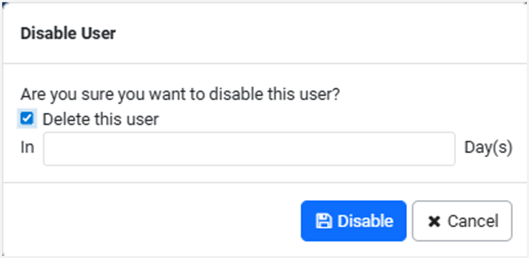
Figure 45: Disable User dialog
-
After deletion you cannot restore the user account.
-
Deleted state is not displayed on UI.
Delete tenant users
You can delete the tenant users, if required.
To delete tenant users:
- In the menu, click Users -> Tenant Users. The Tenant Users page appears.
- On the page, select user you want to delete, and then in the Actions column, click
 . The Confirm User Deletion dialog appears.
 Figure 46: Confirm User Deletion dialog
- Click Delete. User deleted successfully message appears.