Get started
In the chapter, you will learn about logging on to AE server, modifying the default password, and understanding the user interface (UI). In addition, the chapter includes a brief overview of the AE userinterface, which will help you work with AE with ease.
The chapter includes the following topics:
- Log on to AutomationEdge
- Change the password: Changing the password is mandatory.
- Reset forgotten password: Use if you forget the password after modifying it.
- Understand the user interface (UI)
Logon to AutomationEdge
Log on to AutomationEdge server using your username and password.
If you are logging into AE for the first time, then you must change the default password to ensure security of the account.
To log on to AutomationEdge:
-
In the browser's address bar, enter the AutomationEdge URL.For example, http://localhost:8080/aeui. The AutomationEdge Login page appears.
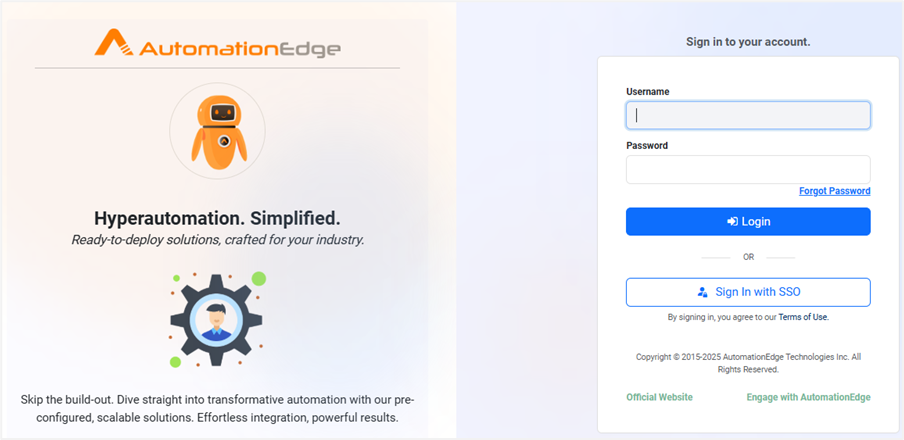
Figure 1: Login page
- Enter the following field details:
| Field name | Description |
|---|---|
| Username | Enter the name of the user with which you want to log on to the application. Important: AutomationEdge provides the default, super user with the System Administrator’s role. The username is sysadmin. You cannot delete the sysadmin. Note: If required, you can create users with System Administrator role. For details, see Add new users |
| Password | Enter the password to log on to the application. Note: The default password for System Administrator, sysadmin is vY78_h$ia. After the first-time login, you will be prompted to change your password. |
If the captcha property is enabled, that is, set to true in the aeui-config.properties file, then the captcha text appears on the login and forgot password pages. For more details, see the AutomationEdge Installation guide.
#This key is used to enable Captcha for UI. If Value is true, then Captcha will be enabled otherwise captcha is disabled.
enableCaptcha = false
Enter the captcha text along with the username and password, as shown in the following screenshot:
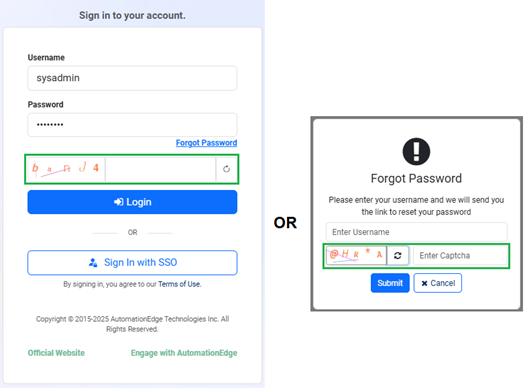
Figure: Captcha
- Click Login. A Release Notes dialog will appear. Click "Close" to dismiss it.
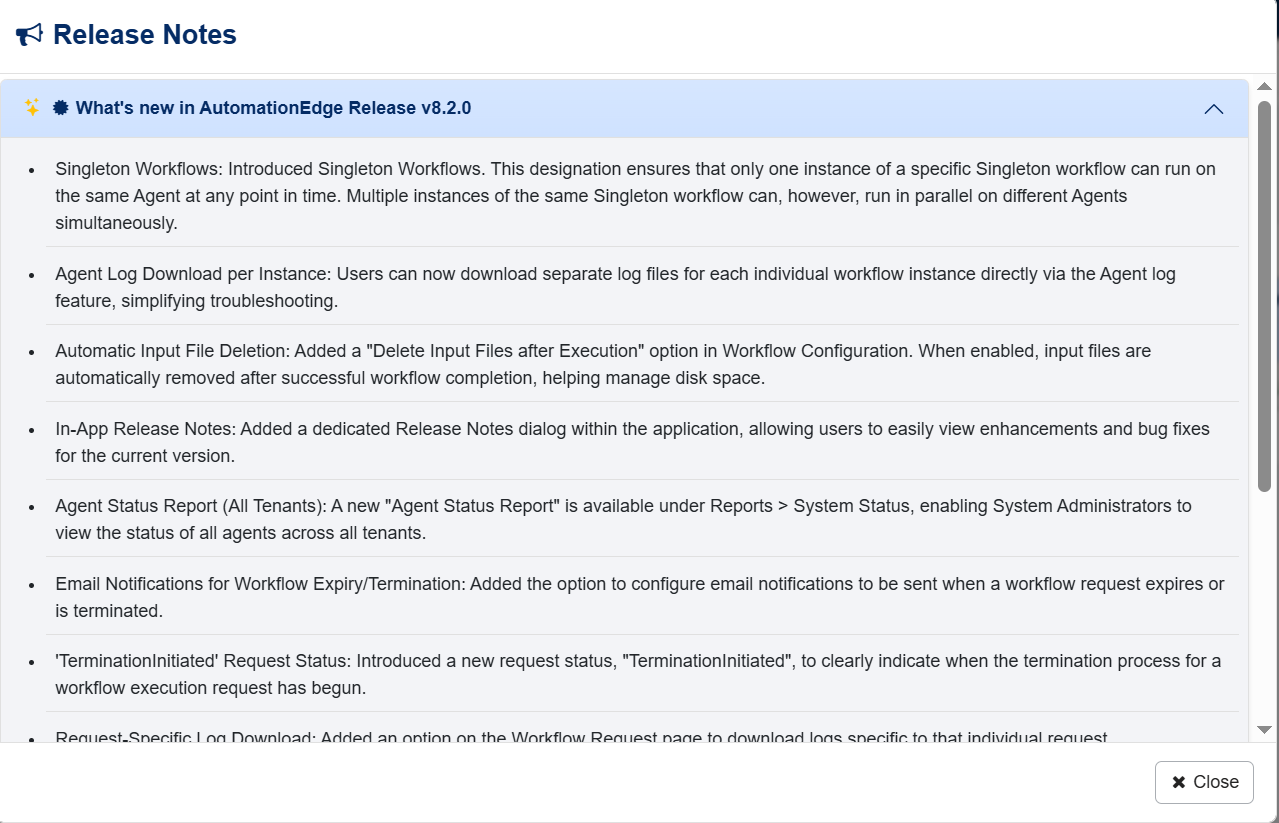
- To dismiss the Release Notes dialog, click Close.
- The dialog appears each time you log on to AE UI. However, if you select the Don’t show this dialog again checkbox, then the dialog will not appear when you log on again. After you select the checkbox, when you again log on to AE UI you will see the Home page.
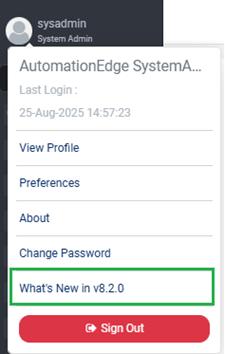
- To view the dialog again, select What’s New in v
<current release>in User profile.
Change password
If you are logging on to the application for the first time, then you will be prompted to change the password. Changing password is mandatory for enhancing the security of the user account.
To change the password:
- Sign in to AE for the first time. The Change Password dialog appears.
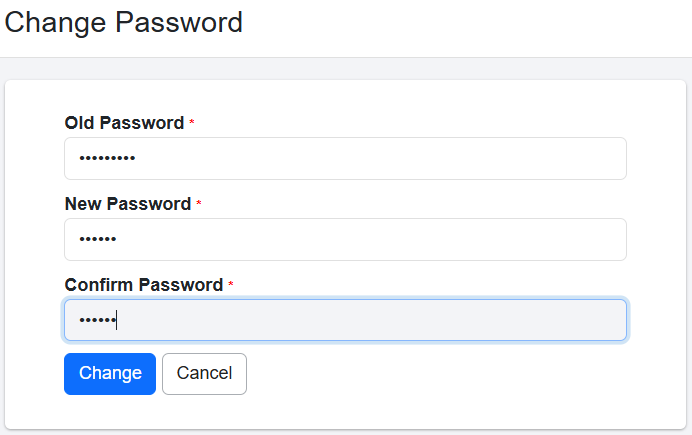
- Enter the following field details:
| Field name | Description |
|---|---|
| Old Password | Enter the current password. |
| New Password | Enter a new and unique password. Note: To set a strong new password, ensure the following: - Length between 6–20 characters - At least one uppercase letter - At least one lowercase letter - At least one digit - At least one special character from @, #, _, $, !, &You will see an error message if your new password matches the previous password. You can modify the password settings through Settings → Configurations → Password Policy. For details, see the Password Policy section in Modify System Administrator policies. |
- Click Change. The new password is saved.
After setting the new password, you will be logged out of the application and will need to re-login. After re-logging, the Security Questions page appears. You can set the questions or skip setting. For details, see Set Security Questions
Reset forgotten password
You can reset the password using the Forgot Password link. However, you cannot reset the password if you have not set the security questions.
You can reset the password in the following scenarios:
- If you have forgotten the password. Or
- If the password is breached, then for security reasons you need to reset the password.
To reset a forgotten password:
- On the login page, click the Forgot Password link. The Forgot Password dialog appears.
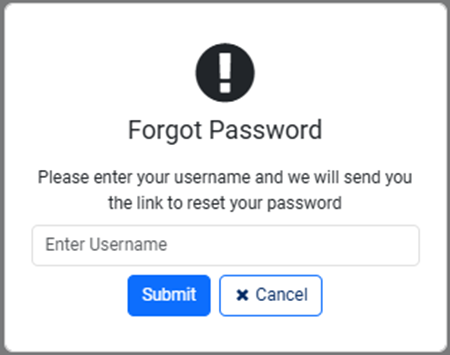
- In the username box, provide the name of the user, and then click Submit. The user will receive a link to reset the password.
- Click the link. The Reset your password dialog appears.
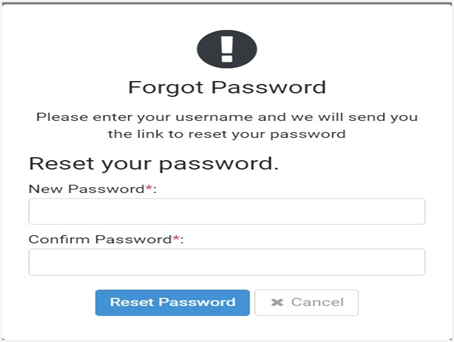
Figure: Forgot Password dialog: Reset your password
- Enter the password in the New Password and Confirm Password box, and then click Reset Password. The new password is saved.
To ensure security of your AE user account, we highly recommend that you set the rate limit of the Forgot Password feature as follows:
- In Settings -> Rate Limit -> Rate Limiter Properties, set the rate limit as 5. Now, if you try to enter an invalid username more than 5 times, the system will block further attempts to set the forgotten password from the same IP address based on unauthenticated API rate limits.
- In the ae.properties file, set the rate limit for forgot.password.rate.limit. The default value is 5. Now, if you enter a valid username but click Submit continuously, then on the sixth click, your attempt to set the forgotten password will be blocked for the next 24 hours.
Understand the user interface (UI)
The topic provides an overview of the AE user interface. Understanding the UI will help you in navigating through the application.
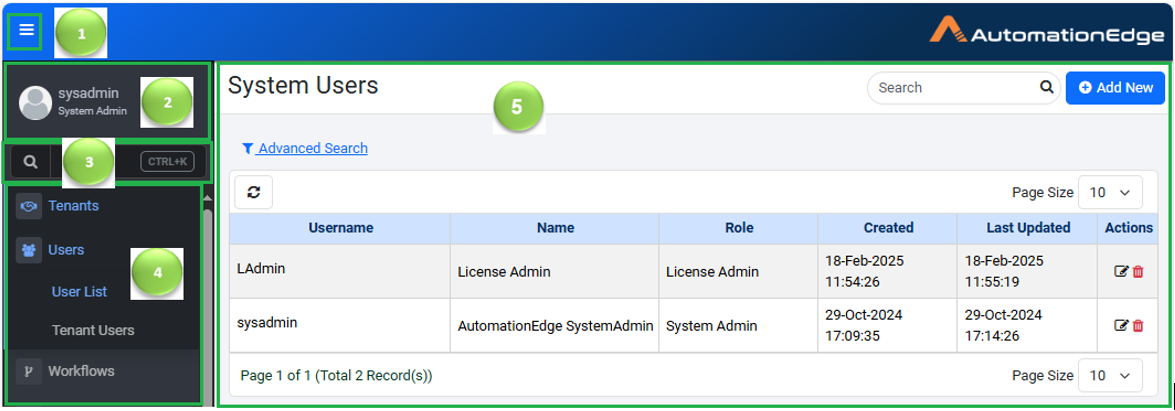
Figure: User interface
| Label | Interface | Usage | |
|---|---|---|---|
 | Toggle navigation menu | Toggle the navigation menu,that is, hide or unhide the menu. | |
 | User profile menu | View login details and user profile, and change user password. | |
 | Search | Enter and search for the navigation menu in the Search box. OR Use CTRL+K as a shortcut to open the search dialog. | |
 | Navigation menu | Click each menu option to work with each menu. | |
 | Workspace | Perform various actions depending on the selected menu. |
Toggle navigation menu
Click  to hide or unhide the navigation menu
User Profile
After you sign in to AE UI, click the user name and view your sign in details, the user profile, the application details. You can also change your password.
User sign in details
You can view the details, such as username, user role, and the last login details that includes, date and time
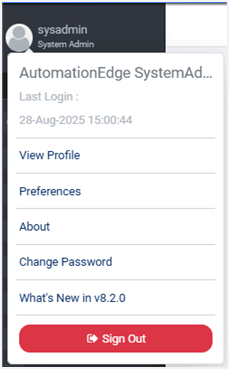
View Profile
You can view the user profile.
To view user profile:
- Click the User Icon on the top left corner of the AE UI page. The menu appears.
- In the menu, click View Profile. The User Profile dialog appears.
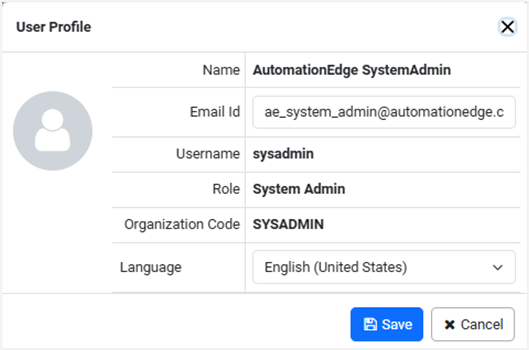
Figure: User Profile dialog
- Modify the following fields, if required:
Email Id: Enter the email address.
Language: Select the language for localization, if required. Else, the browser language settings are applied, by default.
Organization Code refers to the Tenant.
Preferences
User preferences help create personalized, efficient, and user-friendly experiences with respect to settings in AutomationEdge UI.
To set user preferences:
- Click the User Icon on the top left corner of the AE UI page. The menu appears.
- In the menu, click Preferences. The User Preferences dialog appears.
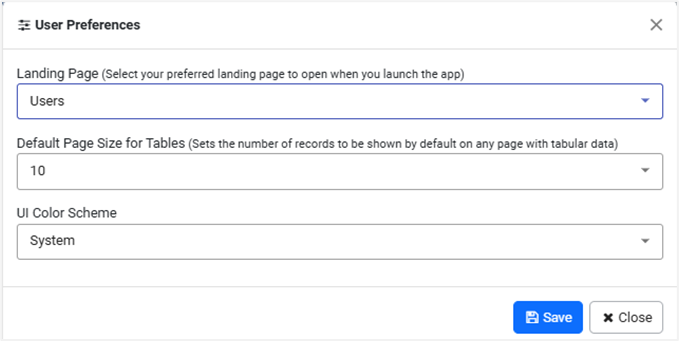
- Select the following field details:
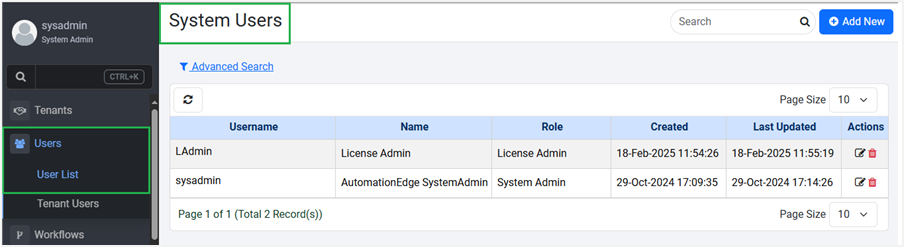
- Landing Page: Select the option for your preferred landing page which opens when one logs into the system. For example, if you select Users as the landing page in the User Preferences dialog, then on signing in again to AE, you will see the Users->User List->System Users page as your default home page.
- Default Page Size for Tables: Select the number of records you want to view on any page. For example, you can select to view 10 or 15 or 20 or so on records in a tabular format on a page. The default page size is 10 records.
- UI Color Scheme: You can set the theme for the application to enhance the view, if required. Choose the theme that best suits your preference from the following available options:
- Light: Applies a light-colored interface for better visibility in bright environments.
Figure: User Preferences: UI Color Scheme: Light
- Dark: Applies a dark-colored interface to reduce eye strain, especially in low-light conditions.
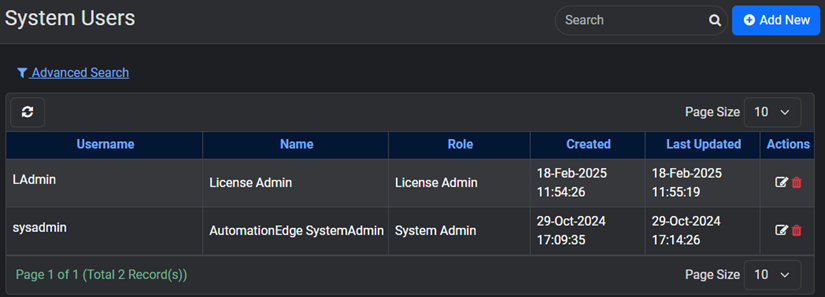
Figure: User Preferences: UI Color Scheme: Dark
- System: Automatically matches the theme with your device's system settings.
Figure: User Preferences: UI Color Scheme: System
The default color scheme of the application is System.
- Click Save. The details are saved.
About
You can view the AE application details.
To view the application details:
-
Click the User Icon on the top left corner of the AE UI page. The menu appears.
-
In the menu, click About. The About dialog appears.
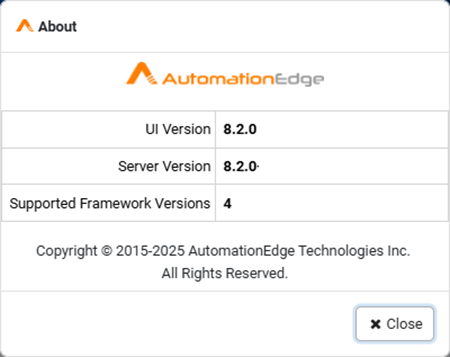
Figure: About dialog
- View the following details:
- UI Version: Displays the current AE user interface version.
- Server Version: Displays the current AE server version.
- Supported Framework Version: Displays the current Process Studio framework.
Change Password
You can modify the password using the Change Password option.
To modify the password:
-
Click the User Icon on the top left corner of the AE UI page. The menu appears.
-
In the menu, click Change Password. The Change Password dialog appears.
-
In the fields, enter the old and new password, and then click Change.
The new password is saved.
What’s new in v<current version>
Click to reopen the Release Notes dialog.
Figure: What’s New dialog
Sign Out
Click to log out of the application.
Search
Use the Search feature to search and navigate to menu and submenu options with ease.
The spotlight search allows you to enter keywords to filter and display a list of matching navigation options. The search matches keywords against the Menu ID, ID, menu title, and any associated tags to the tabs.
To search a menu or submenu option
- After signing in to AE UI, in the left pane, click in the search box OR press CTRL+K.
The Search dialog appears.

Figure: Search dialog
- Enter the name of the menu that you want to navigate to, for example, configuration.
Menus and submenus having configuration in their name are listed.
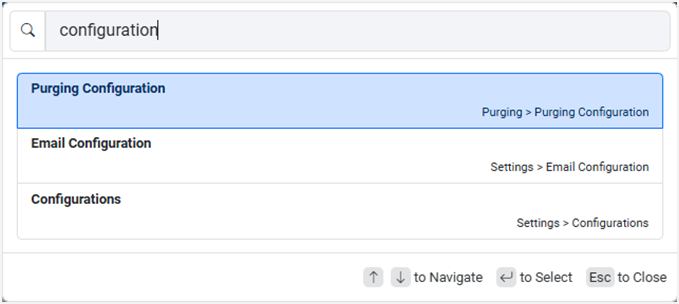
Figure: Search dialog
- Use ↑ to navigate in the ascending order through the search list.
- Use ↓ to navigate in the descending order through the search list.
- Press Enter or click an option from the list to select it.
- Press Esc or click anywhere outside to close the search dialog.
- Select and click OR press Enter to navigate to the selected menu, for example, Configurations (Settings > Configurations). The selected menu page appears.
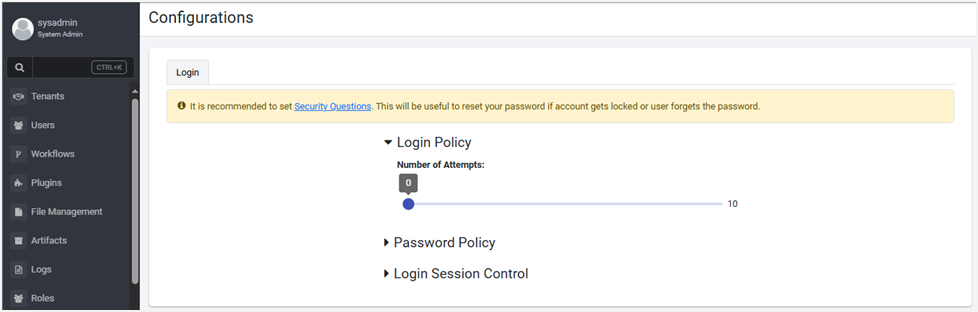
Figure 20: Configurations page
If you open the search dialog again, the search history appears in the list.
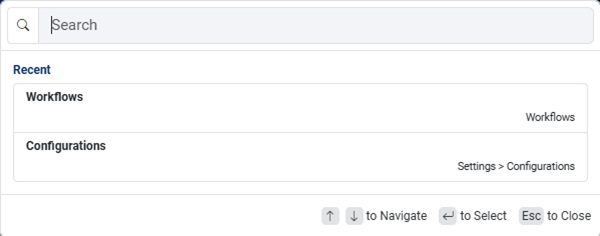
Figure: Recent search view
The system displays the three most recent searches in memory for the current session.
Workspace
The area where you can work with various features.