Common Activity
In the topic, you will learn about the common activities which are similar throughout the AutomationEdge server.
Simple search
Use the simple search to list specific records or details of any feature, as required.
Simple search is available in the following features:
- Tenants
- Users
- Plugins
- File Management
To perform search
-
In the menu, click the feature from which you want to search the record. For example, Users.
-
In the submenu, click Tenant Users. The Tenant Users page appears.
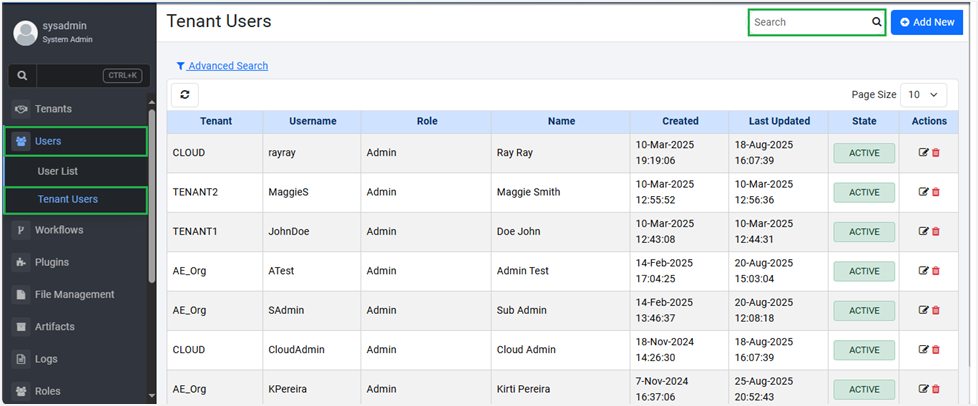
Figure: Perform simple search
- On the page, enter the search criteria in the search box.
For example, enter usernames havingra. The list of users withrain their name appears.
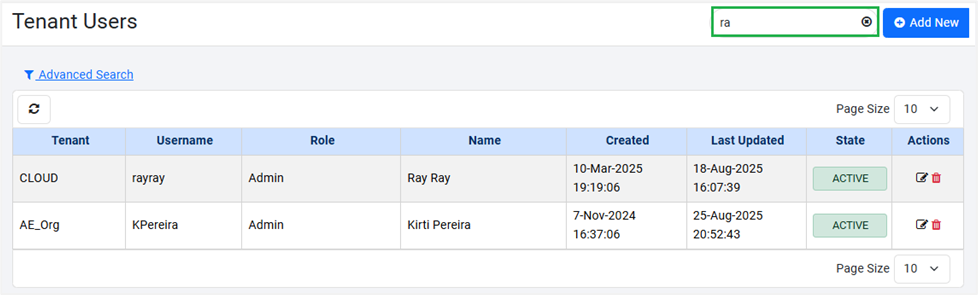
Figure: Simple search view
- To clear the search box, click ✖.
- If you search for other records, then the previous search history appears in the search box list.
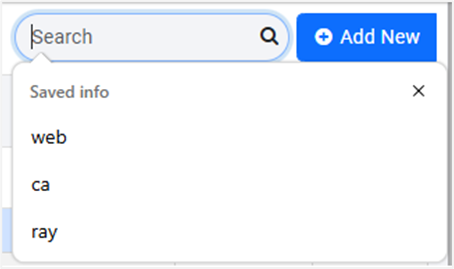
Figure 24: Search history
Advanced Search
If you have a huge amount of information, then advance search allows you to apply filters and helps to narrow down the search.
To perform advanced search:
- On the page, click Advanced Search. The fields to enter filter criteria appear.
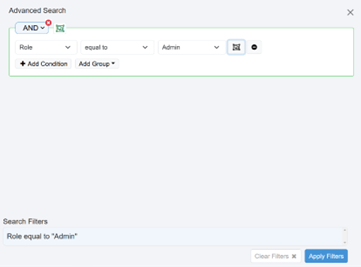
Figure: Advanced Search
- Enter the following field details:
| Field name | Description |
|---|---|
| Column Name | Select the column on which you want to search for the details. For example, Org Code. |
| Criterion | Select the comparator criterion on which you want to search for tenant details. For example, equal to. |
| Search Phrase | Enter the phrase on which you want to search for the details. |
- Click Apply Filter. The filter is added based on which the details are fetched.
tip
- Click
 to create a group and add condition to the group.
 - You can add different conditions to the group.
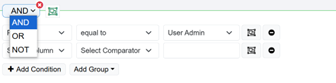
- To remove the conditions, click
 .
. - To clear the filter criteria, click Clear Filters.
- Click Search. The search result based on the filter criteria is displayed.
tip
To clear the filter criteria, click Remove Filters.