Work with Workflows
In the chapter, you will learn about enabling or disabling the published workflows. You may need to enable or disable the workflows when there is a framework change or a plugin update.
The chapter includes the following topics:
- Disable all workflows
- Enable all workflows
Disable all workflows
You must disable the published workflows if you are updating the plugins that are used in various active workflows. The system does not allow updating plugins unless the workflows are disabled.
When you disable the workflows, users with Admin and Workflow Administrator roles receive an email notification.
After updating the plugins, enable the workflows again.
To disable a workflow:
-
In the menu, click Workflows -> Workflow Operations. The Workflow Operations page appears.
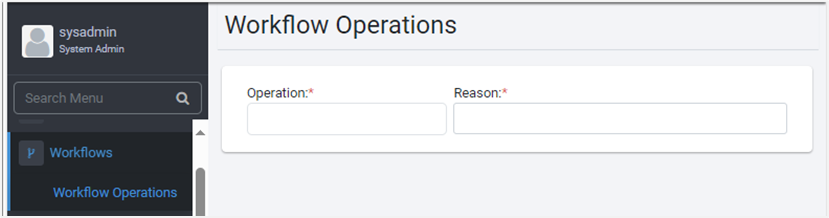
Figure 47: Workflow Operations page
-
Enter the following field details:
| Field Name | Description |
|---|---|
| Operation* | Select the operation that you want to perform on the workflows. For example, Disable all workflows. |
| Reason* | Select the reason for disabling the workflows. |
* indicates mandatory field.
-
Click Disable. The details of the disabled workflows appear on the Workflow Operations page.
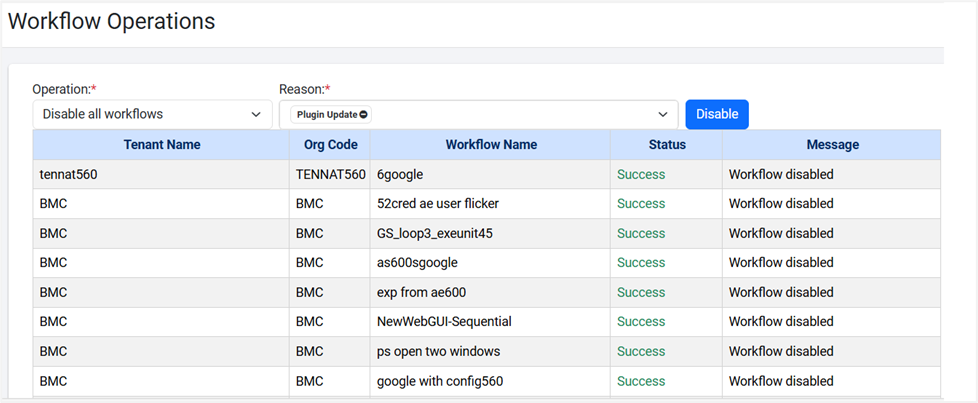
Figure 48: Workflow Operations – Disabled workflows view
Enable all Workflows
Export a project for sharing the entire project setup or selected files or folders as a zip file within the team and import it into any Process Studio workspace.
To enable all workflows:
- In the menu, click Workflows -> Workflow Operations. The Workflow Operations page appears.
- Enter the following field details:
| Field Name | Description |
|---|---|
| Operation* | Select the operation that you want to perform on the workflows. For example, Enable all workflows. |
| Reason* | Select the reason for enabling the workflows. - Framework Version Change: When upgrading or migrating the AE instance to a new framework version all the active workflows are disabled automatically, and the system sets the reason as Framework Version Change. - After the upgrade or migration is complete, you can activate all the disabled workflows together. When you enable the workflows, users with Admin and Workflow Administrator roles receive email notification. - Plugin Update: Select the option when enabling workflows that you disabled when upgrading the plugins. |
* indicates a mandatory field
- Click Enable. The details of the enabled workflows appear on the Workflow Operations page.
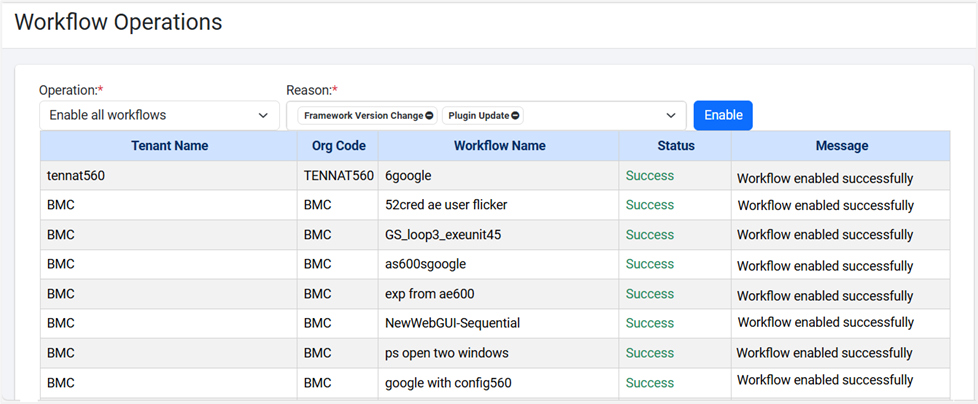
figure 49: Workflow Operations – Enabled workflows view