Work with Key Management
Key management involves securely storing tenant user credentials and tenant ID credentials in a database. When these credentials are stored, they are encrypted before being saved to ensure their security.The encryption process uses specific keys, which are managed through the key management system.
Key management not only facilitates the encryption of data but also supports key rotation. You can schedule key rotation to occur automatically every 30 days(or as per requirement), or you can manually rotate the keys. This indicates that the keys used to encrypt credentials, such as those belonging to tenant users, are periodically updated to improve security.By storing these credentials in an encrypted format, key management ensures that sensitive information remains protected in the database.
Prerequisite:
Ensure that AEUI is in Maintenance Mode.For more details, see Maintenance Mode.
The chapter includes the following topics:
- Change the Key Management version
- Download the key and change the master password
Change the Key Management version
Here you can rotate the key which would be applicable for all tenants. The option to download the key and change the master password is available if the key management’s version is 2.0. in the topic, you will learn how to change the key management version.
- To use Key Management, feature the version needs to be 2.0.
- You cannot revert to v1.0 after you have upgraded to v2.0.
To change the version:
-
In the menu, click Key Management → Version. The Key Management page appears.
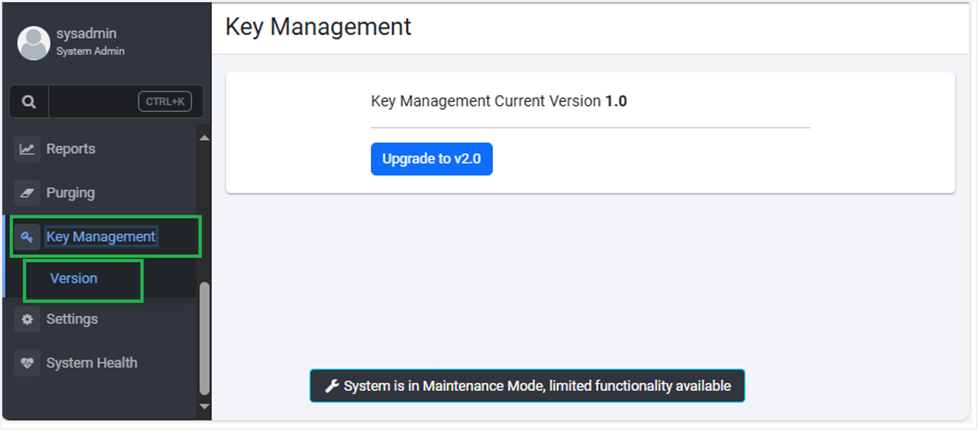
Figure: Key Management page
-
Click Upgrade to v2.0. The Enable Key Management v2.0 dialog appears.
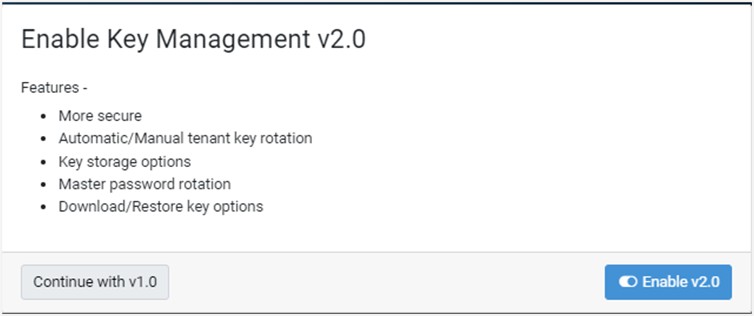
Figure: Enable Key Management v2.0 dialog -
Click Enable v2.0. The Enable Key Management v2.0 dialog field appears.
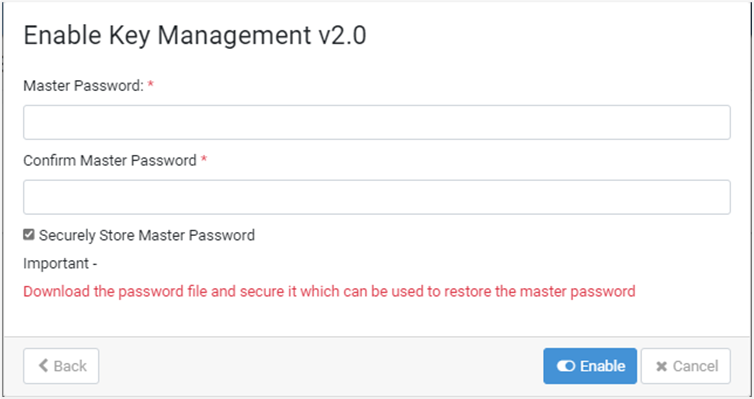
Figure: Enable Key Management v2.0 dialog -
In the dialog, enter the following field details:
Fields Description Master Password* Enter a unique password as your master password. Confirm Master Password* Re-enter the master password Securely Store Master Password Select the checkbox to save your master password in the AeKey.ask file, which you can download.
Note: The password is saved in the AeKey.ask file, which you can download. For details, see Master Password.* Indicates mandatory field.
-
Click Enable. The Key Management page appears, and the Master Password option appears in the menu pane.
-
On the Key Management page, click Rotate Keys. The Sysadmin key encryption key (tenantid = 1) is rotated or modified. Rotating the keys enhances the security of the user account.

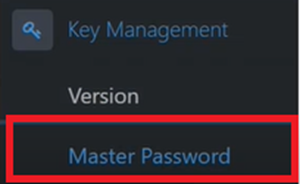
Figure 108: Key Management Rotate Keys
Download the key and change the master password
You need to provide the master password the first time you attempt to log on AE after restarting the Tomcat server.
In the topic, you will learn about downloading the key file. In addition, you can also change the master password, if required. You can change the password to enhance the security of the user account.
You can download the key, which is stored in the AeKey.ask file. If you forget the master password when signing-in to AE, then you can upload the file and restore the master password.
To download the master password file:
-
In the menu, click Key Management → Master Password. The Master Password page appears.
-
On the page, there are two tabs, Storage and Change Master Storage. The Storage tab is selected, by default.
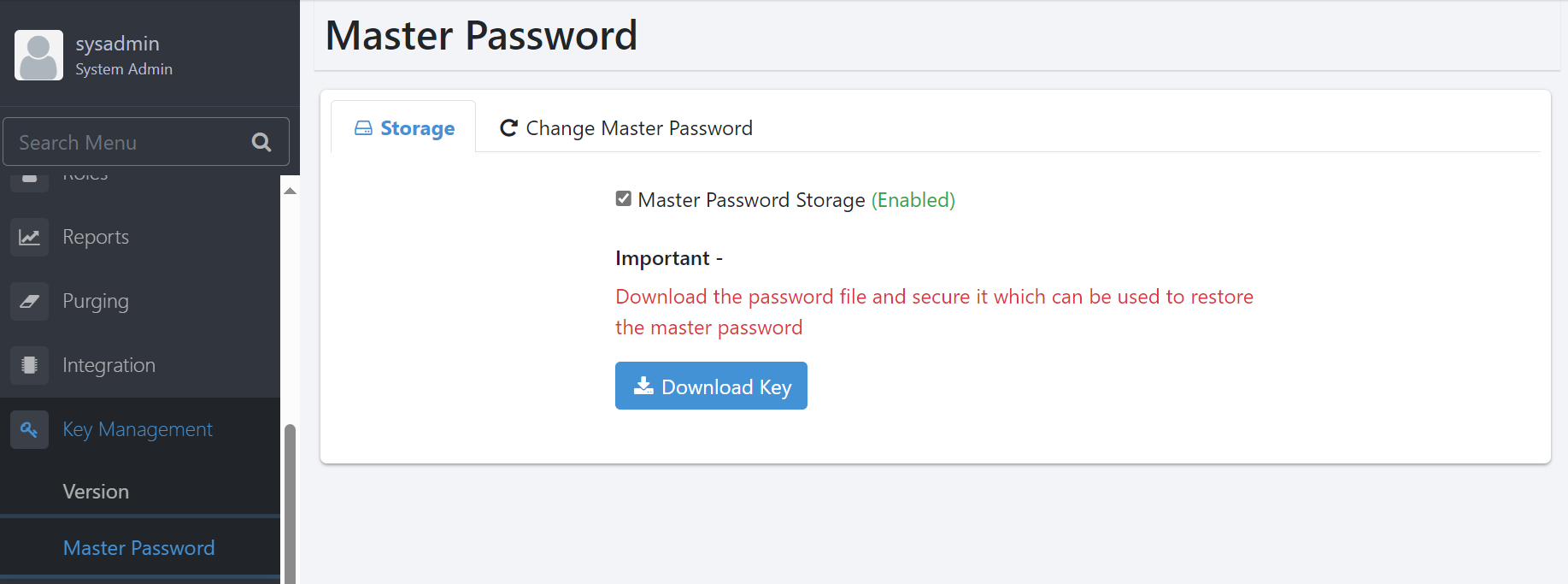
Figure 109: Master Password Storage
-
Click Download Key. The AeKey.ask file is downloaded.
The Master Password Storage checkbox is selected, by default. If you clear the checkbox then you will be unable to download the key.
In addition, if you do not store the master password using the Master Password Storage checkbox, then you will always need to manually provide the master password in the Master Password tab when you restart the system, that is, restart Tomcat.
However, if you have downloaded the key file then you can upload the file through Upload Key when you restart the system.
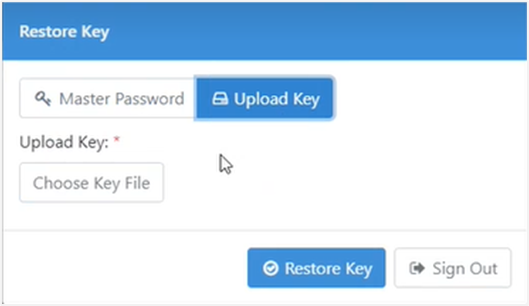
Figure 110: Restore Key dialog -> Upload Key tab
To restore the key, click Restore Key after entering the key or uploading the key file.
To change the master password:
- In the menu, click Key Management → Master Password. The Master Password page appears.
- On the page, click the Change Master Password tab. The change master password field details appear.
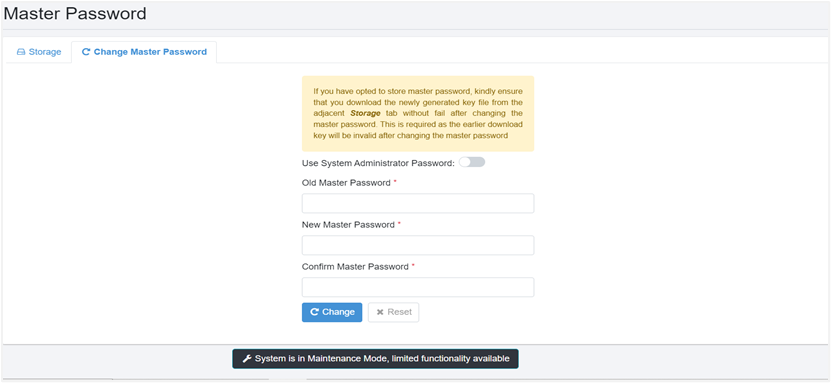
Figure 111: Master Password -> Change Master Password tab
-
You can change the master password in any of the following way:
Use the System Administrator Password:
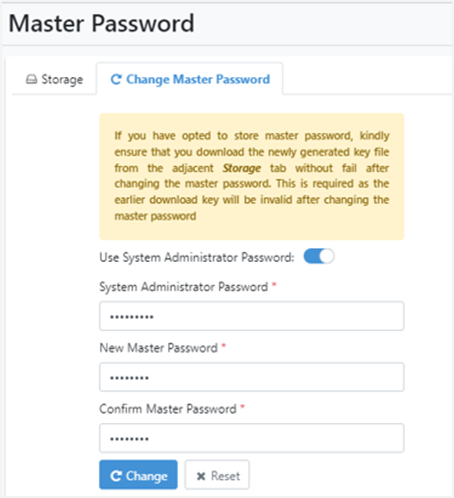
Figure 112: Change master password with Use System Administrator Password option
Fields Description Use system Administrator password Toggle the switch if you want to use the system admin password as Master Password.
Note: If you are using the system admin password as your master password, then the Old Master Password field name changes to System Administrator Password.System Administrator Password* Enter your system administrator password that you want to reset. New Master Password* Enter the new password you want to set Confirm Master Password* Re-enter new password for confirming the new password. * Indicates mandatory field.
OR
Directly enter the old master password, new master password, and confirm the master password.
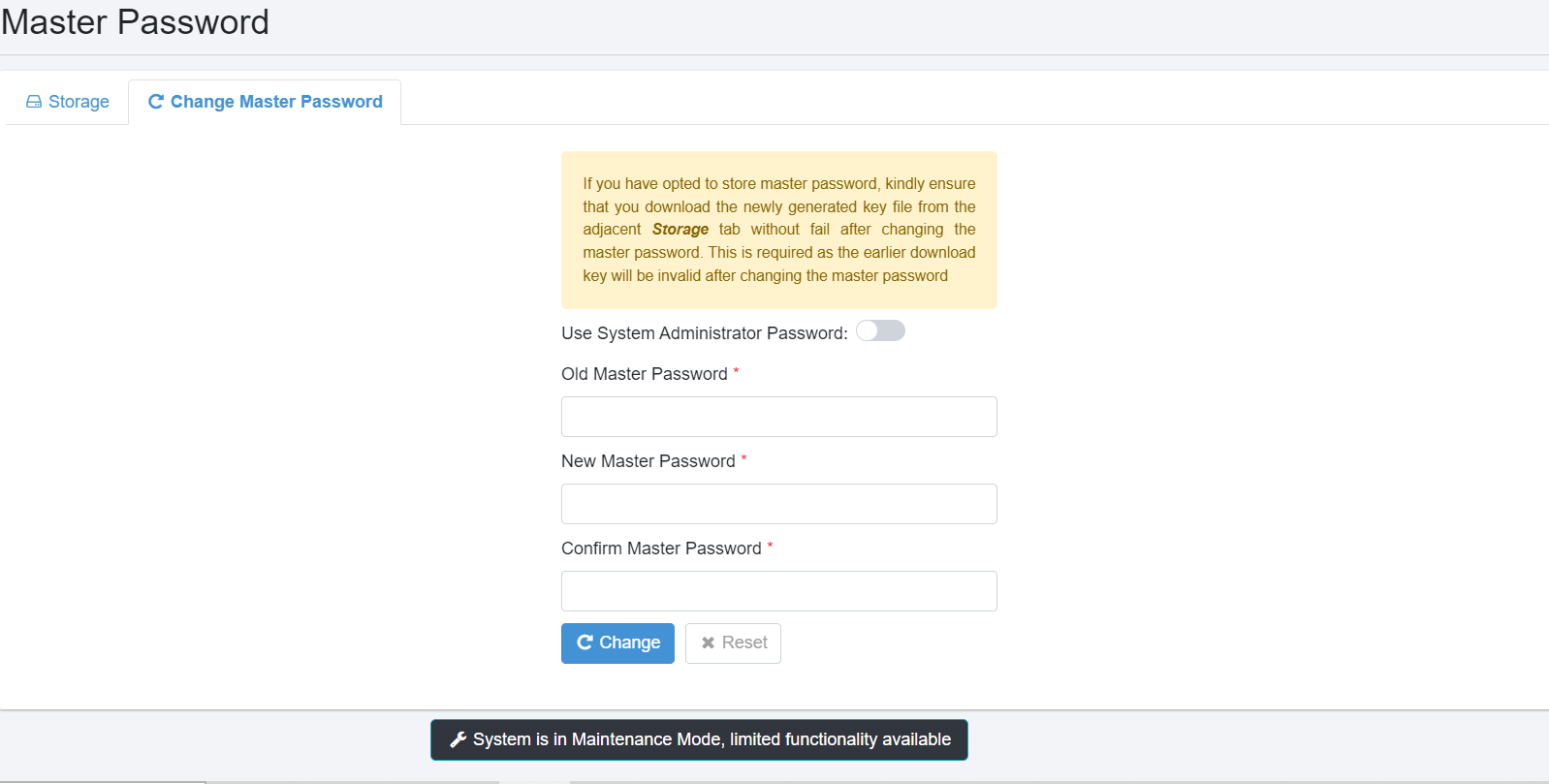
Figure 113: Change Master Password
-
After entering the new password details, click Change. The new master password is saved.
Click Reset to reenter the details.
Turn off the Maintenance Mode after completing working with the Key Management feature.