Work with Artifacts
In the chapter, you will learn how to upload artifacts, such as Process Studio and other files. However, currently, you can upload Process Studio only.
The chapter consists of the following topic, Upload the Process Studio.
Upload the Process Studio
System Administrator must upload the Process Studio to AE server, so that it is available to download for users, as required.
Prerequisite:
Get the Process Studio zip in one of the following ways:
-
Download from AutomationEdge EPD (Electronic Product Distribution).
OR
-
AE Installation directory if installed using AutomationEdge installer.
To upload the Process Studio:
-
In the menu, click Artifacts.The Artifacts page appears.

Figure 68: Artifacts page -
Click Upload. The New File dialog appears.
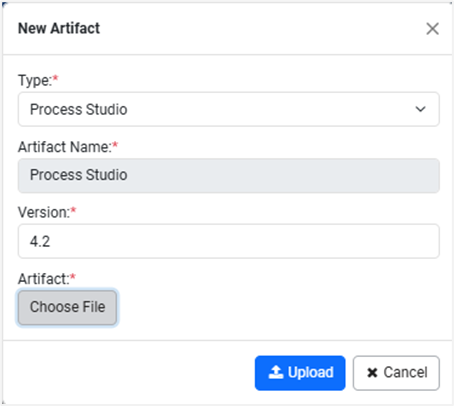
Figure 69: New Artifact dialog -
Enter the following field details:
Field name Description Type* Select the artifact type you want to upload. Available artifact types are:
• Process Studio
• Files
Note: If you select None, a message informing you to select another artifact type appears.Artifact Name* Displays the name as Process Studio, if the selected Type is Process Studio.
OR
Enter the name of the artifact, if the selected Type is Files.
Note: The option to upload various artifacts for Type Files will be available in upcoming releases.
Currently, you can upload Process Studio only.Version* Enter the version of the artifact you want to upload. Artifact* Click to select the artifact, that is, Process Studio. * Indicates mandatory field.
-
Click Upload. The artifact is uploaded to AE server.
In the Actions column:
- Click
 to modify the artifact details.
 - Click
 to delete the artifact.