Work with Logs
In the chapter, you’ll learn about how to generate the server and audit logs. The chapter consists of the following topics:
- Generate Server logs
- View Audit logs
Generate Server logs
You can download server logs from the UI. The log files can be helpful when troubleshooting to resolve an error. You can download logs daily or for a specific duration, as required.
Download the log files only in case of troubleshooting as it may contain confidential information.
To generate server logs:
-
In the menu, click Logs -> Server Logs. The Server Logs page appears.
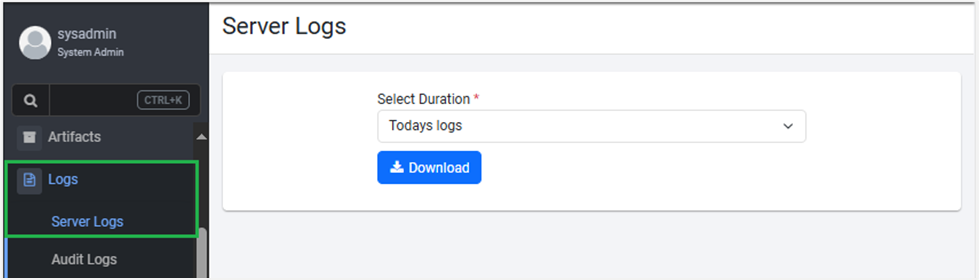
Figure 70: Server Logs page
-
In the Select Duration* list, select the duration for which you want to download the log. You can select, Todays logs or Custom.
If you select:
Todays logs, then you can download and view daily logs.tipThe downloaded zip folder contains the following logs:
-
automationedge.log
-
health.log
-
hibernate.log
-
stuck-thread.log The folder structure appears as follows:
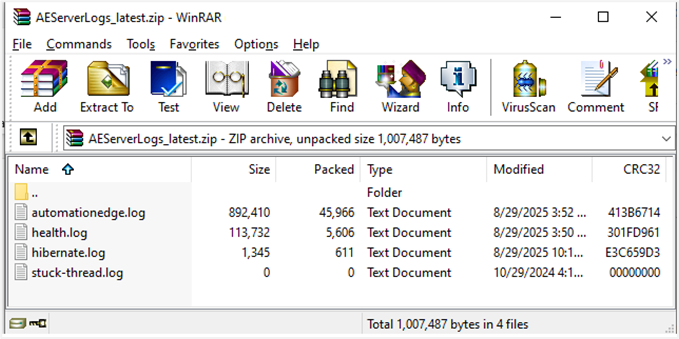
Figure 71: Zipped folder view containing the server logs for Today (current date) -
OR
Custom, choose the specific Start Date and End Date for which you want to download the logs.
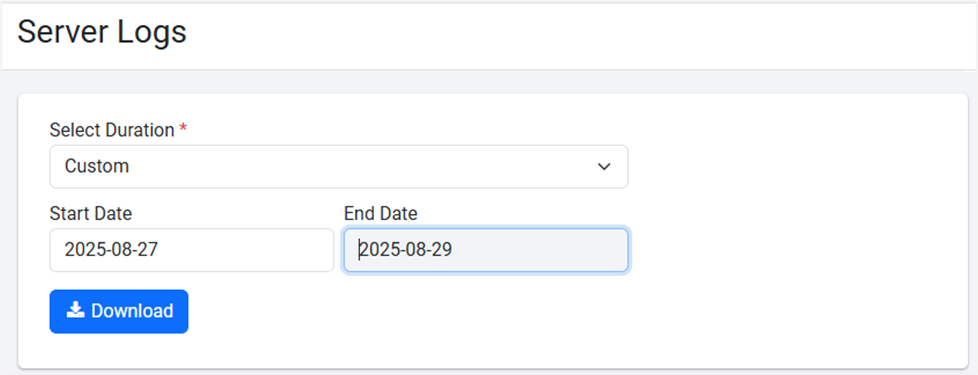
Figure 72: Server Logs page: Custom option
If you select Custom, you can download logs of the last 15 days only.
- Click Download. The server logs are downloaded.
The downloaded zip folder view appears as follows:
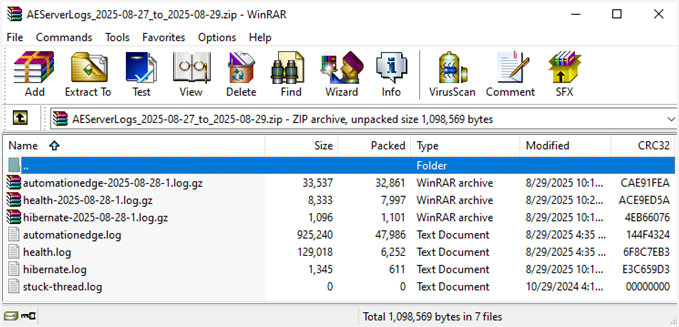
Figure 73: Zipped folder view containing the server logs for Custom option (selected date duration 27-Aug-2025 to 29-Aug-2025)
View Audit logs
Audit logs are maintained for operations on entities and the source can be Server, Agent, or Process.
In Process Studio, there is an Audit Log plugin step through which users can send Process Audit Logs, if any. The Audit logs are marked with the source as PROCESS.
Agent logs generated by Server or Agent are marked with source Server and Agent respectively.
To view Audit logs:
-
In the menu, click Logs -> Audit Logs. The Audit Logs page appears.
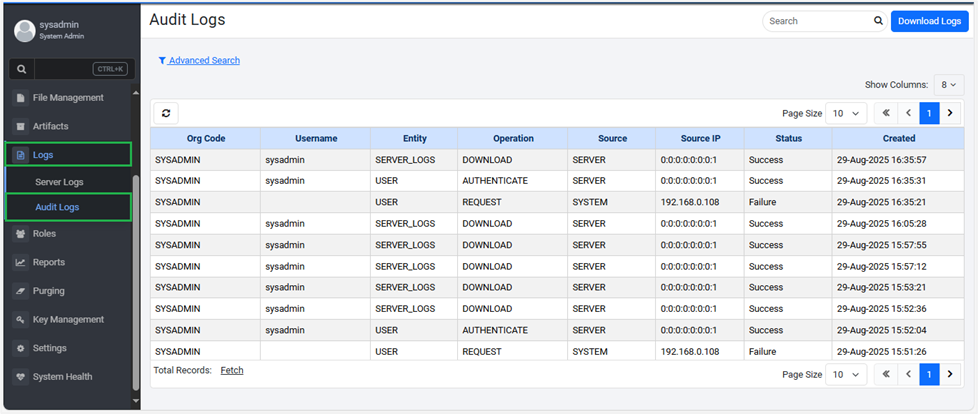
Figure 74: Audit Logs page -
You can view the following audit details:
| Field Name | Description |
|---|---|
| Org Code | Displays the tenant organization code. |
| Username | Displays the login username. Note: If source is SERVER, the logged in username is populated. |
| Entity | Displays the name of the entity on which the operation is performed. Following is the list of entities accessed by users: - ADAPTER, - AGENT - AGENT_CONSUMPTION - APPLICATION - ARTIFACT - ASSISTED_AGENT_LICENSE - CATEGORY - CONTAINER_WORKFLOW - CREDENTIAL - CREDENTIAL_POOL - DEBUG_LOG_REQUEST - FILE - LDAP_CONFIGURATION - LICENSE - NOTIFICATION_CONFIGURATION - PS_PLUGIN - PS_PLUGIN_PROPERTY - REMEDY_FORCE_CONFIGURATION - REPORT_DASHBOARD - REPORT_DATASOURCE - REPORT_INSTANCE - REPORT_TEMPLATE - ROLE - SCHEDULE - SERVER_URL - SMTP_CONFIGURATION - SYSTEM_SETTING - TENANT - USER - USER_GROUP - USER_GROUP_MAPPING - WORKFLOW - WORKFLOW_INSTANCE - WORKFLOW_PARAMETER |
| Operation | Displays the operation performed. The following is the list of operations: - ASSIGN - ASSIGN_PERMISSIONS - AUTHENTICATE - CHANGE_PASSWORD - CREATE - DELETE - DOWNGRADE - DOWNLOAD - EXECUTE - EXPORT - IMPORT - LOGOUT - OWNERSHIP_TRANSFER - REGISTER - REQUEST - RESPONSE - RESTART - START - STOP - SYNC - UNASSIGN - UPDATE - UPGRADE - UPLOAD |
| Object Id | Displays the ID of the entity object on which operation was performed. |
| Object Name | Displays the name of the entity object. |
| Description | Displays the description of the entity object. |
| Source | Displays the source for Audit Log, which can be SERVER, AGENT, WORKFLOW. Notes: • If the Audit logs source is the SERVER, then the Username field is populated. • If the logs source is AGENT or WORKFLOW, then the Agent Name field is populated. |
| Source IP | Displays the IP address from which the log was generated. |
| Agent Name | Displays the name of the agent from which the log was generated. |
| Status | Displays the status of the operation. The status can be Success or Failure. |
| Log Level | Displays the categorization of the log entries depending on the severity. • If the log source is WORKFLOW, you can set log level as INFO or TRACE in the Process Studio Audit Log step. • The log levels are not specified if the log source is AGENT or SERVER, as the Audit logs are system generated. |
| Created | Displays the date and time when the log was created. |
• Click Show Columns list to select the columns you want to display on the Audit Logs page.
• Click Fetch to get the total records.
-
Click Download Logs. The Download Logs dialog appears.
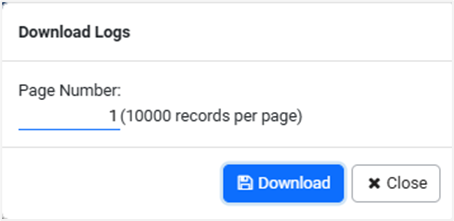
Figure 75: Download Logs dialog
-
Enter the page number and then click Download. The Audit log file is downloaded as a .csv file.
A single sheet in the .csv file will contain a maximum of 10,000 records.
