Work with Task History
After reviewing the task, the approver can take an action, such as approving or rejecting, based on their customized options. Once an action is taken, the task moves from Pending Tasks to the History tab for tracking and reference. If the approver doesn't take any action, the task remains in the Pending Tasks list. In such cases, the admin can cancel the task using the option available in the Admin view. The option is only available in the Admin view as mentioned in the Admin View section.
Export Task History
Export Pending task feature is available from Release 8.2.4 onwards.
To export task history in CSV format, click  . A CSV file containing the details of all tasks is downloaded to your device. Exporting task history data lets you analyze it offline, share it with stakeholders who do not have platform access, and retain it for audit and compliance purposes.
If advanced search filters are applied at the time of export, only the filtered results are included in the CSV file.
Search Template
Search Template task feature is available from Release 8.2.4 onwards.
In a fully developed system, there can be hundreds of templates from different teams—like onboarding, purchasing, claims, and approvals. The Search Template option helps you quickly find what you need and ignore the rest, so you can focus only on the tasks that matter to you right now.
To search for specific template details, click the  , the list of templates available in the task history is displayed. Select the required template to filter tasks belonging to that specific template.
You can also pin a template by clicking  . The pinned template appears at the top of the search list for quicker access on future visits.

When a template is selected, the Advanced Search panel automatically displays additional search fields for the template's custom columns, using the same labels.
To view Task History:
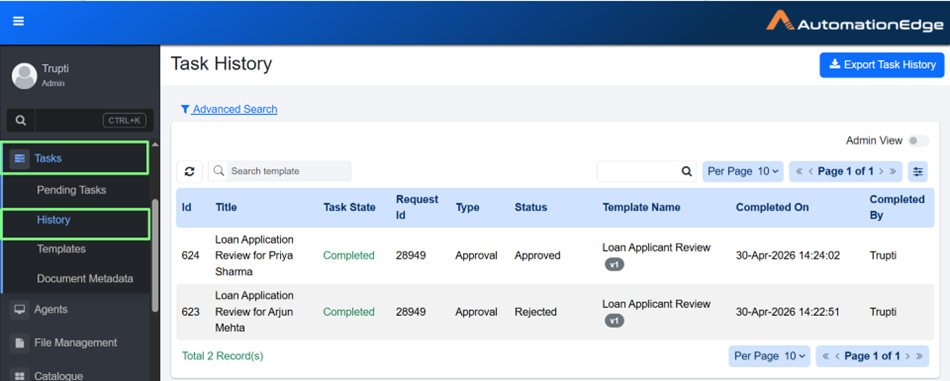
- In the menu, click Tasks → History. The Task History page appears.
-
View the following column details:
Column Name Description Id Displays unique Id of the task. Title Displays title of the task, which was specified in Process Studio or default one if none was mentioned in Process Studio step. Task State It can be Cancelled, Completed, or Submitted.
Note: If there is an error while triggering target workflow request when the task is completed, you'll see an exclamation mark next to Completed. Click the exclamation mark to view the error details.Request Id Displays the request ID from the Request tab that generated this task. Type Displays the task type. This shows as Approval when the Approval template is selected or Reject/Repair when the Document Review template is selected. Status Displays the status of the task which is defined in the Template. For more details of status, see Templates.
Note: From release 8.2.4 onwards, hover over the Status field to view the ID and name of the target workflow that was triggered during execution.
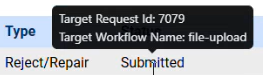
Template Name Displays the unique task template name. Note: Template name is visible from release 8.2.4 onwards Completed On Displays date and time when the user has acted on the request. Completed By Displays username of the user who has acted on the request.
- If a task is assigned to multiple users or user groups, the task is marked as completed as soon as the first user acts.