Work with Task Group
The Task Group tab shows all task groups created by the HITL Task Group Starter step. Each group holds the related tasks that need a person to review, approve, or fix. Use this tab to track groups, check their progress, and open individual tasks.
To open the tab, go to Tasks > Task Group in the AutomationEdge UI.
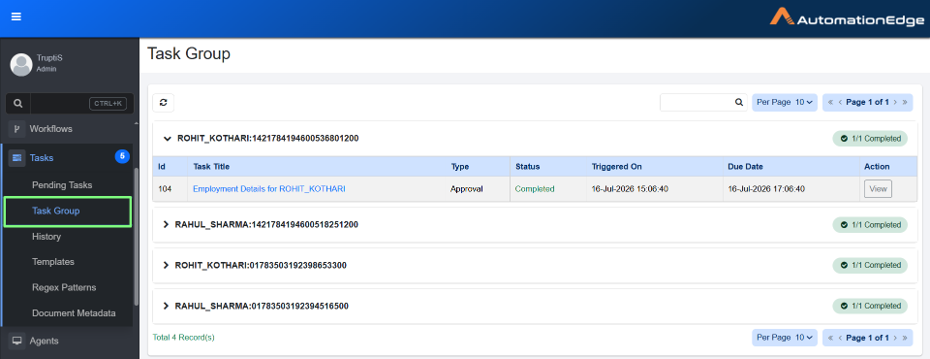
task group
Group header
Each task group appears as a collapsible row. Select the arrow to expand or collapse it.
The header shows:
- Group name and ID – The prefix and generated ID.
- Completion status – The number of completed tasks out of the total, for example, 0/2 Completed or 2/2 Completed. This helps you see briefly how much review work is still pending.
Task table
Expand a group to see its tasks in a table with the following columns:
| Column | Description |
|---|---|
| Id | The unique ID of the task. |
| Task Title | The name of the task. Select the title to open the task details. |
| Type | The task type, such as Approval. |
| Status | The current status of the task, such as Cancelled or Completed. |
| Triggered On | The date and time the task started. |
| Due Date | The date and time the task must be completed by. |
| Action | Select View to open and work on the task. |