Work with Task History
Task History gives you a complete record of all tasks that have been acted on — whether completed, cancelled, or submitted. After an approver takes an action on a pending task, the task moves from Pending Tasks to History for tracking and reference. This provides an audit trail of who acted, when they acted, and what status was assigned to each task. If an approver doesn't take action, the task stays in Pending Tasks until an Admin cancels it through the Admin View. Task History helps your organization maintain accountability, troubleshoot workflow issues, and meet compliance requirements by keeping a clear log of every human decision point in your automated processes.
After reviewing the task, the approver can take an action, such as approving or rejecting, based on their customized options. Once an action is taken, the task moves from Pending Tasks to the History tab for tracking and reference.
If the approver doesn't take any action, the task remains in the Pending Tasks list. In such cases, the admin can cancel the task using the option available in the Admin view. The option is only available in the Admin view as mentioned in the Admin section.
To view Task History:
-
In the menu, click Tasks → History. The Task History page appears.
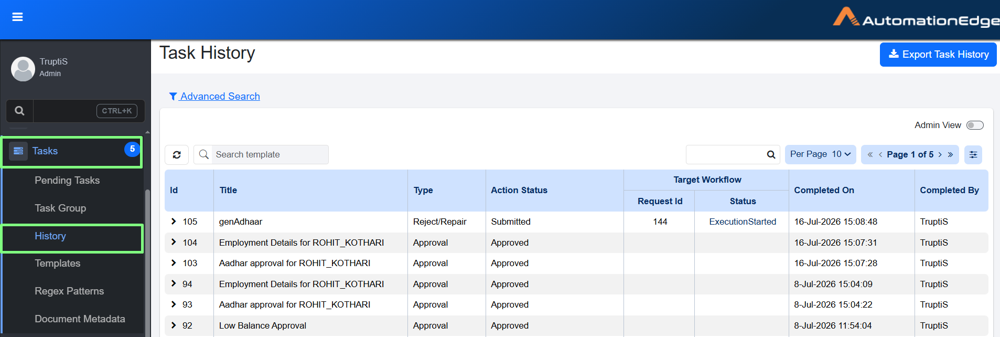
Task History page view
NoteWhen you create a task through Process Studio, the Request Id on the Task History page is displayed as 0.

Click the Id to check whether a target workflow started. If a workflow started, the details show the Target Workflow Name, Target Request ID, and Message.

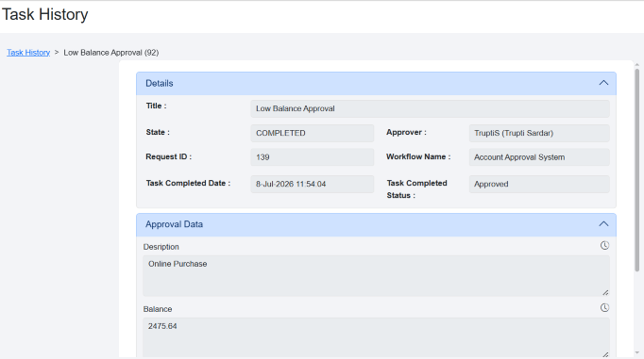
Click the Title to view the details of task.
Click
 to download the task history as a CSV file.
 -
View the following field details:
Column Name Description Id Displays unique Id of the task. Title Displays title of the task, which was specified in Process Studio or default one if none was mentioned in Process Studio step. Action Status Displays the status of task which is defined in the Template. For more details of status, see Templates. Request Id Displays the request ID from the Request tab that generated this task. Target Workflow Type Displays the task type. This shows as Approval when the Approval template is selected or Reject/Repair when the Document Review template is selected. Status Displays the current status of the target workflow, such as Completed or Failed. Completed On Displays date and time when the user has acted on the request. Completed By Displays username of the user who has acted on the request.
Note: If a task is assigned to multiple users or user groups, the task is marked as completed as soon as the first user acts.