Work with Home page
The Home page is your starting point in AutomationEdge — it gives you an at-a-glance view of your platform's operational health, license status, and resource consumption. You can see key metrics like agent threads in use, assisted agents, step units consumed, Process Studio licenses, and DocEdge page counts for classification, extraction, and advanced processing. Charts and graphs display the current AE engine status, refreshing every five minutes so you're always working with recent data. The Home page is also where you upload or update your AE license — a required step before you can use any platform features. AutomationEdge supports Trial, Production (Enterprise and Subscription), UAT, and Development license types, each with specific validity periods and feature access. Understanding your license details helps you plan capacity, manage renewals, and avoid workflow execution interruptions when licenses expire.
The chapter includes the following topics:
View the Home Page
In the topic, you will learn about the details that the Home page displays.
The dashboard data refreshes every five minutes.
To view the Home page:
-
In the menu, click Home. The Home page appears.
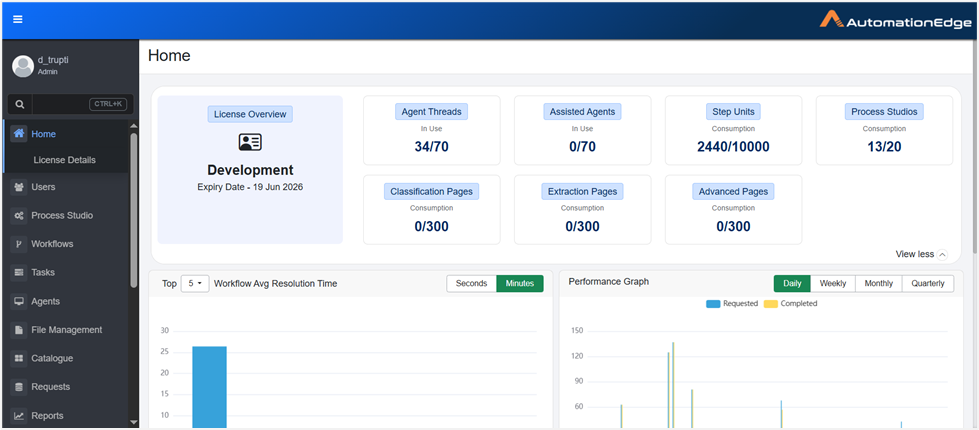
The Home page view -
On the page, you can see the following:
-
License Overview: Displays the type of license and expiry date of the license. Click in the License Overview tab and you are taken to the License Details page. For details about updating license, see Upload or update the license section.
-
Agent Threads: Displays the number of agent threads in use.
-
Assisted Agents: Displays the number of assisted agents in use.
-
Step Units: Displays the step units consumed.
-
Process Studio: Displays the number of Process Studio licenses used.
-
Classification Page: Displays the number of pages classified. When a document is classified with DocEdge, the Classification Page Count balance decreases by the number of pages classified.
-
Extraction Page: Displays the number of extracted pages. When data is extracted from a document with DocEdge, the Extraction Page Count balance decreases by the number of pages extracted.
-
Advanced Page: Displays classification and extraction of documents using generative AI.
-
The Classification Page Count represents the number of pages traversed to classify a document. Traversal for classification is considered page consumption. For example, to classify a document as an Aadhaar card, the system must read or traverse the document. The number of pages traversed during classification is deducted from the Classification Page Count balance. In the AE UI, you can view the balances for all three page counts. The number of pages consumed or deducted from the license balance is determined by the DocEdge plugin step. For more information, see the DocEdge Plugin Guide.
In the following section, you can view various charts and graphs that display the current AE engine status.
Workflow Avg Resolution Time
The Workflow Avg Resolution Time section displays the average duration taken to complete a workflow execution. The workflows are displayed from left to right, descending order, that is, workflows with the longest resolution time is displayed first and so on.

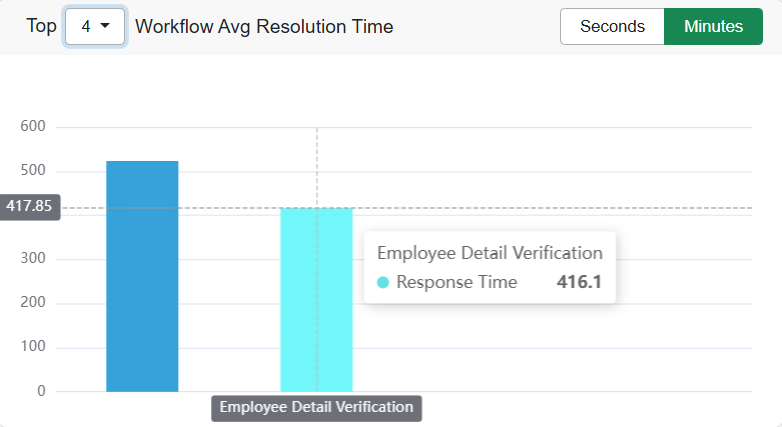
Top list and Graph view
Performance Graph
The Performance Graph is a bar chart that shows the comparison between the number of workflow requests submitted and the number of requests completed. You can view the data across various timeframes—daily, weekly, monthly, or quarterly. This visualization helps track workflow completion patterns and assess overall performance efficiency over time.
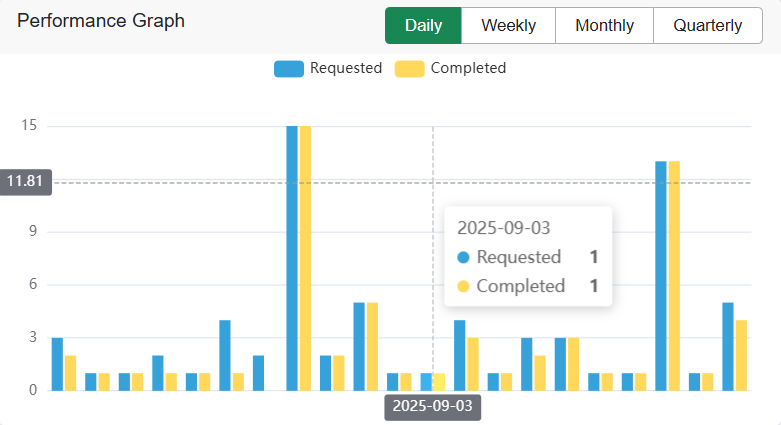
Performance Graph
Automation Requests
The Automation Requests section displays a pie chart representing the most frequently executed workflows. By default, the top five workflows based on the number of requests are displayed. However, click Top and select the maximum number of active workflows that you want to display. The chart provides a quick visual summary of which workflows are most in demand, helping you identify usage patterns and prioritize automation efforts effectively.
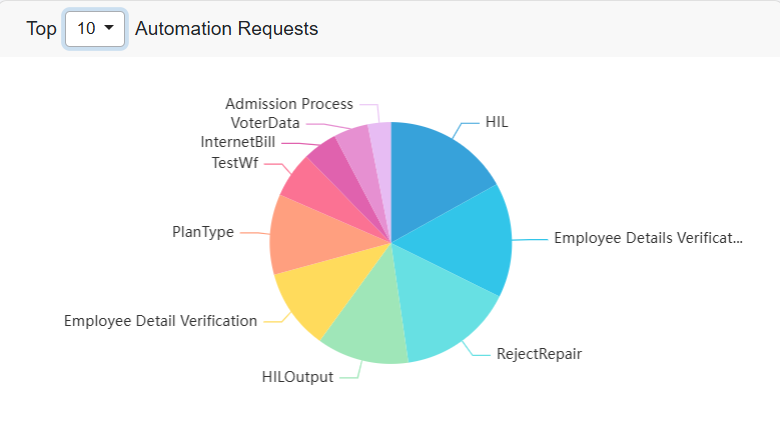
Automation Requests
Current Request Statistics
You can view the total number of requests along with their respective statuses across the entire instance. Additionally, you can switch to a workflow-wise view, where workflows are categorized based on their current status- such as Complete, Expired, Cancelled, Resubmitted, and others. The view provides better visibility into workflow progress and execution outcomes.
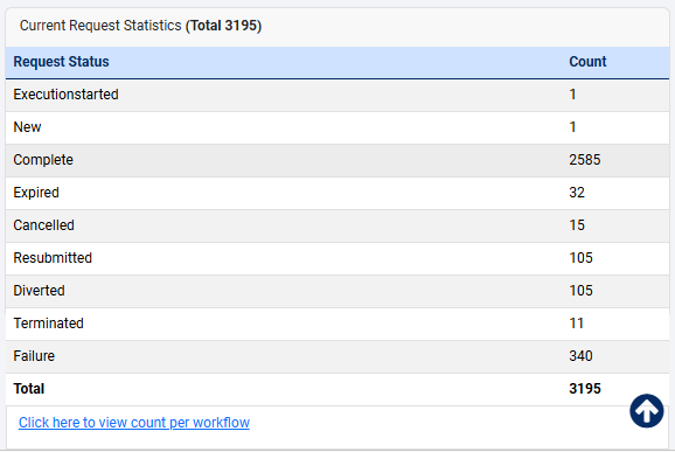
Current Request Statistics: All request status (default view)
The Current Request Statistics section displays all request status, by default. You can also view request status of requests triggered in the last 24 hours or 7 or 30 days or all requests triggered till date in the 24 Hours or 7 Days or 30 Days or All tabs, respectively.
However, to view the tabs, you must set the following property in the ae.properties file and restart:
ae.feature.home.request-stats.time-filter.enabled=true
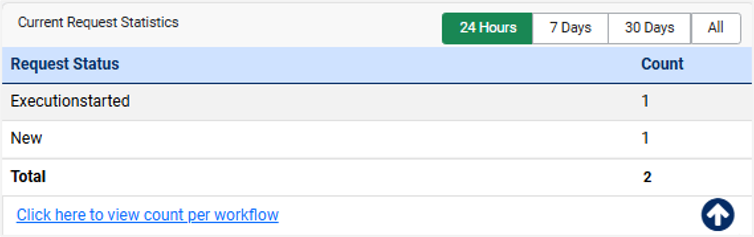
Current Request Statistics: Tab view
To view count per workflow, click  :
:
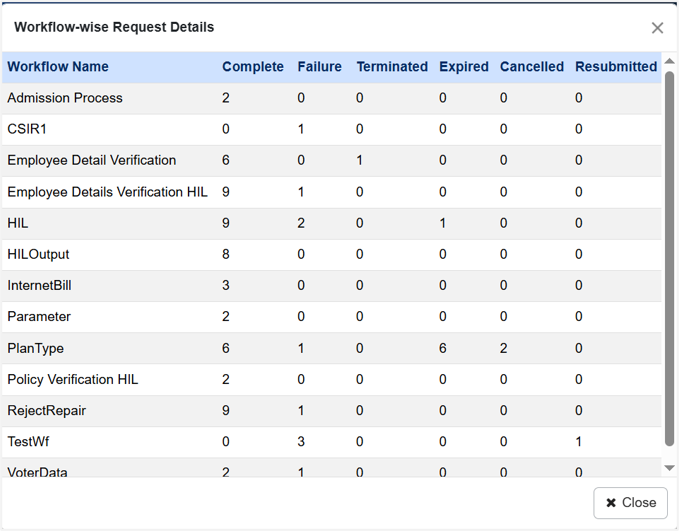
Workflow-wise Request Details
Understand types of AE license
The following table lists the types of AE license:
| License type | Description |
|---|---|
| Trial | This license type is for trial instances. This license has a validity of X (say 60) days from the day it’s generated. The Trial license does not have any limitation concerning features provided, just that, after X days, workflow execution will cease to function. Request a new trial license to renew and extend the trial period. |
| Production | Enterprise: This license type allows a customer to use Agents and Step Units. The license has an expiry date after which (and the grace period) workflows execution will stop. Subscription: A Subscription license allows a customer to use Agents and Step Units. Customers should renew their license before the expiration date. Customers will not be able to add new workflows/enable workflows or add new agents beyond the license limit. After the expiry of the license and grace period, the workflow execution will stop. |
| UAT | Customers get a UAT license if they have purchased either an Enterprise or a Subscription license. If a customer wants more agents in UAT, they can request additional agents. The license has an expiry date the same as the parent Enterprise license, after which (and the grace period) the workflow execution stops. |
| Development | Use the Development license for development purposes. Process Studio can connect to an AutomationEdge server with a development license. Use the license for developing workflows at customer sites. The license has an expiry date which is the same as the parent Production license, after which (and the grace period) workflow execution stops. |
Upload or update the license
If you logged on to AE for the first time after installation, then you will need to upload an AE license to start using the application features. And, if your existing license has expired, then you need to update the license.
In the topic, you will learn how to upload and update the AE license. The topic contains the following sections:
Upload the license
In the section, you’ll learn how to upload the license.
-
Ensure that you upload the license within five days of issue.
-
The License Administrator can also upload the license for the user. For details, see Upload license in the System Administrator’s User Guide.
To upload the license:
-
On the Home page, click Activate - Upload Your License tab. The Upload License dialog appears.
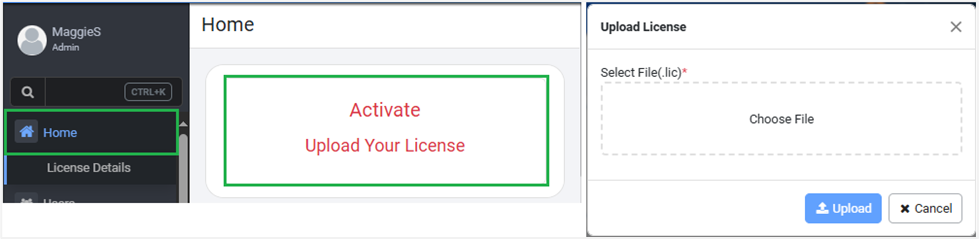
Upload Your License dialog -
In the Select File(.lic)/*, click Choose File. The File Explorer opens.
-
In the File Explorer, select the license, and then click Open. The file appears in the field.
-
Click Upload. The license is uploaded and activated.

License uploaded and activated
You can also upload the license through Home → License Details page → Activate.

License Details page - Activate
Update the license
In the section, you’ll learn how to update the license.
Ensure that you upload the license within five days of issue.
To update the license:
-
On the Home page, click License Overview tab. The License Details page appears.

License Details page -
Click Update. The Upload License dialog appears.
-
In the Select File(.lic)/*, click Choose File, and select the license from the File Explorer. The file appears in the field.
-
Click Update. The license is updated and activated.
View the license details
You can view the license details on the License Details page.
To view the license details:
-
In the menu, click Home → License Details. The License Details page appears.
-
The following field details appear:
| Field name | Description |
|---|---|
| Customer ID | Displays the unique customer ID. |
| License Type | Displays the type of license you are using: - Trial - Production - UAT - Development |
| Start Date | Displays the license start date. |
| Expiry Date | Displays the date when the license will expire. |
| Grace Period (In Days) | Displays the grace period of the license over the expiry date. |
| Process Studios | Displays the maximum number of Process Studios that can be assigned to users and registered. |
| Agent Worker Threads | Displays the maximum number of agent threads available in the license. |
| Assisted Agents | Displays the number of subscribed Assisted Agents. Assisted Agents are personal Agents or Attended Bots and run on the users’ machine. Assisted Agents can execute one workflow at a time. For more details, see Assisted Agents. |
| Step Units | Displays the associated step units consumed for each step instance. Steps in a plugin have associated step units. Each step instance consumes associated step units when these steps are used in an active workflow in AutomationEdge. The total number of Consumed Step Units of all the active workflows deployed on AutomationEdge at any time should not exceed the number of overall Step Units specified in the license. |
| Classification Pages | Displays the number of pages classified. |
| Extraction Pages | Displays the number of pages extracted. |
| Advanced Pages | Displays the classification and extraction of documents using generative AI. |