Work with Regex Patterns
Form often need to validate values such as Employee IDs, invoice numbers, Aadhaar, or PAN. These validations use regular expressions (regex). If each template uses its own regex, errors and inconsistencies can occur.
The Regex Patterns solves the problem of validation by using regular expression. It is a tenant-wide library where an administrator creates a validation pattern once with a code, name, and tested regex. Template authors can then reuse the pattern by selecting Pick from instead of creating their own regex. This ensures consistent validation across all templates.
To create Regex Pattern:
-
In the menu, click Tasks → Regex Patterns. The Regex Patterns page appears.
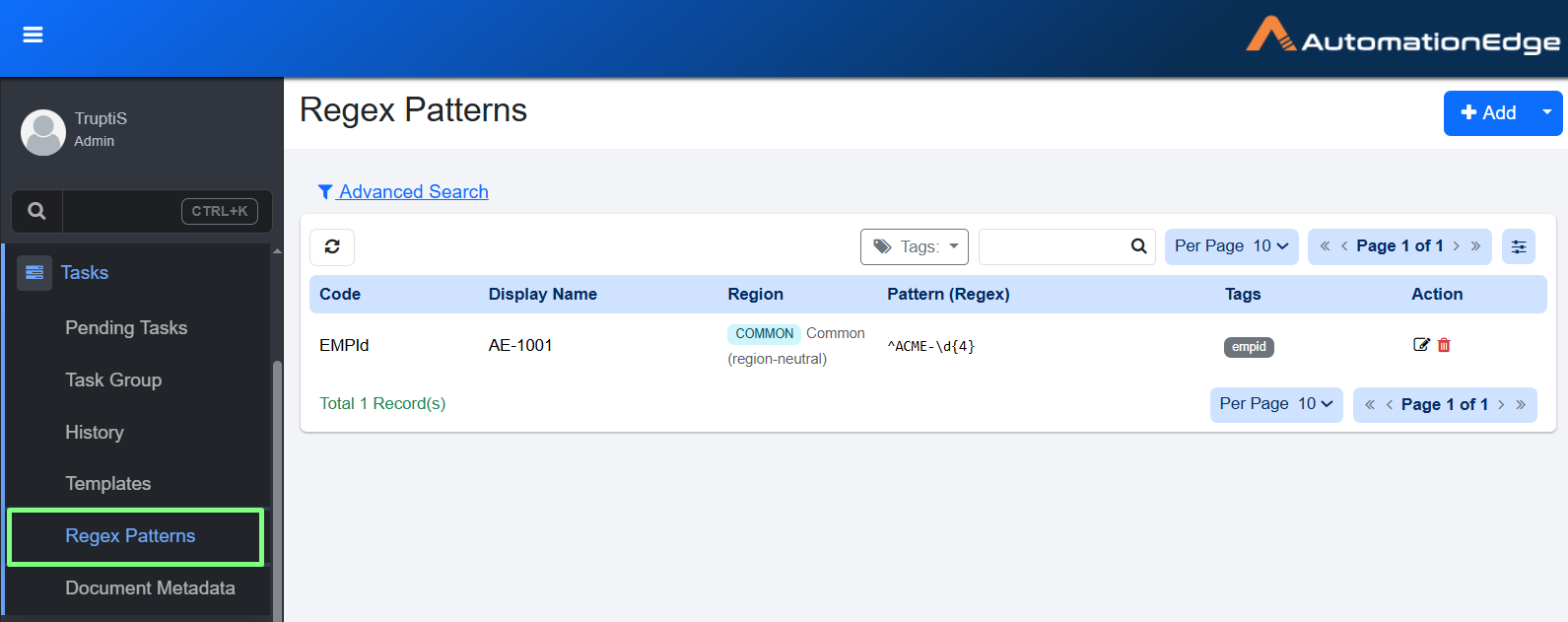
Regex Patterns page
-
Click Add. Add Regex Pattern page appears.
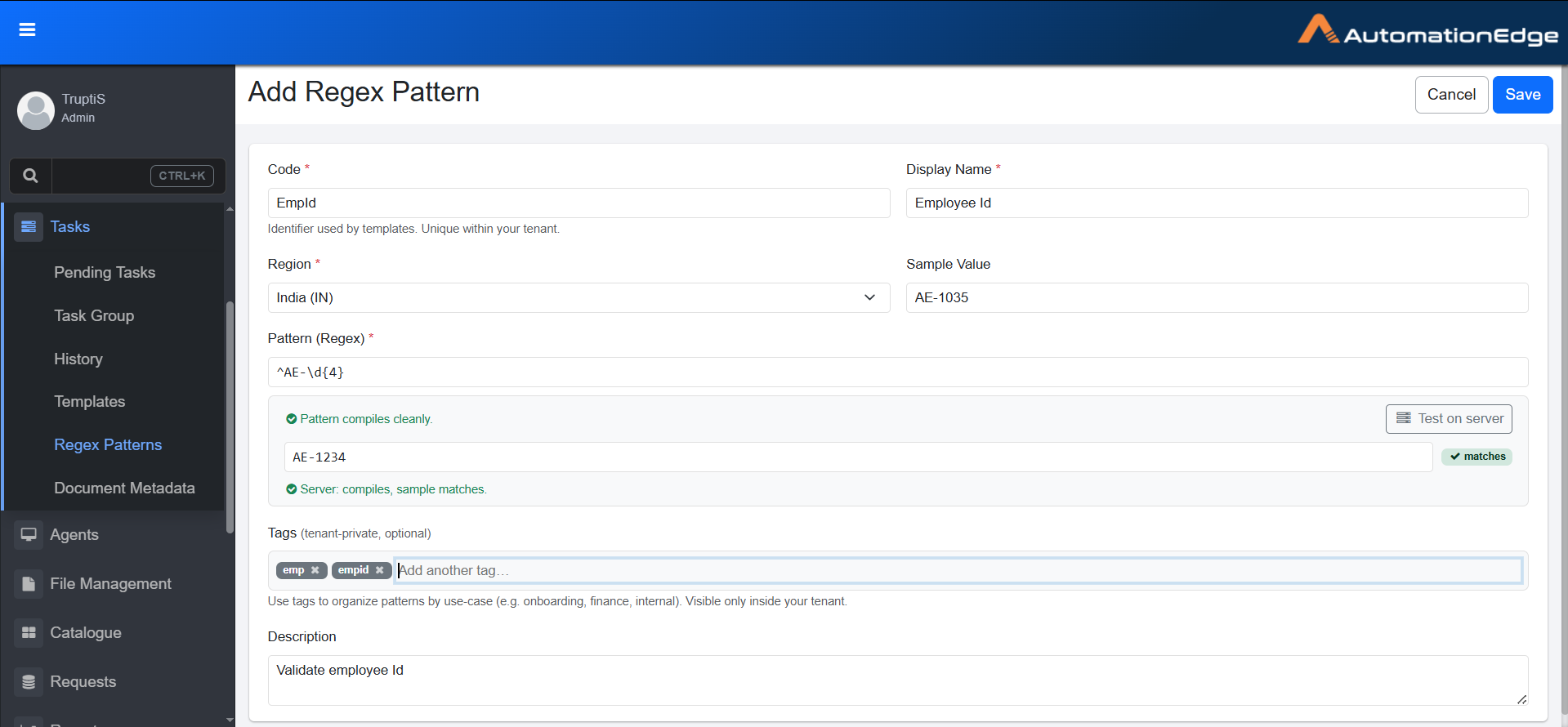
Add Regex Pattern page
-
Enter the following field details:
Field name Description Code * Enter the unique identifier for the pattern within your tenant. Display Name * Enter the name shown for the pattern in the catalog. Region * Select the region where the pattern applies. Example: India (IN) Sample Value An example value used to test the pattern. The server checks it against the expression to confirm the pattern matches real data. Example: AE-1035. Pattern (Regex) * Enter the regular expression used to validate input. For example: ^AE-\d{4}.Tags Enter labels that help you organize patterns by use case, such as onboarding, finance, or internal. Description A short note explaining what the pattern validates. Example: Validate employee ID.
Click  to show only the regex patterns that have a selected tag.