ROI Configuration
ROI Configuration lets you define the cost and time it would take to complete a task manually, so AutomationEdge can calculate the value your automation delivers. You can set measurement metrics at two levels — workflow level and transaction level — to match how your organization tracks automation value. The Platform tab lets you set monthly targets for your tenant to track achievement against your profitability goals. This gives Admins and business sponsors the data they need to justify automation investment and plan for scale.
You need to configure the ROI details to generate the following Dashboard reports:
- Workflow-wise Profitability
- Time Saved Per Workflow
- Time Saved – Consolidated
- Total Profitability
- Profitability Achievement Report
To configure the ROI- Workflows tab:
-
In the menu, click Workflows → ROI Configuration . The ROI Configuration page appears.
NoteThe Workflows is the default tab.
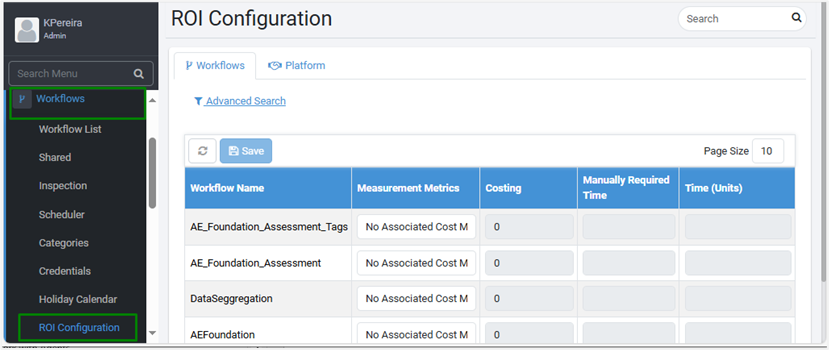
ROI Configuration - Workflow tab -
Enter the following field details:
| Field Name | Description |
|---|---|
| Workflow Name | Displays the name of the workflow. |
| Measurement Metrics | Select one of the following metrics of measurement that you can use to generate dashboard reports: - No Associated Cost Metrics: The default value. Workflow Level : Select to provide the cost and time taken to manually complete a task at the workflow level. Transaction Level: Select to provide the cost and time taken to manually complete at the transaction level. Note: If you select Transaction Level, then the costing is calculated as follows: Costing * maximum executions allowed * no. of actual requests executed. For example, Costing = 25; Max executions = 10; actual requests executed = 5 The actual costing = 25 * 10 * 5 = 1250 |
| Costing | Enter the cost to organization, if the task is completed manually. |
| Manually Required Time | Enter the time required to complete a task manually. |
| Time (Units) | Select the time unit in seconds, minutes, or hours. |
- Click Save. The details are saved.
- After saving the ROI configuration, assign the workflow and run on the Agent.
- Go to Dashboard to generate reports based on ROI configuration.
To configure the ROI- Platform tab:
- In the menu, click Workflows -> ROI Configuration. The ROI Configuration page appears.
- On the page, click the Platform tab. The details page appears.
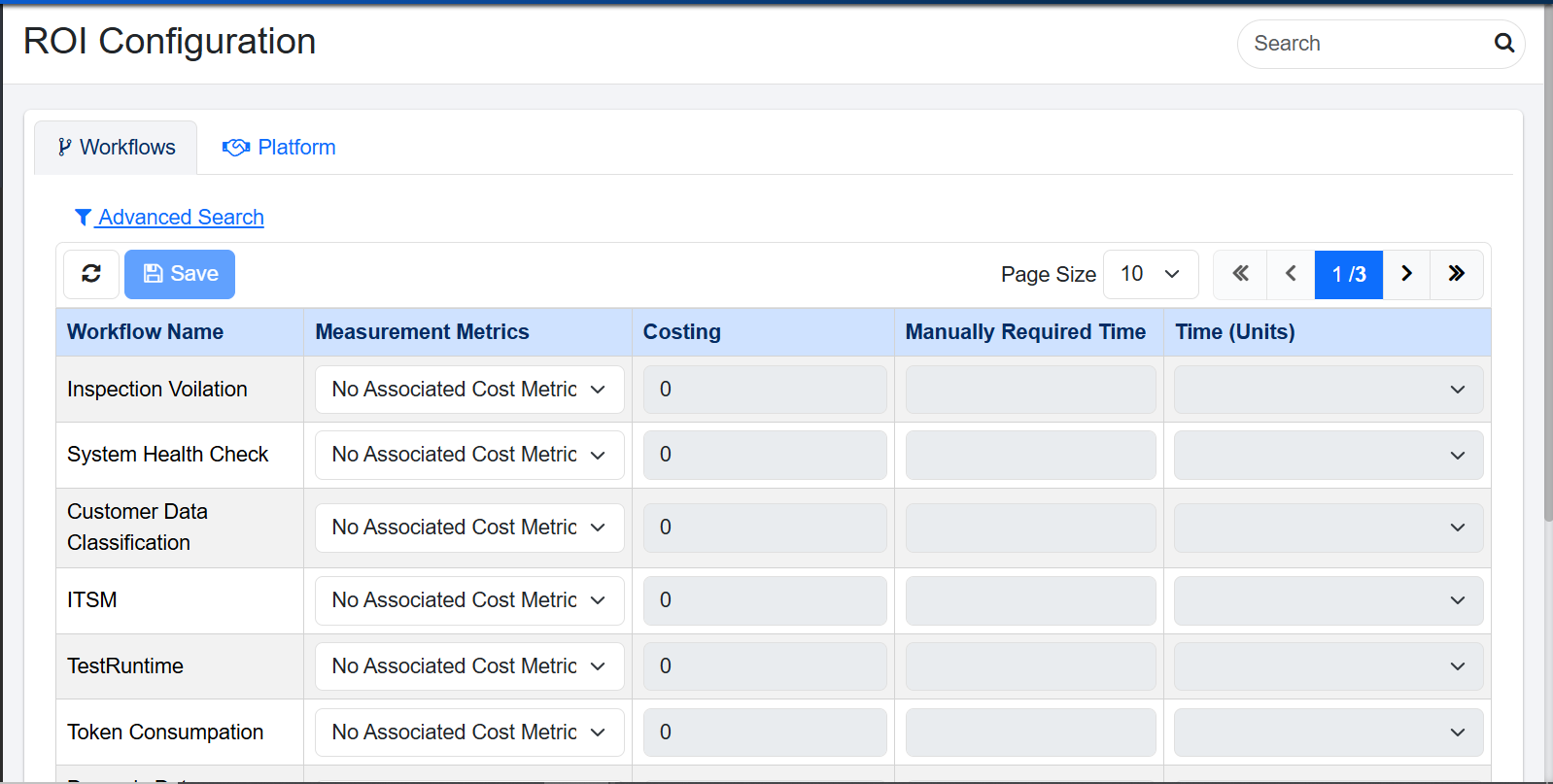
ROI Configuration - Platform tab
- After saving the ROI configuration, assign the workflow and run on the Agent.
- Go to Dashboard to generate reports based on ROI configuration.