Work with Process Studio
Process Studio is the design environment where you build, test, and publish automation workflows. Before you can start designing workflows, you need to download Process Studio, get a license assigned by your Admin, and register your instance with the AutomationEdge server. This feature in the AE UI lets Admins manage Process Studio licenses across users and track registered instances — ensuring that only authorized users consume available licenses. The number of users who can use Process Studio is governed by your license allocation, giving your organization control over design tool distribution and cost. You can register instances on both Windows and Linux, and the downloaded package includes bundled Java that stays current through automatic updates. If a Process Studio instance is no longer needed, you can deregister it to release the license for reassignment.
The chapter includes the following topics:
Download Process Studio
In the topic, you will learn to download the Process Studio for Windows and Linux.
Prerequisites:
-
Confirm that the System Administrator has uploaded the Process Studio zip to the AutomationEdge server. For details, see Artifacts in the System Administrator’s guide.
-
Process Studio license is assigned to the user.
To download the Process Studio
-
In the menu, click Process Studio. The Process Studio page appears.
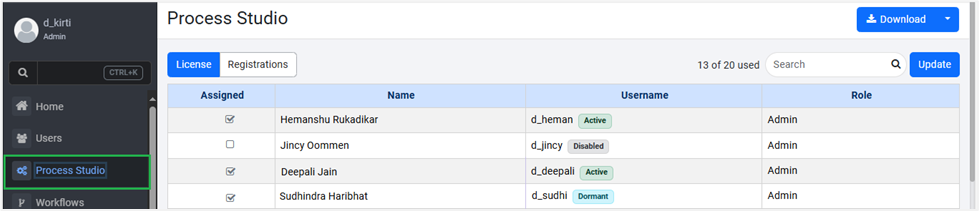
Process Studio page
-
On the page, click Download. The Process Studio for Windows is downloaded. For example, Process-Studio-AE_ORG.zip.
-
To download the Process Studio for Linux, click

-
The downloaded Process Studio is bundled with Java for the corresponding OS. We recommend using the bundled Java as it is automatically updated when Process Studio is auto-updated the next time.
Assign License
Before an AutomationEdge user can register a Process Studio instance, the Admin must assign a Process Studio license to the user. The number of AE users assigned a license is dependent on the number of Process Studios allowed in the license.
The number of Process Studios allowed in the license determines the number of AE users for assigning licenses.
To assign a Process Studio license:
-
In the menu, click Process Studio. The Process Studio page appears.
-
In the License tab, click Update. The checkbox in the Assigned column becomes available for selection.

Process Studio License tab
-
Click Save. The license is assigned to the selected users.
NoteYou can see the number of licenses assigned or consumed on the Home page.
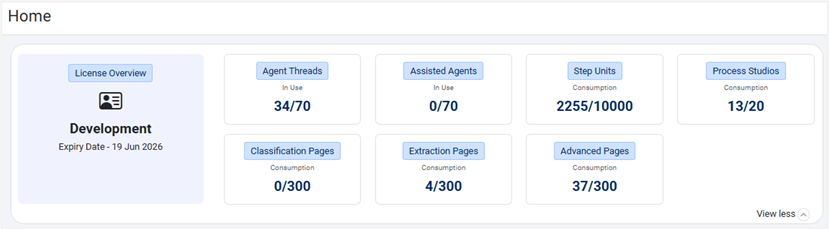
Process Studio licenses consumed view
Register Process Studio
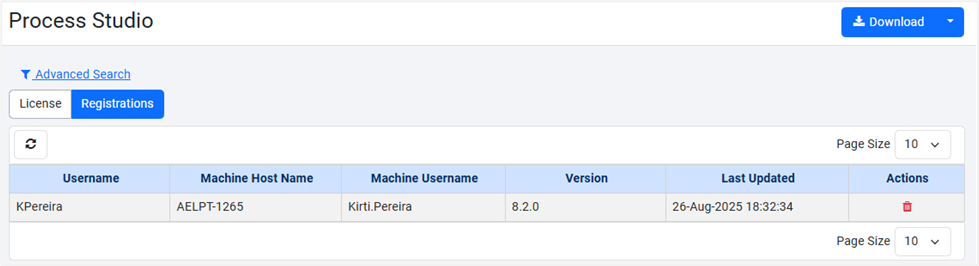
Users can register an instance of Process Studio by connecting to AutomationEdge; it is registered to AutomationEdge with AE username, Machine hostname and Machine username. The details of the registered instance are then visible in the list.
To register the Process Studio:
Open the Process Studio instance and provide the AutomationEdge Server URL, Username, and Password. See the following screenshot as an example:
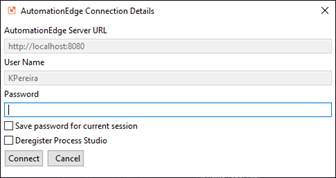
Process Studio registration screen
The newly registered Process Studio appears in the AE UI, Process Studio page.
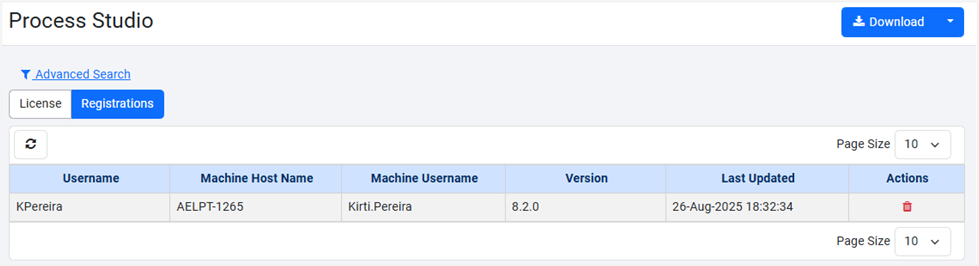
Registered Process Studio instances
Delete Process Studio registration
You can delete Process Studio registration in the following two ways:
-
Deregister from Process Studio:
i. Deregister during login
Or
ii. Deregister from Process Studio toolbar To deregister from Process Studio, see AutomationEdge Process Studio user’s guide.
-
Delete registration from AutomationEdge UI followed by:
i. Login from the Process Studio instance that was de-registered to release the license immediately.
ii. Else, all the licenses for PS registrations marked for deletion are automatically released the next day.
Delete registration from AutomationEdge UI
In the Actions column, click  to delete a Process Studio registration, and then click Ok in the Confirm delete dialog. The Process Studio registration is deleted and removed from the list.
After deleting a registration from AE UI, the user must log in with the deleted Process Studio to release the license. The deleted license appears disabled on the Process Studio page with Deleted marked next to it.
Process Studio - Registration Deletion
All the licenses for deleted PS registrations are released in the daily nightly job by the Server.