Workflow Inspection
Use the feature to configure rules for projects, workflows, processes, steps, and entries. The rules that you configure through AE UI are then synced in the Process Studio and applied to workflows and projects.
For more information about how inspection rules will be applied to workflows and processes in a project, see Process Studio User's Guide.
The topic contains the following sections:
- Configure inspection rules
- Export or import an inspection rule
- Configure property: Naming convention
Configure inspection rules
In the section, you will learn how to configure the inspection rules.
To configure inspection rules:
-
Click Workflows 🡪 Inspection. The Workflow Inspection page appears.
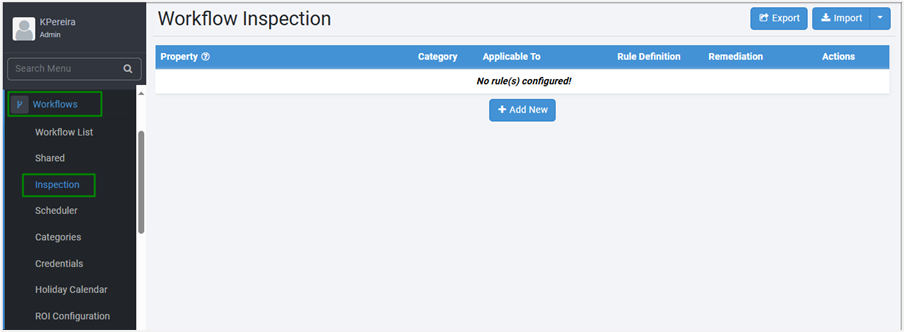
Workflow Inspection page
-
Click Add New. A workflow inspection rule row is added.
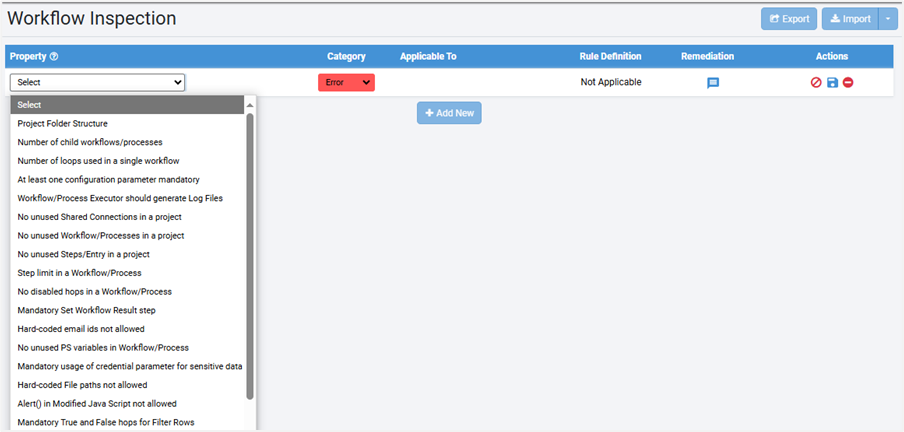
Workflow inspection rule row
-
Enter the following field details:
| Field Name | Description |
|---|---|
| Property | Select the rule that you want set for the workflow or process. Note: Click  to view the complete list of rules that you can select. to view the complete list of rules that you can select. |
| Category | Select if you want to configure the rule as an error or warning. Note: User will be unable to publish the workflows or processes through Process Studio, if the category is set to Error.User will be able to publish the workflows or processes with warnings through Process Studio, if the category is set to Warning. |
| Applicable To | Select if the rule will be applicable to project and / or workflow and / or process and / or step and /or entry. |
| Rule Definition | Enter the value for defining the rule. |
| Remediation | Click  and view the details of the rule. You can modify or reset the rule details, if required. and view the details of the rule. You can modify or reset the rule details, if required. 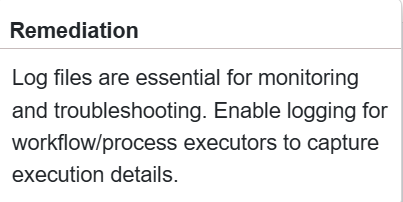 Note: - To change the remediation details, click Edit. Make the required changes and click Save. The updated details are saved. - To reset the changes, click Reset. The changes are removed, and the previous remediation appears. |
To add more rules, click Add New. A new row appears on the page. You can add multiple rules for a project or workflow or process or step or entry.
- In the Actions column, click
 . The rule details are saved.

Saved inspection rule
In the Actions column:
- After saving the rule the icon changes to
 (Edit). Click to modify the rule details.
 - To disable the rule, click
 to disable the rule. The disabled rule will be unavailable in the Process Studio.
 - To delete a rule, click
 . The rule is deleted.
If you comment the Alert method (//Alert () ) in the Modified JavaScript step, then the workflow will not validate the alerts even if Alert inspection rule is configured in the AEUI. For details about using the Inspection Rules in Process Studio, see Standard Plugin Guide.
Export or import an inspection rule
You can export or import an inspection rule, as required.
To export an inspection rule:
- If you want to use the rules again for other tenants, click Export. The Export dialog appears.
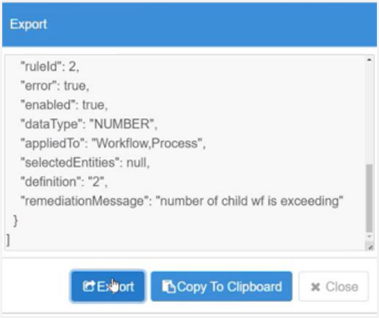
The Export dialog
- In the Export dialog, the details appear:
- Click Export. The rules are saved as JSON. OR
- Click Copy To Clipboard. Paste the rules in appropriate editor and save it as JSON or in the Import dialog.
-
Click Import. The Import dialog appears.
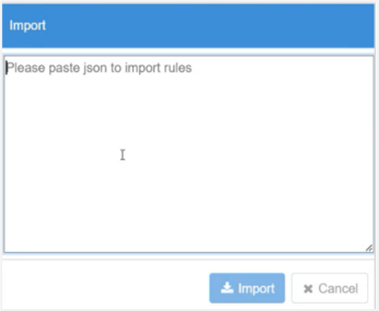
The Import dialog
-
Paste the rules in JSON format in the Import dialog, and then click Import. The rules appear in the Workflow Inspection page. OR Click the dropdown next to Import, and then click Import From File. The Import From File dialog appears.
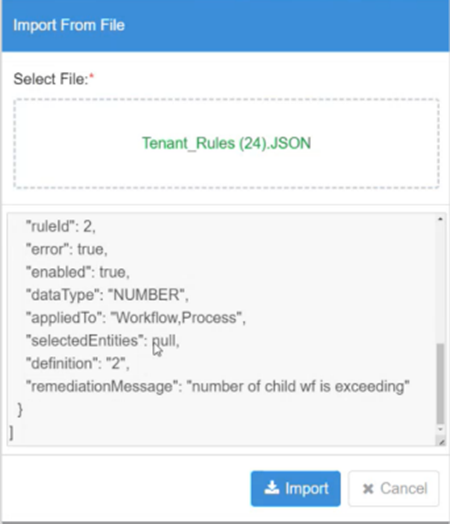
The Import From File dialog
- In Select File, upload the JSON, which contains the rules, and then click Import. The rules appear in the Workflow Inspection page.
Configure property: Naming Convention
Let's configure a rule for better understanding of the feature. Use the Naming Convention property to configure a rule on how to name an artifact or step or entry in the Process Studio.
- Property: select Naming Convention.
- Category: select Warning.
You can publish the workflow through Process Studio with warnings.
Applicable To: select Workflow. The rule will be applicable to all workflows of the tenant.
If you select: Artifact: The rule will be applicable to a Project and / or Process and / or Workflow. Step: The rule will be applicable to the selected steps. Entry: The rule will be applicable to the selected entries.
- Rule Definition: click Edit Rule. In the Rule Definition dialog, enter the following field details:
The fields in the dialog are dependent on the selection in the Applicable To field.
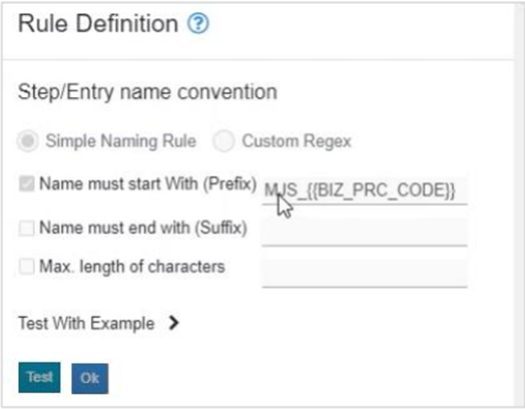
The Rule Definition dialog
• Step/Entry name convention: Select Simple Naming Rule.
If you select Custom Regex, then go to https://www.regexplanent.com/advanced/ java/index.html for guidance on naming convention in regex.
- Select the checkbox against respective fields:
Name must start With (Prefix): Enter the prefix you want. For example,
MJS_{{BIZ_PRC_CODE}}. Name must end with (Suffix): Enter the suffix you want. For example,{{BIZ_PRC_CODE}}_END. - Max. length of characters: Enter maximum length of the name. For example, 15 characters.
- Test With Example: Enter sample names to test the rule. Click Test. The sample name will be validated for the rule. OR
- Click Ok. The rule is saved.
- Next, work with the rules through Process Studio, that is, sync and inspect rules and publish the workflows with rules. For more information, see the Process Studio User's Guide.