Work with Catalogue
The Catalogue is where you go to trigger workflow execution — it lists all workflows that have been assigned to agents and for which you have Execute permissions. Instead of navigating through workflow configurations and agent assignments, the Catalogue gives you a simple tile-based interface to submit requests with a single click. If a workflow requires runtime parameters, you enter them in the Request Details dialog before submission. You can filter workflows by category or search by name to quickly find what you need. Admins, Workflow Admins, and Tenant Users can view and execute requests through the Catalogue, while email notifications and request cleanup settings help you manage execution efficiency at scale.
Users will see only those workflows or assisted workflows on which they have Execute permissions.
Submit workflow requests
After assigning the workflow to agents, the workflow is available on the Catalogue page. Through the page you can submit requests for execution.
To submit workflow request:
-
In the menu, click Catalogue. The Catalogue page appears.
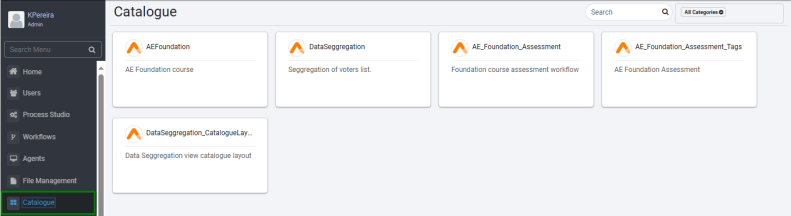
Catalogue page
Notes:-
By default, you’ll see the assigned workflows from all categories. To show the workflows from a specific category, click in the box and select the category you want from the list.
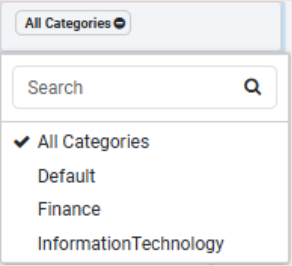
-
To search for a workflow directly, enter the workflow name in the search box and press enter. Only the selected workflow appears.
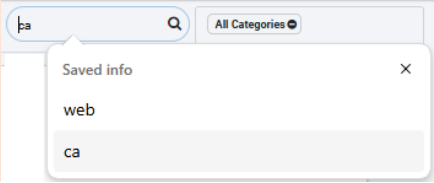
-
-
Click the workflow tile for which you want to submit the request. The Request Details dialog appears.

Request Details dialog
NoteIf runtime parameters are configured in the Process Studio, then you must mandatorily enter the runtime parameters in the Request Details dialog.
-
Click Submit Request. The request successfully submitted message appears.
You can improve the efficiency of the requests:
-
Notification options: Configure email notification options depending on the request status. For the configuration details, see Settings → Email Notifications.
-
Cleanup Old Request older than H number of hours: When scheduled requests miss one cycle, the following request takes care of the work/tasks that earlier requests can/would do. It can make sense to clean up the requests which are older than ‘H’ numbers of hours. The ‘H’ can be 24 hours, 120 hours or anything based on the use case that the workflow is handling. Requests remaining in New state older than 'H' number of hours will be cleaned up and marked as Expired. AE adds Expired Requests to Audit logs.
There is a workflow specific setting for this, which can regulate when the workflow request cleans, shown in the section Add/Update Workflow → Enter Basic Details page.
A System-level setting for clean-up hours is also available. The Sysadmin can set this applicable for all workflows, see Settings in the System Administrator Guide. If workflow also has clean-up hours specified, it gives preference to the smaller value between the two.
Runtime parameter view
Depending on the setting configured for a workflow in the Process Studio, the runtime parameters can appear as any one of the following views:
Single column layout
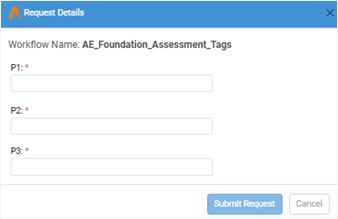
Single column layout
OR
Double column layout

Double column layout
OR
If there are many parameters, then request submission can be time-consuming process for users. To simplify and help users to enter the parameters with ease, group the parameters in the Process Studio. For details, see, Create a workflow or process → Parameter Configuration  field details in the Process Studio User's Guide.
To expand the parameter groups, click  next to the group and then enter the parameters, as required.
Grouped and sub-grouped parameters: Single column layout
Grouped Parameters:
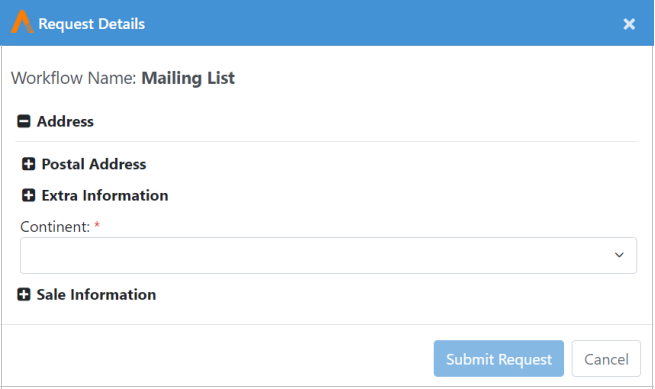
Grouped parameters - Single column layout
Sub-grouped Parameters:
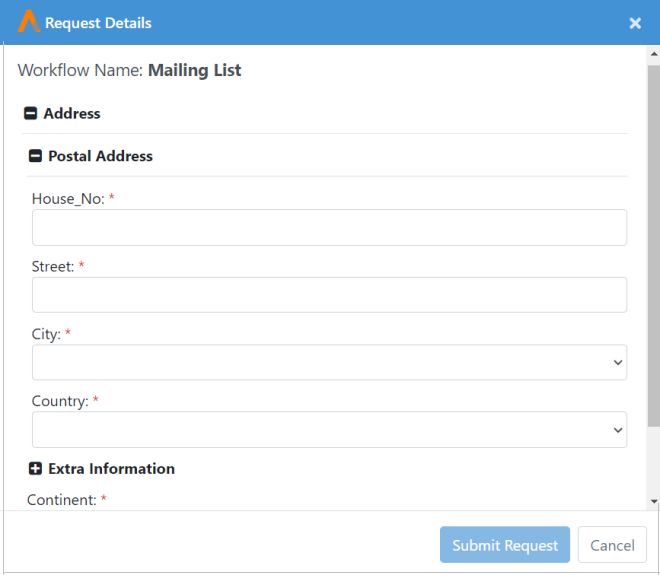
Sub-grouped parameters - Single column layout
Grouped parameters: Double column layout

Grouped parameters - Double column layout
Catalogue: Features/Permissions for other users
| Feature/Role | Admin | Workflow Administrator | User Administrator | Tenant User | Activity Monitor |
|---|---|---|---|---|---|
| Catalogue to view and execute Requests | ✔ | ✔ | - | ✔ | - |