Holiday Calendar
Holiday calendars let you define non-working days so that scheduled workflows skip those dates automatically. Without this feature, you'd need to manually disable and re-enable schedules around holidays, creating risk of missed or unwanted executions. You create a calendar by specifying the year, time zone, weekly days off, and individual holiday dates with optional tags to identify each one. You can then attach the calendar to any workflow schedule to ensure automations respect your organization's working calendar. Calendars can be renewed for the next year, copied to create variations, and edited as holiday dates change. This ensures your scheduled automations align with your business calendar without manual intervention.
Add new calendar
In the section, you’ll learn how to add new calendar.
To add a new calendar:
-
In the menu, click Workflows - > Holiday Calendar. The Holiday Calendar page appears.
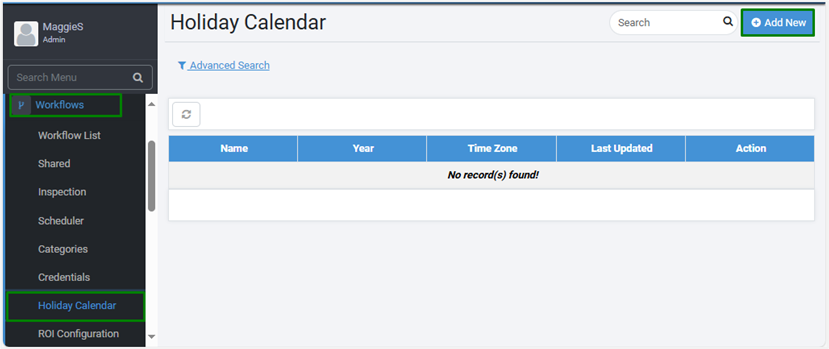
Holiday Calendar page -
Click Add New. The New Calendar dialog appears.
New Calendar dialog -
Enter the following details:
| Field name | Description |
|---|---|
| Name* | Enter a name for the calendar you want to add. |
| Description* | Enter a description of the calendar. |
| Year* | Select the year for which you want to add the holiday calendar. |
| Time Zone* | Select the time zone for which you want to specify the holiday calendar |
| Weekly Off | Select the weekly days off from the list. Note: If provided, schedules will also be skipped on the selected days every month. |
| Holidays | The list of dates that should be considers as holidays. |
| Tag | Add tags for the selected dates to identify the holidays. |
| Date | Select the holiday date. |
| Day | Displays the day of the holiday. |
| Action | Delete the holiday detail. |
To add more holidays, click Add Holiday.
-
Click Submit. The holiday calendar appears on the Holiday Calendar page.
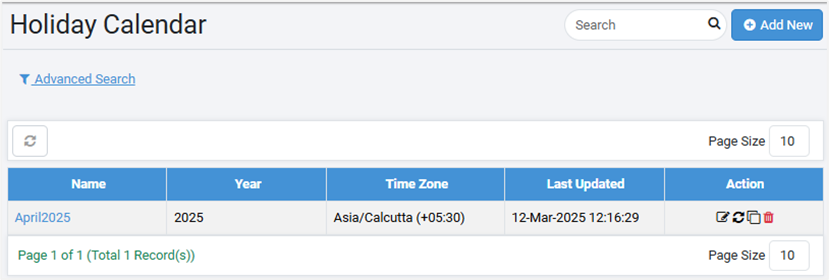
Holiday Calendar page view
To view the holiday calendar:
-
Click the calendar name in the Name column. The date from which the holiday calendar will be applicable has a dot against it.
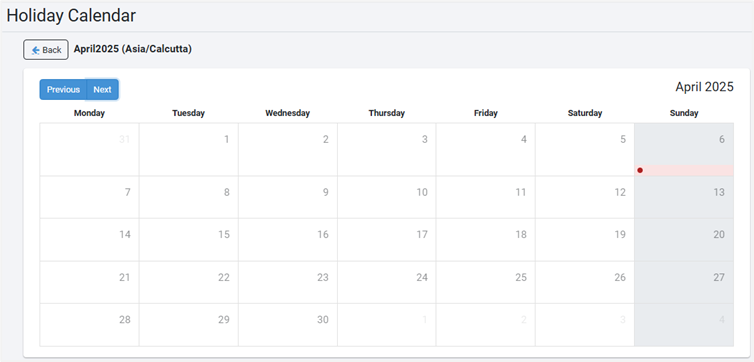
Holiday Calendar page viewTo revert to the Holiday Calendar page, click Back.
Work with Action column options
You can modify, renew, create a copy, or delete the holiday calendar, if required.
To work with options in Action column:
On the Holiday Calendar page, in the Action column:
-
Modify the holiday calendar details
Click and change the holiday details, as required.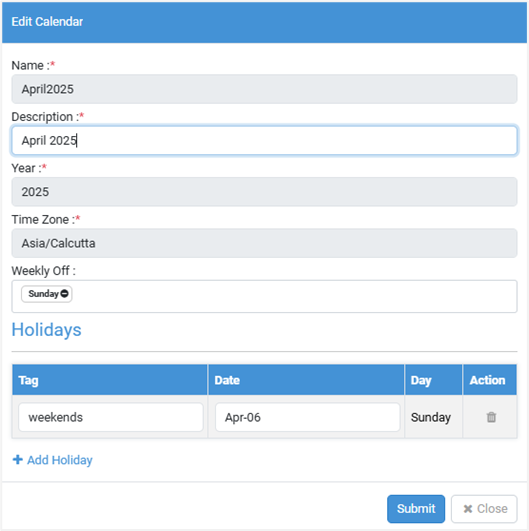
Edit Calendar view -
Renew the holiday calendar
Click to renew the holiday calendar for another year, if required.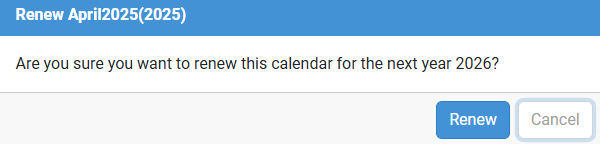
Renew calendar dialogThe renewed calendar for the year appears in the list.
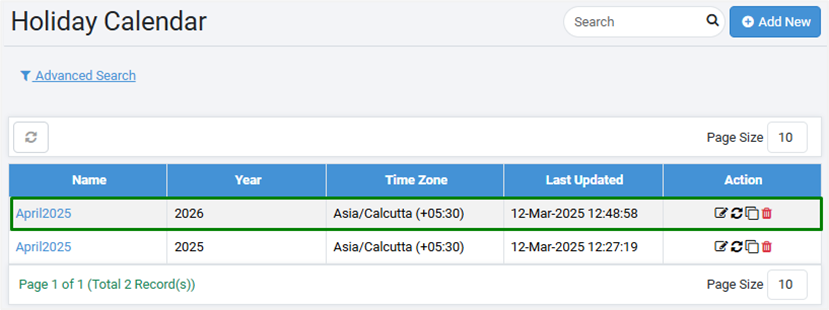
Updated Holiday Calendar page viewNoteThe calendar renewal can happen only for the immediate next year.
-
Create a copy of the holiday calendar
i. Click
 . The Copy
 <calendar name>dialog appears.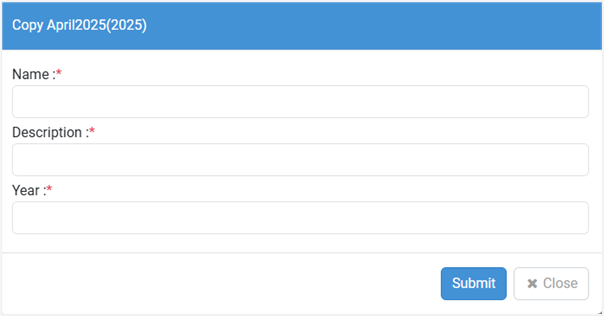
Copy calendar dialogii. Enter the following field details:
Field name Description Name* Enter a name for the calendar. Description* Enter a description of the calendar. Year* Select the year for which you want to add the holiday calendar. *Indicates mandatory field.iii. Click Submit. The holiday calendar appears in the list.
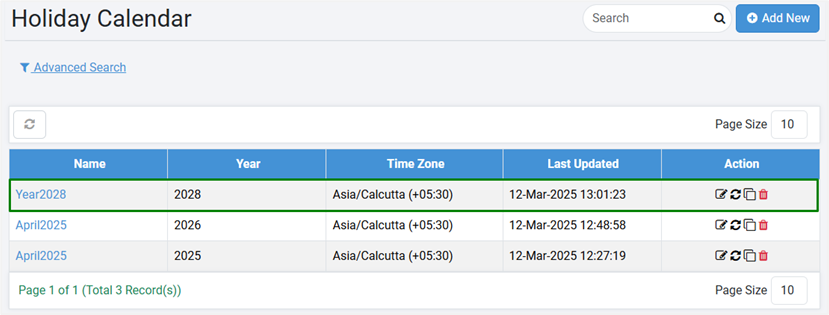
Holiday Calendar page view -
Delete a holiday calendar
Click . The selected calendar is deleted.
-