Work with Queries
Named Queries let you centralize database lookups so your workflows can fetch real-time data without embedding credentials or connection steps inside each workflow. Instead of configuring database access separately in every workflow, you create a query once, link it to a pre-configured datasource, and reuse it wherever it's needed. In AEUI, you can create SQL queries that run during workflow execution to fetch real-time data from the database. Workflow designers in Process Studio can use these queries to dynamically populate input fields — such as branch names, city codes, or zones — with up-to-date values at runtime. Because credentials stay at the datasource level, you reduce security risk and eliminate the maintenance overhead of updating connection details across multiple workflows. The feature also provides a REST API you can use to retrieve data from external databases for general purposes. To get started, set the ae.feature.fetch-parameter-values-from-datasource.enabled property to true in the ae.properties file and make sure your datasources are configured.
API #executeQuery
Request URL http://localhost:4200/aeengine/rest/v1/queries/City/execute
Request Method POST
Payload/Request Body
{
"queryParams": {
"division": {
"type": "VARCHAR",
"value": [
"KONKAN_DIV",
"PUNE_DIV"
]
}
}
}
Response:
{
"columnTypes": {
"city_name": "VARCHAR",
"city_code": "VARCHAR"
},
"data": [
{
"city_name": "Solapur",
"city_code": "MH13"
},
{
"city_name": "Ratnagiri",
"city_code": "MH08"
}
]
}
The request body must be in JSON format and include a queryParams object. The object can contain multiple key–value pairs, where the keys are used as named parameters in the query, and the values specify the parameter data and its type.
To create a new Query:
- In the menu, click Reports → Queries. The Queries page appear.
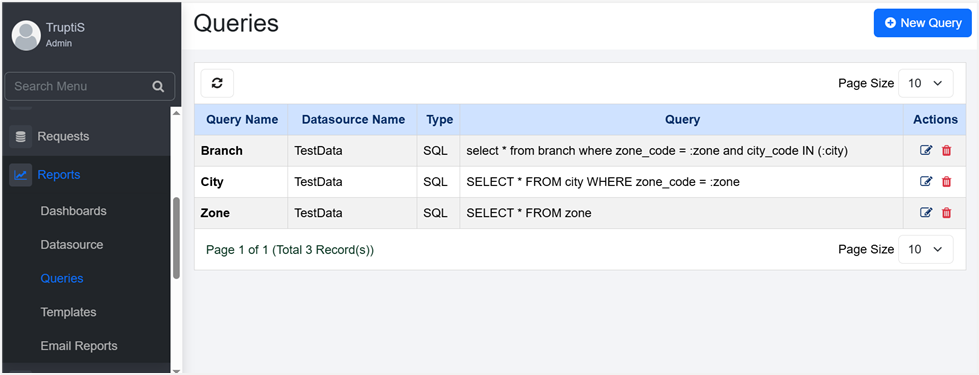
Queries page
- Click New Query. The New Query dialog appears.
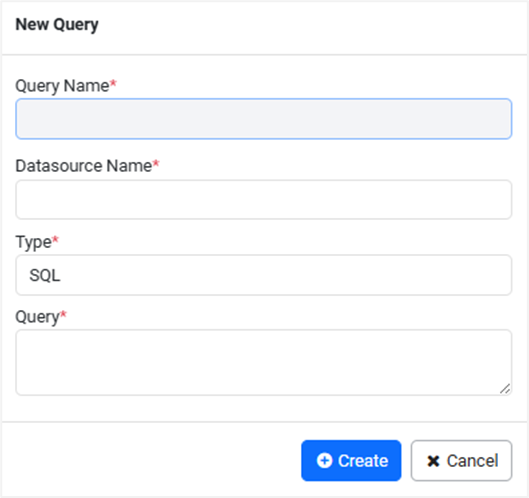
New Query dialog
- Enter the following details:
| Field name | Description |
|---|---|
| Query Name* | Enter the name of the query you want to create. |
| Datasource Name* | Select the data source from the list. |
| Type* | Select the type of query from the list. Currently support is available for SQL only. |
| Query* | Enter the SQL query to retrieve values for the input field. The query must follow the JDBC syntax and include named parameters using the :parameterName format. For example: SELECT * FROM city WHERE zone_code =: zone. |
* indicates mandatory field.
- Click Create. A Query created successfully message appears.
- You can avoid using credentials when running queries by configuring secure connection methods, such as predefined data sources. Selecting the data source eliminates the need to include usernames and passwords in the query, reducing security risks and simplifying query execution.
- You can use the queries created through AEUI in the Workflow properties → Parameters tab of the Process Studio. For details, see the Create a workflow section in AutomationEdge Process Studio User’s Guide.