Work with Email Reports
Email Reports let you schedule and send dashboard reports directly to stakeholders who don't log into the platform regularly. Instead of relying on everyone to check the platform, you can set up daily, weekly, or monthly schedules that automatically deliver reports as PDF or CSV zip files to specified email addresses, as per the time zone you configure. You select recipients by role, username, or email address. Each scheduled email includes up to 10,000 records, and you can set an end date to control how long the schedule runs. To use this feature, you need to configure SMTP for your tenant first. Email Reports remove the manual effort of generating and sharing performance data, and make sure no one misses critical automation metrics.
Configure email reports
You can configure and schedule email reports.
To configure email reports:
-
In the menu, click Reports → Email Reports. The Email Reports page appears.
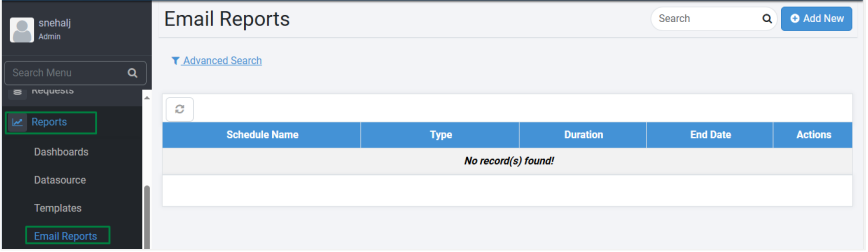
Email Reports page
-
Click Add New. The Add Email Reports Schedule page appears.
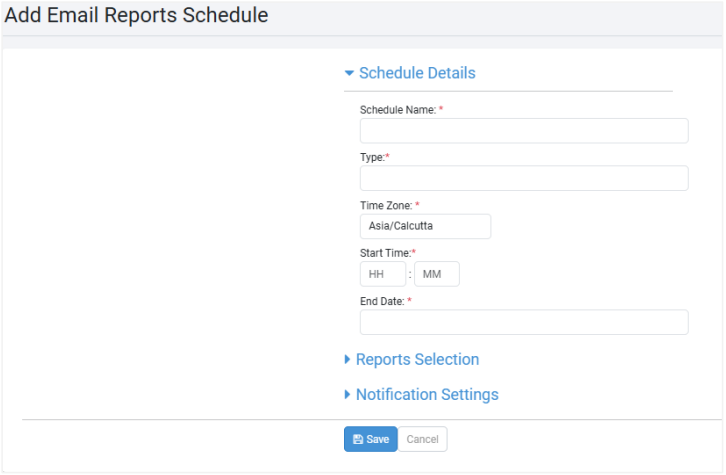
Add Email Reports Schedule page
-
Enter the following field details:
Field name Description Schedule Details Schedule Name* Enter a name for the schedule. Type* Select the schedule type from the list. Available options are:
- Daily
- Weekly
- MonthlyDay of Week* Select the day of the week when you want to send the email reports.
Note: This field is available only if the Type is Weekly.Criteria* Select the criteria for sending the email report.
Note: This field is available only if the Type is Monthly.Day of Month* Select the day of the month when you want to send the email reports.
Note: This field is available if the selected Criteria is Day of Month.Day of Week* Select the day of the week when you want to send the email reports.
Note: This field is available if the selected Criteria is Day of Week.Purging Schedule Select the day of the week when you want to schedule the purging.
Note: This field is available if the selected Criteria is Day of Month.Time Zone* Select a time zone, as required.
AutomationEdge server will generate and email the report at the local time according to the time zone specified.Start Time* Specify the time to start sending the email reports. End Date* Specify the date to stop sending the email reports. Reports Selection Duration* Select the cumulative period data to be included in the report. Available options are:
- Daily
- Weekly
- Monthly
- QuarterlyReport Template* Select the checkbox next to the report template you want to use. You can choose one or more templates. Report Type* Select the format of the report you want to send. The available options are:
- CSV
- PDFNotification Settings Select Users* By Role Select either the Admin or Workflow Admin or both checkboxes.
Note: Depending on the selection, users with Admin or Workflow Admin roles will receive the email notifications.By Username Select the users to whom you want to send the email notifications. By Email Select the email addresses to whom you want to send the email notifications. *Indicates mandatory fields.
-
Click Save. The email schedule appears on the Email Reports page.
NoteThe report is sent in zip format to the email addresses configured.
View the report schedule
You can view and edit the report schedule details.
To view the report schedule:
-
In the menu, click Reports → Email Reports. The Email Reports page appears.
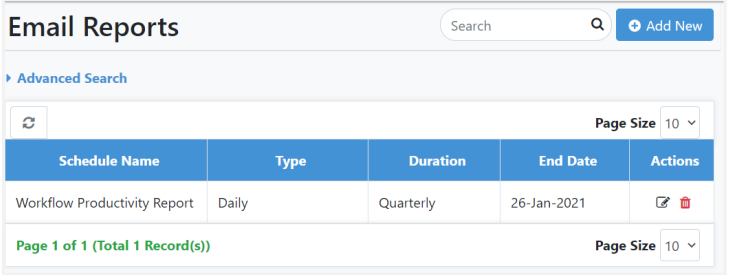
Email Reports schedule list
-
View the following field details:
Field name Description Schedule Name Displays the name of the email report schedule. Type Displays the selected schedule type. Duration Displays the cumulative period data that will be included in the report. End Date Displays the date when the email notifications will stop.
In the Actions column:
- To modify the notification schedule details, click
 .
. - To delete the notification schedule details, click
 .
.