Work with Agent List: Assisted Agents
Assisted Agents enable attended automation — workflows that run on a specific user's machine because they require human interaction during execution, such as entering an OTP or responding to a prompt. Unlike standard agents where workflows are randomly distributed, an Assisted Agent is owned by the user who downloads it, and it runs only assisted workflows for which the owner has the required permissions. You assign Assisted Agent licenses to users before they can download and start the agent, giving Admins control over who can run attended automations. Each user can register only one Assisted Agent, and assisted workflows run sequentially and cannot be scheduled. This ensures that workflows needing human input always run on the right user's machine.
For an overview of Assisted Agents, see About Assisted Agents.
Assign Assisted Agent to users
You must assign the Assisted Agent license to users before you can download and start the agent.
To assign Assisted Agent license to users:
-
In the menu, click Agents → Agent List. The Agents page appears.
-
Click the Assisted Agents tab. The Assisted Agents page appears.
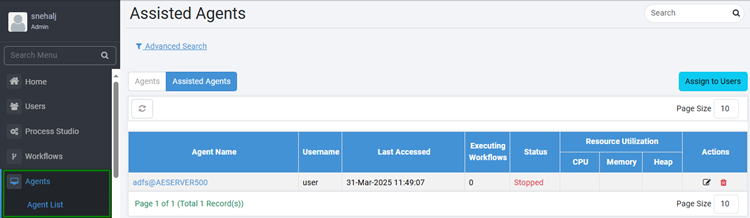
Assisted Agents page
-
On the page, click Assign to Users. The Assign Assisted Agent License to Users dialog appears.
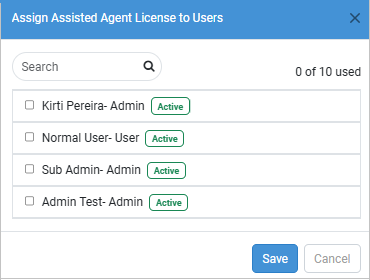
Assign Assisted Agent License to Users dialog
-
Select the checkbox against the users you want to assign the Assisted Agent license, and then click Save. The Assisted Agent is assigned and the option to download the assisted agents appears.
Download and start Assisted Agent
You will learn how to download and start Assisted Agents.
Admin, User, and Workflow Administrator can download and run Assisted Agents.
To download the Assisted Agents:
-
In the menu click Agents → Agent List. The Agents page appears.
-
On the page, click Assisted Agents tab. The Assisted Agents page appears.
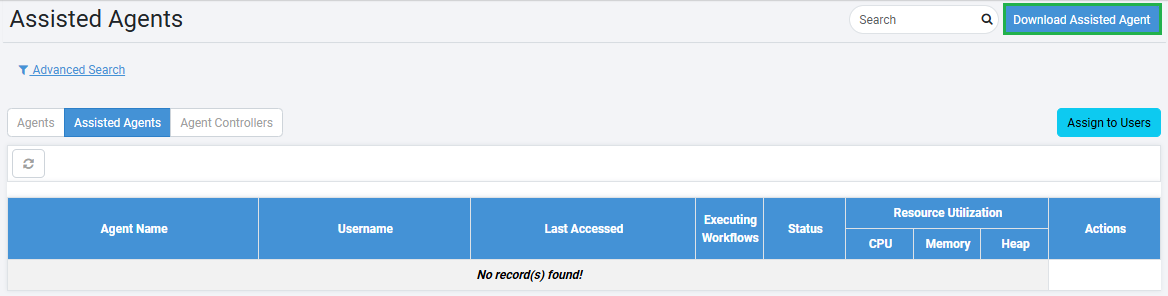
Assisted Agents page with download option
-
On the Assisted Agents page, click Download Assisted Agent. The Download Assisted Agent dialog appears.
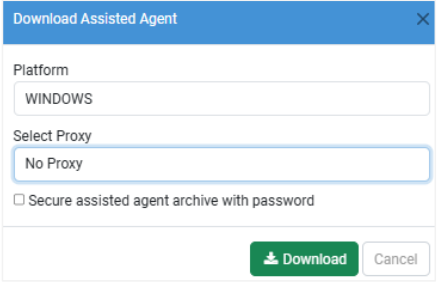
Download Assisted Agent dialog
-
Enter the field details, as required. For details, see Work with Agent List: Agents.
To start the downloaded Assisted Agent:
-
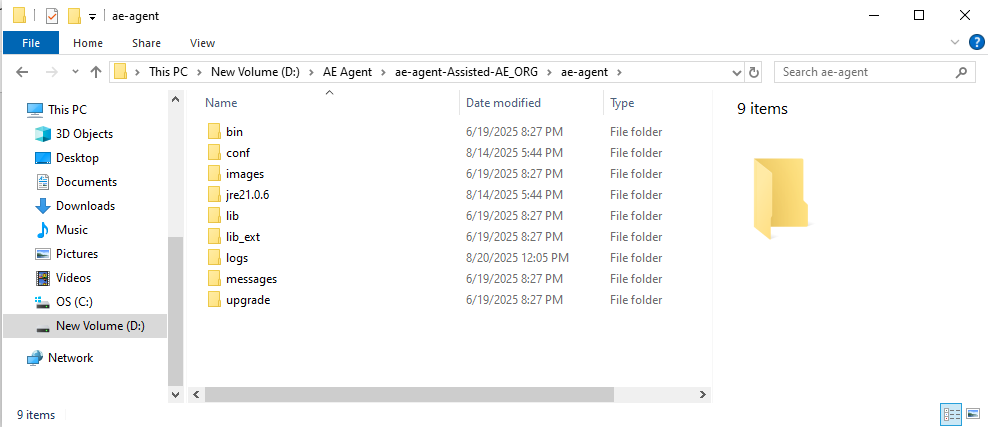
Unzip the downloaded Agent zip file and extract the Assisted Agent on the machine where you want to run it.
NoteThe zip file contains an ae-agent directory. Copy the downloaded zip file to one or more machines to run an Assisted Agent.
-
From the Command Prompt, run:
- For Windows:
ae-agent/bin/startup.bat - For Linux:
ae-agent/bin/startup.shThe Assisted Agent will get registered with the server and be available to run any Assisted workflows assigned to the user.
Note- The startup will fail if you try to register a new Assisted Agent for a user who already has a registered Assisted Agent.
- We recommend that you start the agent through the Command Prompt rather than double-clicking the startup.bat file.
- For Windows:
- Assisted Agents can be downloaded if the System Administrator has set the Server URL.
- Assisted Agent license configuration includes the number of hours (any number of hours between 6 and 23 hours) it can run. For long-running Assisted Agent, the Assisted Agent stops running after the time mentioned in the license. Restart the Agent on the next day.
- You don’t need to assign assisted workflows to an Assisted Agent. However, Assisted Agent can execute Assisted workflows for which Assisted Agent Owner User has execution permissions.
- Assisted workflows are always sequential workflows.
View Assisted Agents details
You can view the Assisted Agent field details.
To view the field details:
-
In the menu, click Agents → Agent List. The Agents page appears.
-
On the page, click the Assisted Agents tab. The Assisted Agents page appears.
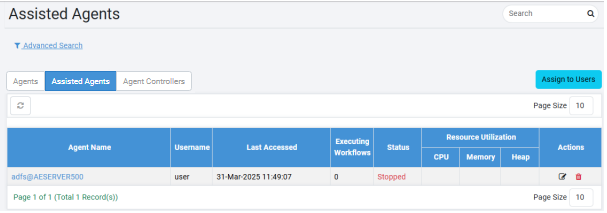
Assisted Agents page
-
View the field details:
Field name Description Agent Name Displays the name of the agent. Hover over the agent’s name to see the following details: - Name
- IP Address
- Hostname
- MAC Address
- JRE Details - JRE version and whether the agent is using bundled JRE
Username Displays the name of the user using the agent. There is no explicit assignment of Assisted workflows to Agents. Users can run all the Assisted Workflows for which they have permissions by the Assisted Agent. Last Accessed Displays when the agent was last accessed. Executing Workflows Displays the number of workflow requests in execution. Status Displays the status of the agent: Running, Unknown, Updating, or Stopped. The Unknown status appears when the server is not sure about the agent status due to factors such as abrupt shutdown or network failure. Resource Utilization CPU Displays CPU usage in percentage. The following Resource Utilization parameters are captured and displayed on AutomationEdge UI: CPU, Memory, Disk Space and JVM Parameter (Heap size). Memory Displays memory usage in percentage. Heap Displays heap usage (disk space and JVM parameter) in percentage.
Edit Assisted Agent field details
- In the Actions column:
-
To edit the Assisted Agents details, click
 . The Edit Assisted Agent dialog appears.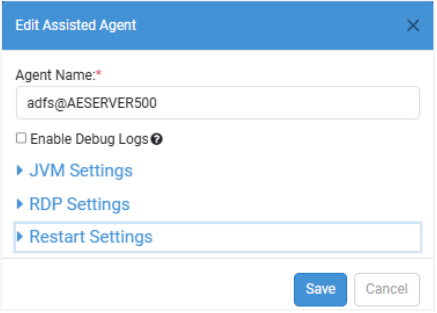
Edit Assisted Agent dialog
NoteFor Assisted Agents field details, see Work with Agent List: Agents.
-
 : Stop option is available if the Agent status is Running or Unknown.
Click to stop and end all activities of a running Assisted Agent and change its status to Stopped.
Or
Click to mark an Agent in Unknown status as Stopped.
-
 : Delete option is available when an agent status is Stopped. When you delete an agent, the
records are removed, and therefore, you cannot start the deleted agent.
: Delete option is available when an agent status is Stopped. When you delete an agent, the
records are removed, and therefore, you cannot start the deleted agent.
-
To monitor the Assisted Agent resource utilization, click the Assisted Agent’s name in Agent Name column.