Work with Task History
Task History gives you a complete record of all tasks that have been acted on — whether completed, cancelled, or submitted. After an approver takes an action on a pending task, the task moves from Pending Tasks to History for tracking and reference. This provides an audit trail of who acted, when they acted, and what status was assigned to each task. If an approver doesn't take action, the task stays in Pending Tasks until an Admin cancels it through the Admin View. Task History helps your organization maintain accountability, troubleshoot workflow issues, and meet compliance requirements by keeping a clear log of every human decision point in your automated processes.
To view Task History:
-
In the menu, click Tasks → History. The Task History page appears.
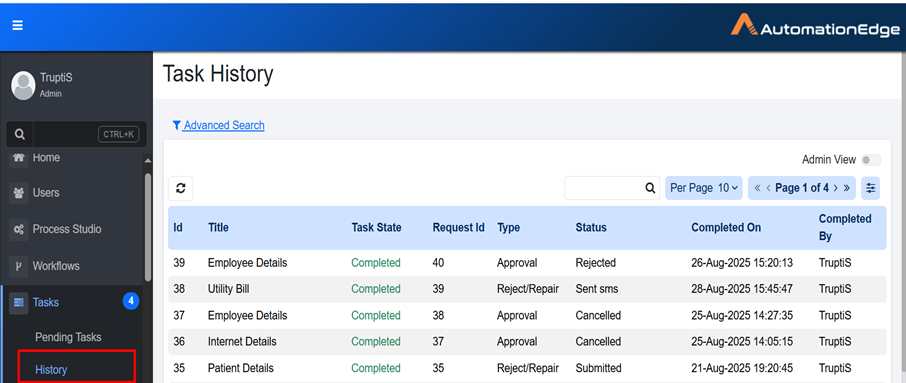
Task History page
-
View the following column details:
Column Name Description Id Displays unique Id of the task. Title Displays title of the task, which was specified in Process Studio or default one if none was mentioned in Process Studio step. Task State It can be Cancelled, Completed, or Submitted.
Note: If there is an error while triggering target workflow request when the task is completed, you'll see an exclamation mark next to Completed. Click the exclamation mark to view the error details.Request Id Displays the request ID from the Request tab that generated this task. Type Displays the task type. This shows as Approval when the Approval template is selected or Reject/Repair when the Document Review template is selected. Status Displays the status of the task which is defined in the Template. For more details of status, see Templates. Completed On Displays date and time when the user has acted on the request. Completed By Displays username of the user who has acted on the request.
- If a task is assigned to multiple users or user groups, the task is marked as completed as soon as the first user acts.