Work with Document Metadata
Document Metadata lets you define the field-level data that appears during the Reject/Repair document review process, separately from the task template itself. This JSON defines the fields and information that need to be extracted or displayed during the Reject Repair process. This separation is intentional — a single template can be associated with multiple documents and vice versa, so keeping metadata independent allows maximum reuse across different task templates. Admins create and manage document metadata, which can also be exported and imported in JSON format for reuse across tenants. The Reject/Repair step works in a similar way to the Human-in-Loop step, but in a Document Review template, only the actions are defined within the template while the data fields are configured in the Document Metadata tab.
- Currently, the Reject Repair screen does not support masking specific documents.
- The Masking UI control is not implemented, so users cannot select masking areas or receive masked documents after submitting a request or task.
To view document metadata:
-
In the menu, click Tasks → Document Metadata. The Document Metadata page appears.
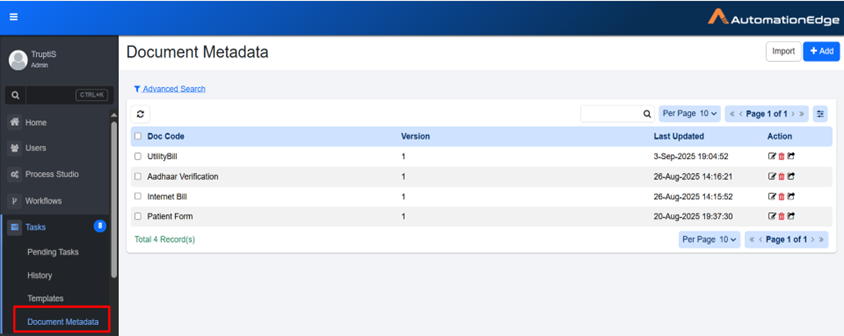
Document Metadata page
-
View the following columns:
Column name Description Doc Code Displays the unique name of the document. Version Displays version number of the document. Last Updated Displays date and time when the Document Metadata was last updated. Action Click Edit  , Delete
  , or Export
  to manage the document metadata. For more details, see Action.
Action
-
Edit Click
to open the task template in edit mode. This allows you to update the template details such as Data Fields, Action buttons and other configurations. After making changes, save the template to apply the updates. -
Delete Click
to delete the template. A confirmation dialog appears asking you to confirm the deletion. -
Export Click
to export the Document Metadata in JSON format.
Import
You can import document metadata if it has already been created and exported in JSON format.
To import the Document Metadata:
-
Click Import. The Import Document Metadata dialog appears.
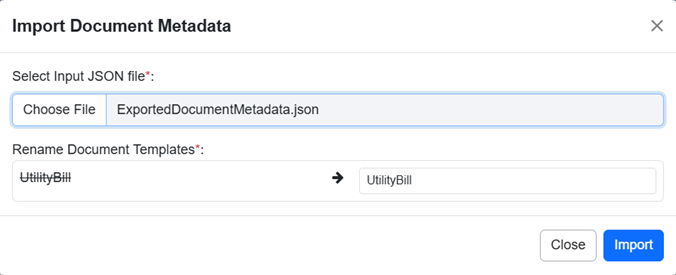
Import Document Metadata dialog
-
Select the file, rename the document metadata, and click Import.
-
The Document Metadata is imported successfully.
To create Document Metadata:
-
In the menu, click Tasks → Document Metadata. The Document Metadata page appears.
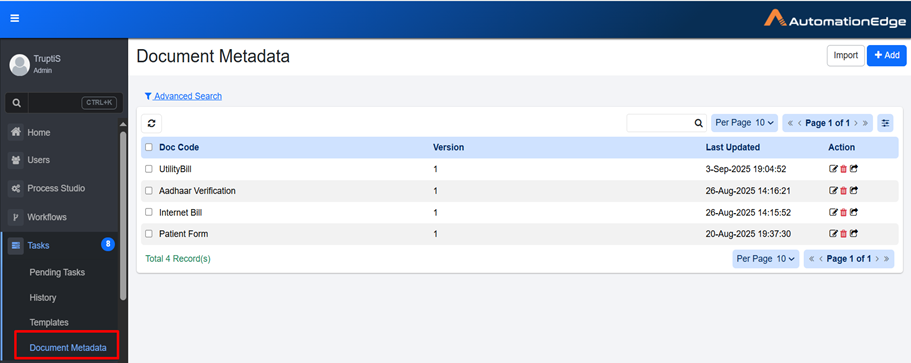
Document Metadata page
-
Click Add. Add New Document Metadata page appears.
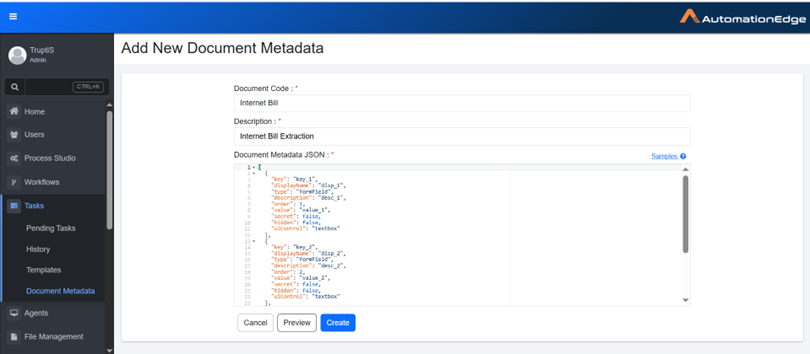
Add New Document Metadata page
-
Enter the following fields details:
-
Document Code*: Enter the unique name of the document. This name will be used in Reject/Repair step. For more details, see AutomationEdge Standard Plugins Guide.
-
Description*: Enter description about the task.
-
Document Metadata JSON*: The fields that you want to extract from a document must be defined in Document Metadata JSON. For example,
    [
        {
            "key": "key_1",
            "displayName": "name",
            "type": "formField",
            "description": "Name extracted from the form",
            "order": 1,
            "uiControl": "textbox"
        },
        {
            "key": "key_2",
            "displayName": "id",
            "type": "formField",
            "description": "Id extracted from the form",
            "order": 2,
            "uiControl": "textarea"
        }
    ]
-
-
Click Create. Document Metadata is created.
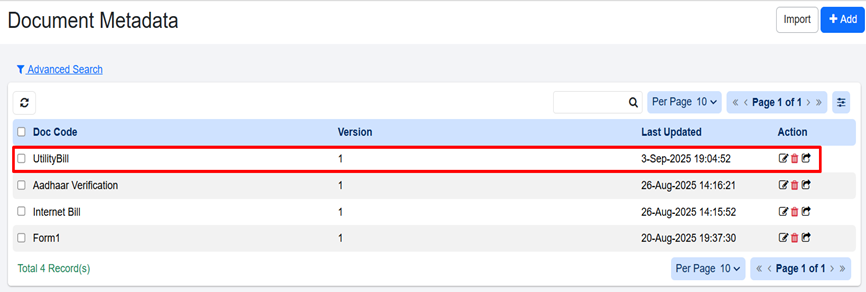
Document Metadata created successfully
Note-
Click Sample to check the sample Document Metadata.
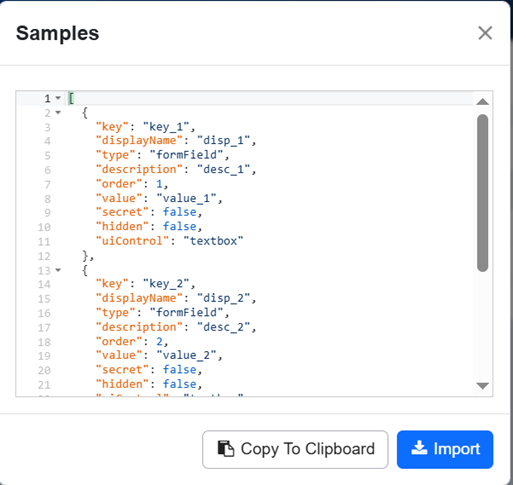
Sample Document Metadata
-
Click Preview to view the document metadata you created.
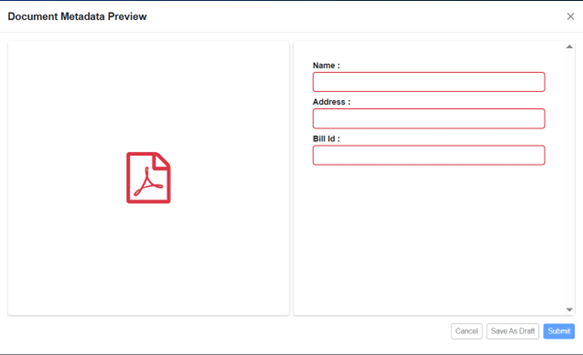
Document Metadata preview
-
Purging of Task Tasks are generated only when a request is submitted, and they remain associated with that request. While purging, if the request entity is deleted, all dependent entities such as metrics and tasks are also purged. You can see the Purged Tasks in the Archived tab.