Download Archives
Download Archives lets you retrieve purged records that have been exported as CSV files, so you retain access to historical data even after it's been removed from the active database. Archives are generated automatically after a purge schedule completes, with records batched into files of 10,000 records each. You can download archived files from the AE UI or from the purging target directory. If a purge job creates multiple files, each one appears as a separate entry available for download. For consumption-based tenants, the Workflow Consumption report is also saved as a PDF with the tenant name prefixed in the name, stored in the tenant's Archives location. This ensures that purging improves your system performance without permanently losing data you may need for audits, compliance, or historical analysis.
Download archives
You can download archives from the AutomationEdge UI.
To download archives:
-
In the menu, click Purging → Archived. The Archived page appears.
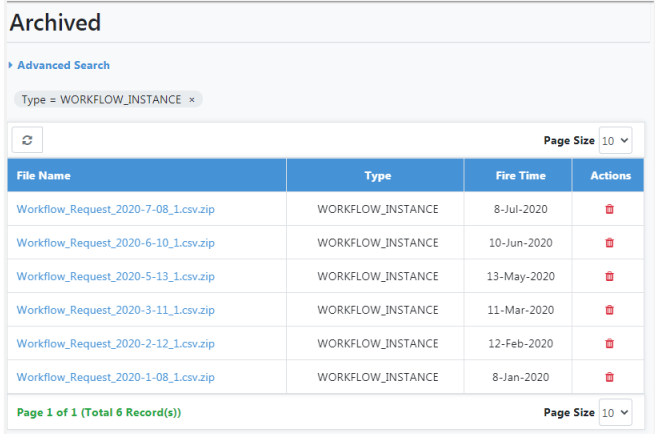
Archived page
NoteArchives are available once at least one Purge Schedule execution is complete.
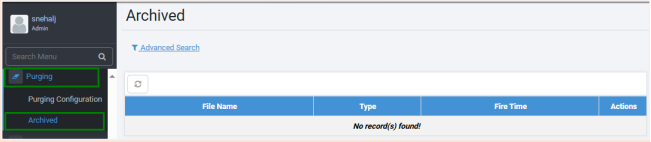
-
In the File Name column, click the archive file name link that you want to download. The file is downloaded.
- In addition, AutomationEdge stores the archived CSV files as zip files in the default location,
AE Home\Archives. - However, the default purging destination is configurable, set it in the AE_Home/conf/ae.properties by setting the following configuration parameter,
*ae.archive.location = <Desired filepath(e.g D:/testPurge/Archives)>*. - Tenant folders are created in the purging destination.
- The Zips files include purging data of all the three entities (Workflow Requests, Audit Logs Notification History).
- To delete the archive file, click
