View or download Agent Logs
Agent Logs let you download workflow execution logs and Process Studio debug messages directly from the AE portal, so you can troubleshoot failures without logging into each agent machine. When workflows execute, debug log variables, fields, and messages from the Process Studio Debug Log step are captured in the agent logs. You can filter logs by agent name, date range, or specific workflow request ID to quickly find what you need. Logs are available for requests executed within the last 15 days, and download links remain active for 24 hours after the request is submitted. This gives your team a centralized, time-bound way to access execution details for diagnostics and root cause analysis.
View Agent logs
View the Agent log details.
To view Agent logs details:
-
In the menu, click Logs → Agent Logs. The Agent Logs page appears.
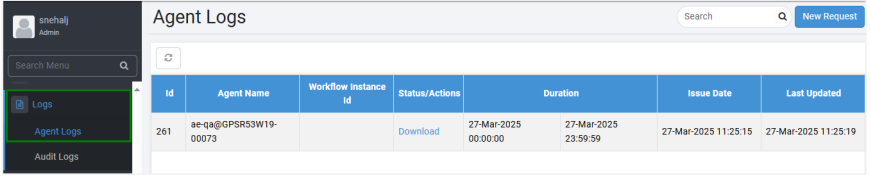
Agent Logs page
-
View the following field details:
Field Name Description Id Displays a unique ID for the logs. Agent Name Displays the name of the agent with which the Agent log file is associated. Workflow Instance Id Displays the ID of the workflow request submitted. Status/Actions Displays the status of the operation: New,
In Progress,
Complete,
or Failed.
Note: If the request completes, a link to download the logs is available.Duration Duration is the period for the Agent log file retrieval. From Date Displays the start timestamp of the period. To Date Displays the end timestamp of the period. Issue Date Displays the timestamp of the request. Last Updated Displays the timestamp when the request was last updated.
To find specific Agent logs, enter the name of the log in the Search box and press Enter. The specified log details appear.
Download Agent Logs
Download the Agent logs, as required. You can raise a log request by Agent or Request ID.
To download Agent level logs, Agent must be up and running; else, you’ll see an error message.
To download Agent logs:
-
In the menu, click Logs → Agent Logs. The Agent Logs page appears.
-
Click New Request. The New Request dialog appears.
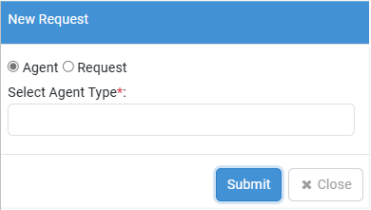
New Request dialog
-
Select Agent or Request and then:
i. In the Select Agent Type*, choose the type of agent, Agent or Assisted Agent for which you want to download the log.
ii. Enter the following details:
-
Select Agent*: Select the agent for which you want to download the log.
-
Duration*: Set the start and end date for downloading the log. The maximum duration to download log files is five days, that is, the difference between start and end date must be less than or equal to five.
OR
In the Enter Request Id*, enter the request Id for which you want to download the log.
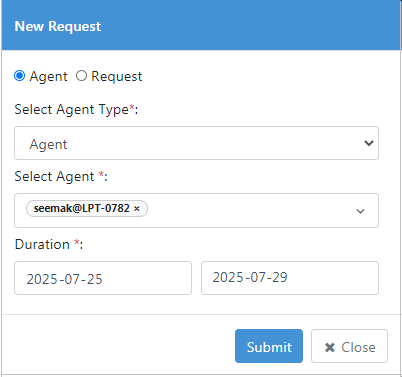
Request by Request ID
-
-
Click Submit. On the Agent Logs page, a new download request entry appears with status New.
The status changes to Download after some time. Click the link to download the log as a zip file.
-
Every log generation request allows you to download a separate log as a zip file.
-
Unzip the downloaded file and extract the Agent log.

-
You can also raise a request for generating logs for requests with Failed status through the Requests page. For details, see Retrieve Execution logs.