System Defined Roles
System defined roles are provided by AE and have predefined permissions. You cannot modify or delete the roles, or the permissions assigned to the roles.
You can only view the permissions assigned to the roles.
The topic includes the following sections:
List of system defined roles
When you sign in as an Admin, the following roles are available:
-
Admin The Admin is responsible for maintaining the system for a specific tenant. The Admin creates users, workflows, and so on for the tenant. The Admin is a super user having all the permissions of Workflow Administrator, User Admin, Activity Monitor and Tenant User.
-
Activity Monitor The Activity Monitor users are responsible for AutomationEdge monitoring. The user has access to the following menus: Home (Dashboard view only), Reports, Agent Monitoring (view only) and Requests (view only).
-
Agent Admin The Agent Admin is responsible for controlling or managing agents.
-
User The User role has the lowest level of access to the system. The users can perform the following actions:
- Run the workflows and view the results.
- Publish workflows if permission to a category is provided.
- Update a workflow if they have permission to the workflow or category.
NoteIn the current release, users with the User role cannot upload workflow level files.
-
User Admin The User Admin is responsible for maintaining users with User and User Admin roles for a specific tenant. A User Admin can also manage the Tenant Policy.
-
Workflow Admin The Workflow Admin is responsible for maintaining all the workflows for a specific tenant.
View role permissions
You can view the permissions assigned to the System Administrator and License Administrator.
To view role permissions:
-
In the menu, click Roles. The Roles page appears.
-
On the page, click System Defined Roles tab. List of system defined roles appear.
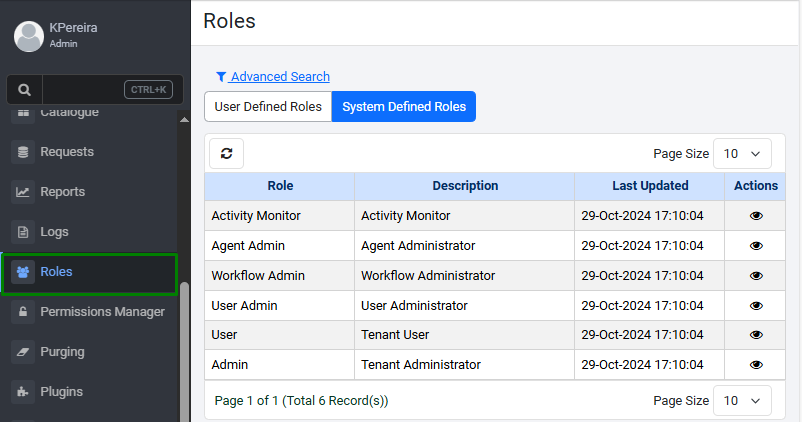
Roles - System Defined Roles tab -
View the following field details:
Field Name Description Roles Displays the system defined roles. The roles are:
- *Activity Monitor
- Agent Admin
- Workflow Admin
- User Admin
- User
- AdminDescription Displays the description of the roles. Last Updated Displays the date and time the role details were updated. Actions Click to view the role permissions. -
In the Actions column, click
 . The permissions page of the selected role appears as follows: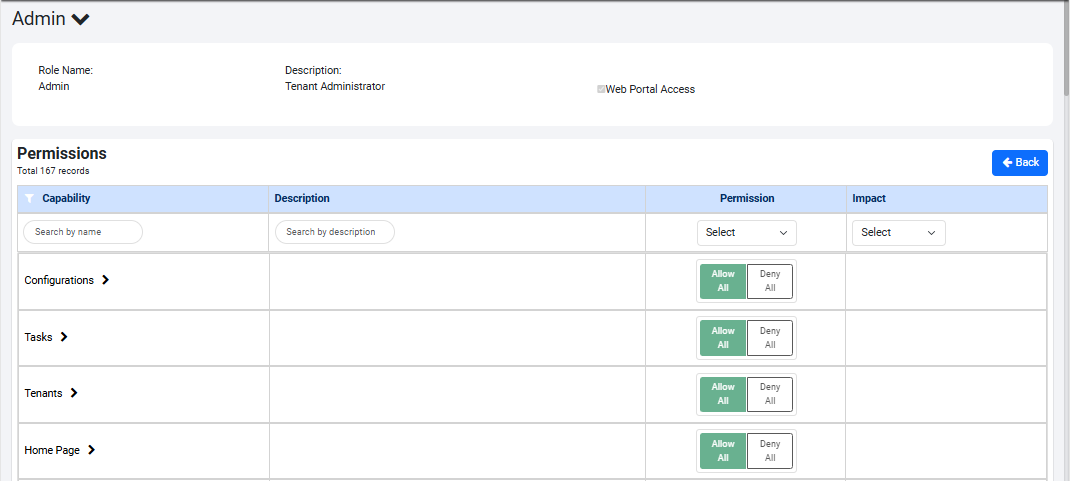
Role permissions page -
View the following field details:
Field Name Description Role Name Displays the name of the role. Description Displays the description of the role. Web Access Portal Displays the selected checkbox.
Note: If the checkbox is selected, then users can sign in to AEUI with both API and UI access. Else, the user will have only API access to allowed modules.Permissions Capability Displays the name of capability that the role is assigned. Description Displays the description of the capability. Permission Displays the permission granted for a capability or sub-capability assigned to the role. Permission values are: Allow or Deny.
Note:
To view the permission at the sub-capability level, click each capability. If each sub-capability has either Allow or Deny, then at the Capability level the permission is seen as, Allowed All or Deny All.
For example,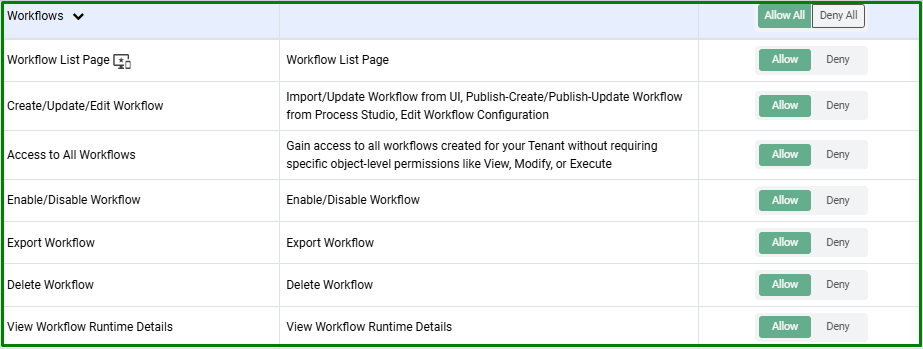
Sub-capability - Workflows
If the permission at sub-capability level is a mix of Allow and Deny, then neither Allow All or Deny All is selected at the Capability level.
For example,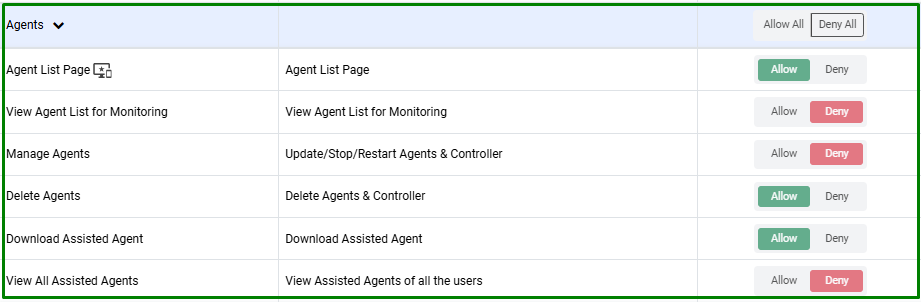
Sub-capability - AgentsImpact Displays the impact of the assigned capability.
Impact values are: High or Medium.
High: Permissions impacting the business highly. For example, permission to delete a tenant.
Medium: Permissions impacting the business, but at the user level in a tenant. For example, permission to enable or disable the workflows.
- You can search for a capability by providing the name of the capability or description.
- You can also filter the view based on permission and / or the impact.