Work with Reports
In the chapter, you will learn about the various reports that you can generate through AE. The report inform you about the features and plugins that a tenant is using. In addition, you can generate reports to understand the system status.
The following topics are required:
-
Usage Analytics reports
-
System Status
Usage Analytics reports
You can generate report that help in understanding the AE platform, step, workflow, and feature usage.
Multiple users cannot submit a report generation request if report generation is already in-progress. The users will receive an error message if they try to submit the request.
To generate usage analytics report:
-
In the menu, go to Reports -> Usage Analytics.The Usage Analytics page appears.
-
Enter the following field details:
| Field name | Description |
|---|---|
| Generate For* | Select the report that you want to generate. You can generate the following types of reports: • Calendar Year • Active License Year • Year Range |
| Year* | Select the year for which you want to generate the report. Note: The field is available only if you select the Calendar Year report. |
| Tenant | Select the tenants for which you want to generate the report. |
| From Year* | Select the year from which you want to generate the report. **Note:**The field is available only if you select the Year Range report. |
| To Year* | Select the year to which you want to generate the report. **Note:**The field is available only if you select the Year Range report. |
- Indicates mandatory field.
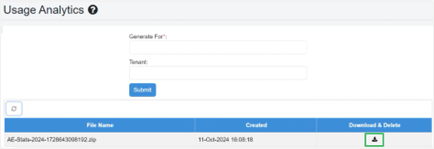
You can generate the reports for one or all tenants, as required and download the reports. For details, see the following screenshot:
 Click
Click  to refresh the view. The report is automatically deleted from the Usage Analytics page after you download the report.
- Click Submit. The report is generated.
System Status report
System status reports help monitor system health, track resource usage, and ensure proper license compliance. You can generate system status reports that provide details, such as license status, number of workflows, number of registered agents, and so on.
To generate a report:
- In the menu, click Reports System Status. The System Status page appears.
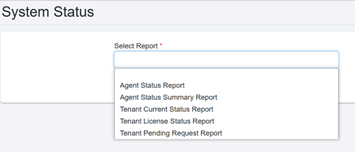
- In the Select Report list, choose the report you want to generate. The available reports are:
- Agent Status Report: Generate report to view the status of the tenant’s agent.
- Agent Status Summary Report: Generate a report to view the agent status and the number of times it was in each state: Running, Stopping, Stopped, Unknown, Pending Update, Updating, Upgrading, and Restarting.
- Tenant Current Status Report: Generate report to view details of the tenant’s active license status.
- Tenant License Status Report: Generate report to view details of tenant’s license status. You can add additional columns to the report.
- Tenant Pending Request Report: Generate report to view number of pending sequential and regular and singleton requests.
- Click Submit. The report is generated, and you can view the details on the System Status page.
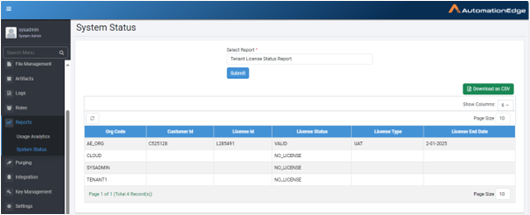
- Click Download as CSV. The generated report is downloaded in CSV format.