OneDrive: File Path
Get Folder Path
Following are the steps to get Folder Path,
- Open your One Drive.
- Click the Show actions icon ( ) and select Details in the pop-up menu.
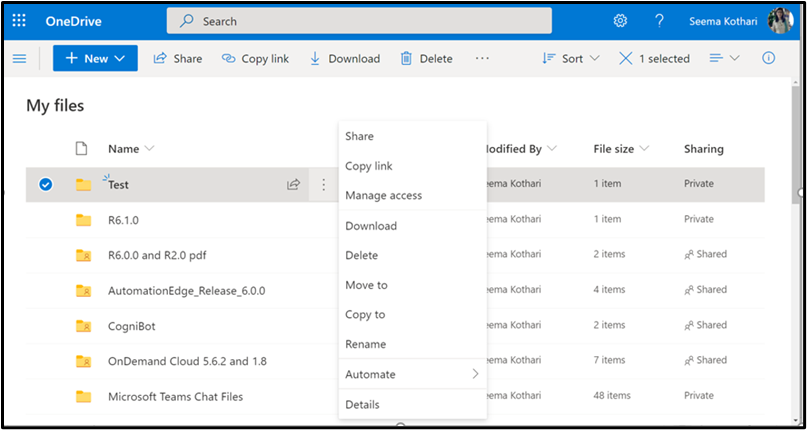
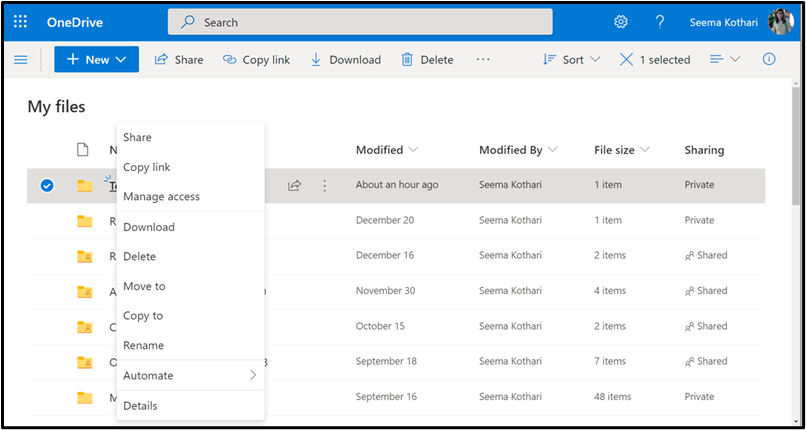
- Alternatively, right click on the folder and select Details.
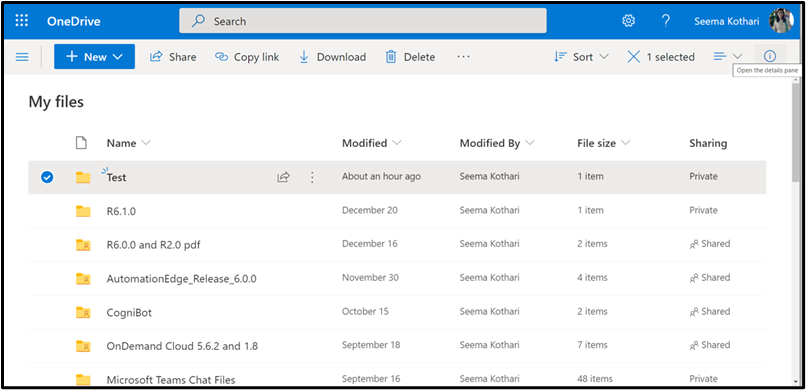
- Thirdly, you may click on the ‘Open the details pane’.
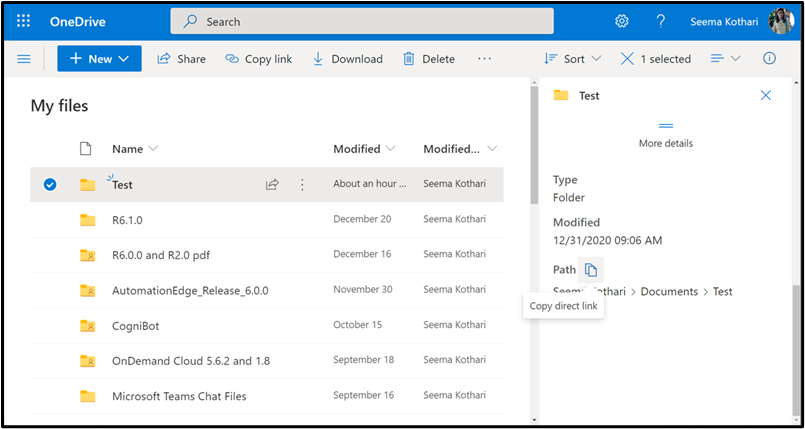
- In the details pane navigate to the bottom and click the ‘Copy direct link’ icon for the Path.
-
In this case the folder path appears as follows, https://automationedge1-my.sharepoint.com/personal/seema_kothari_automationedge_com/Documents/Test
-
In the OneDrive plugin steps • Refer the root folder as: Documents
/• Refer a folder in the root as: Documents/``<a sub-folder under root>• Refer a sub folder in the root as: o Documents/``<a sub-folder1 under root>/<a sub-folder2>o or simply/<a sub-folder1 under root>/<a sub-folder2>
Get File Path
Following are the steps to get File path,
- Navigate to the desired file on OneDrive.
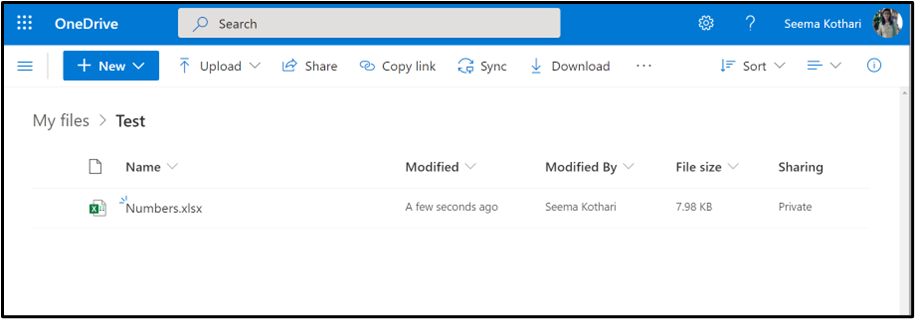
Follow one of the methods to go to the details pane as described for folders in the previous section.
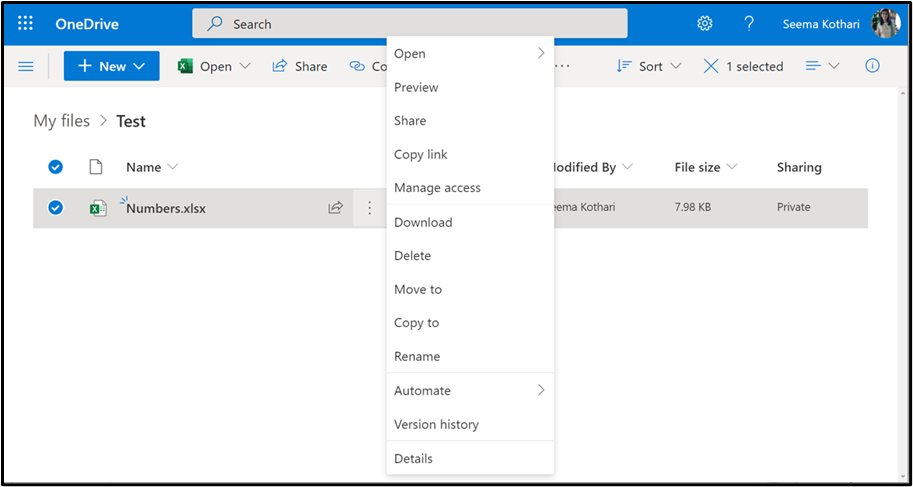
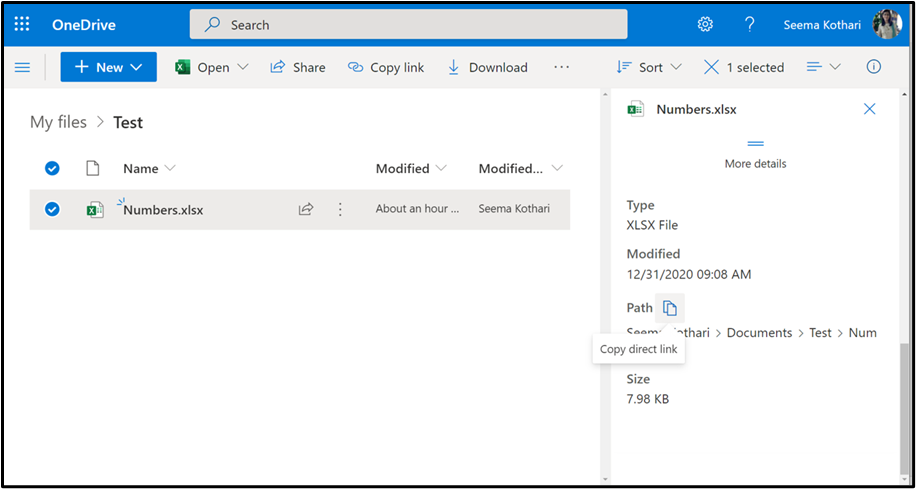
- Copy the Path URL.
-
Following is a sample File path URI. https://automationedge1-my.sharepoint.com/personal/seema_kothari_automationedge_com/Documents/Test/Numbers.xlsx
-
In the OneDrive plugin steps
- Rrefer the root folder as: Documents
/ - Refer a file in the root as: Documents
/<a filename under root> - Refer a sub folder in a sub-folder as:
- Documents
/<a sub-folder1 under root>/<a filename> - or simply
/<a sub-folder1 under root>/<a filename>
- Documents