Google Drive: Generate Token
It is assumed that you have a Google developer console account created on https://console.developers.google.com. In this Appendix we complete the Google Drive steps prerequisites.
- Enable APIs for Google Drive.
- Generate Client ID and Client Secret
- Generate Refresh Token in exchange for the Client ID and Client Secret
Enable APIs
In this section we will Enable APIs for Google Drive.
- Go to the Google Developer Console.
- Click Select a Project >> New Project. If you have an existing project, you can select it from ALL.
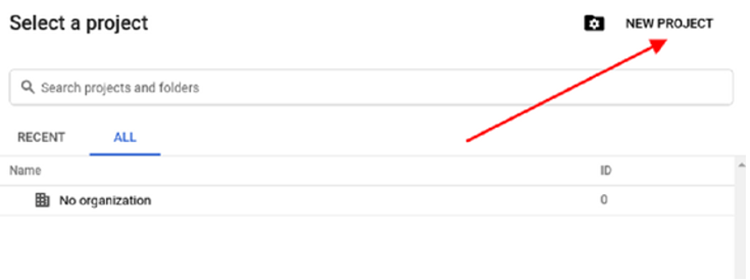
- Provide valid values and Click on the CREATE button.
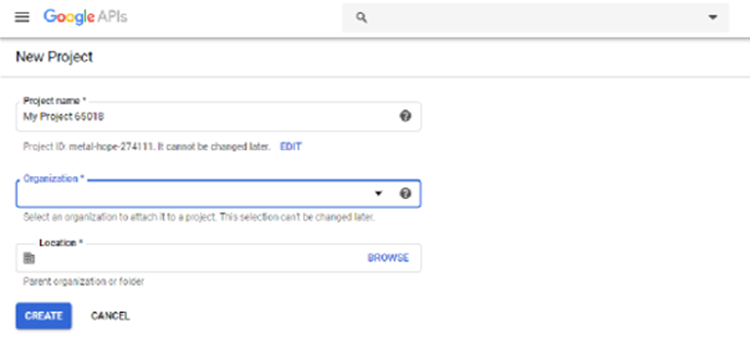
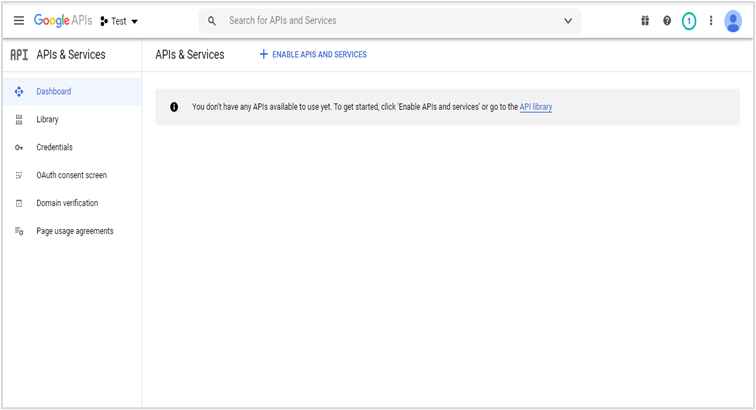
- Navigate to Dashboard and Click on ENABLE APIS AND SERVICES.
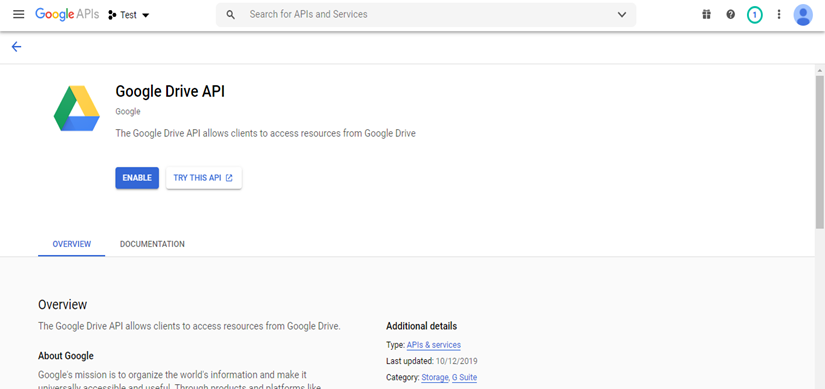
- Search for Google Drive API for Google Drive Plugin >Click on ENABLE.
Procedure to get a Client ID and Client Secret
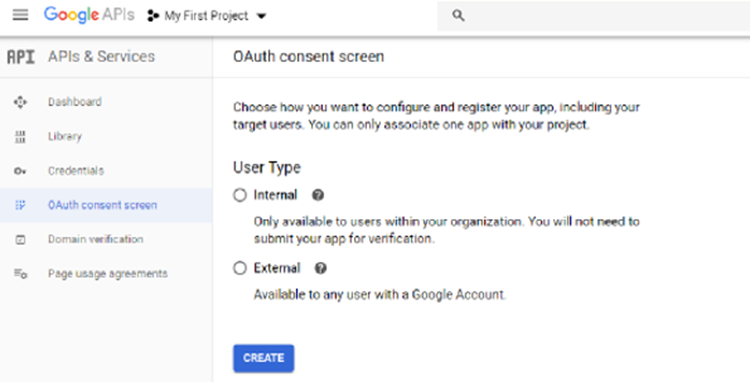
- Navigate to the tab OAuth consent screen and choose the valid option.
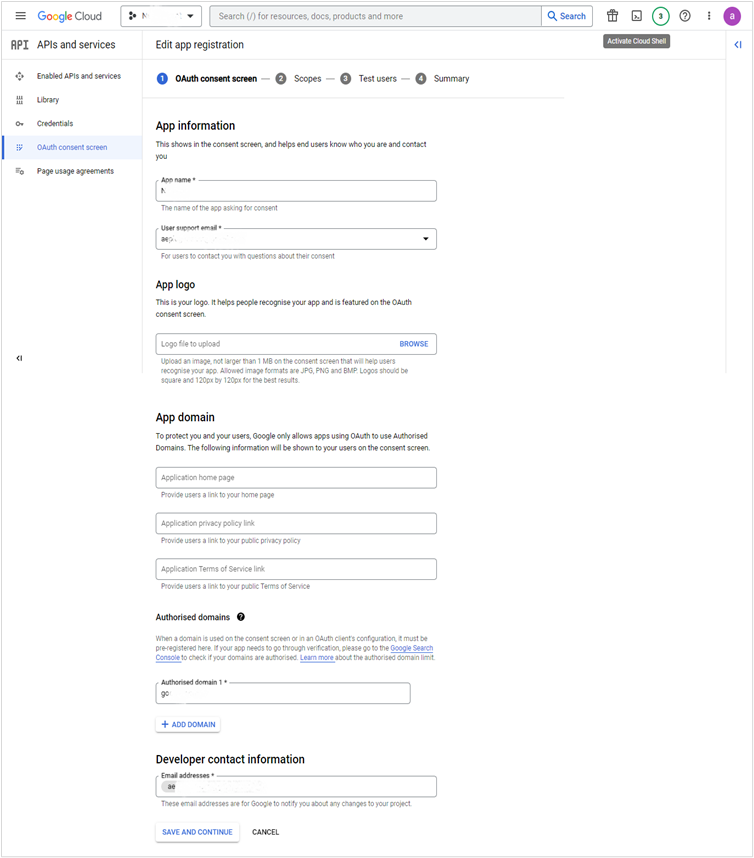
- Enter the App name, User support email, Authorized domains, Developer contact information > click SAVE AND CONTINUE button.
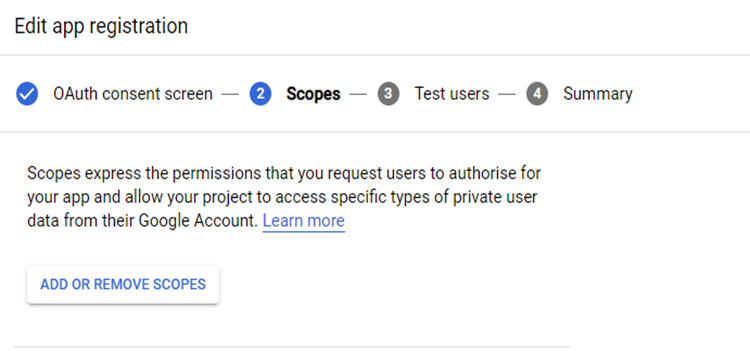
- Click on ADD OR REMOVE SCOPES button.
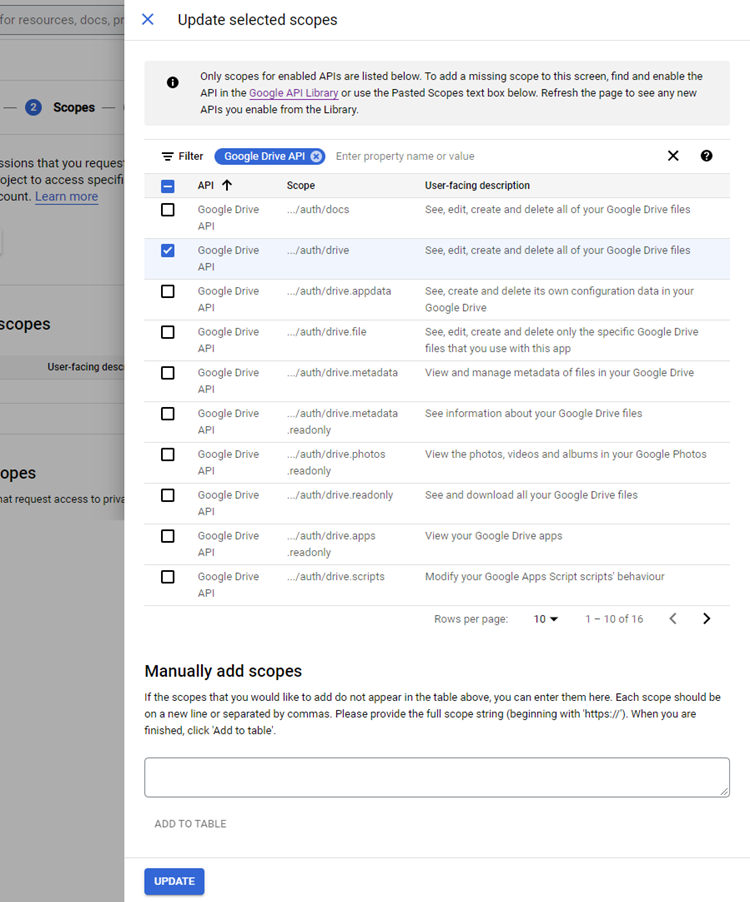
- Select Google Drive API and scope selected in following image > click UPDATE button > click SAVE AND CONTINUE button.
tip
Select appropriate permissions required to perform the specific actions desired by you.
- Click on ADD USERS button.
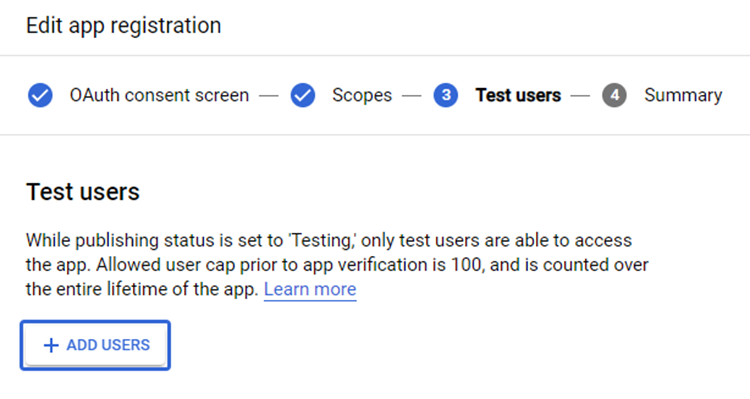
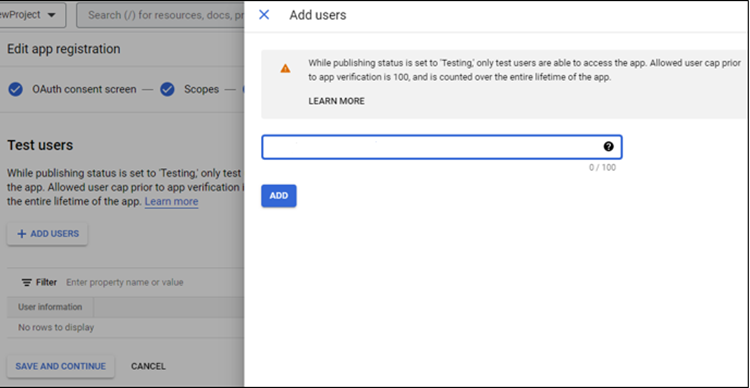
- Provide valid email ID > click ADD button > click SAVE AND CONTINUE button.
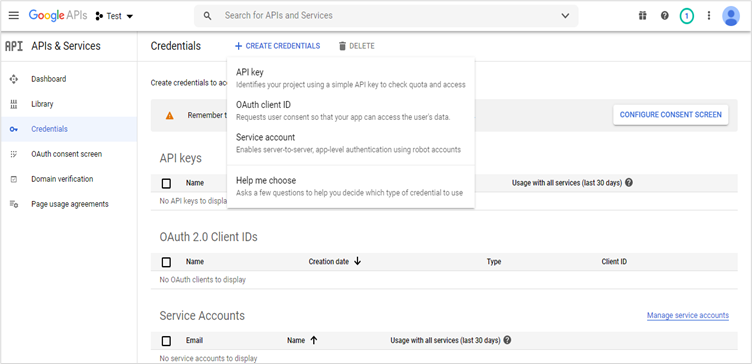
- Click on Credentials tab > click CREATE CREDENTIALS and from the dropdown-list select OAuth client ID.
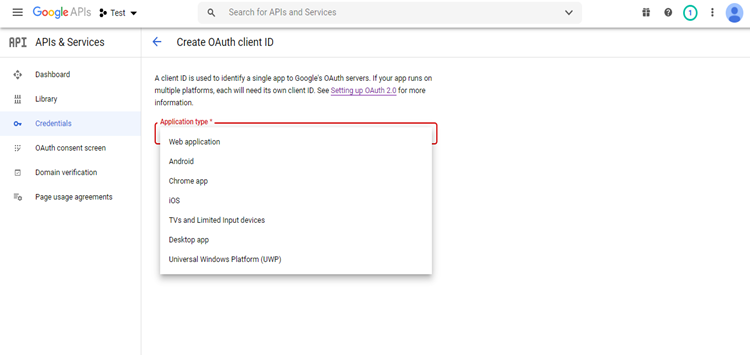
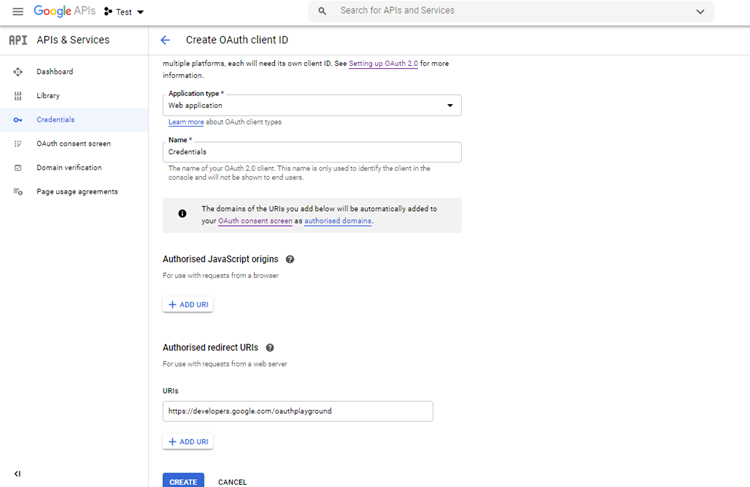
- From the Application type, select the Web Application.
- Enter valid Name and Authorized Redirect URIs > Click CREATE button. Authorized Redirect URIs: https://developers.google.com/oauthplayground
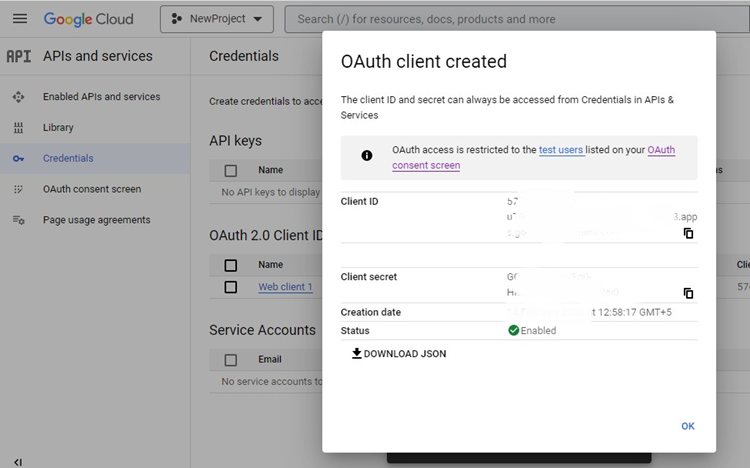
- Copy Client ID and Client Secret > click OK button.
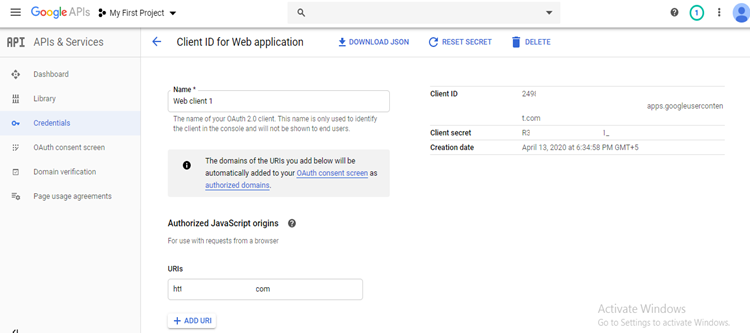
- Get Client ID and Client Secret by clicking on the OAuth 2.0 Client IDs.
Procedure to generate Refresh Token
- Go to the Google OAuth Playground.
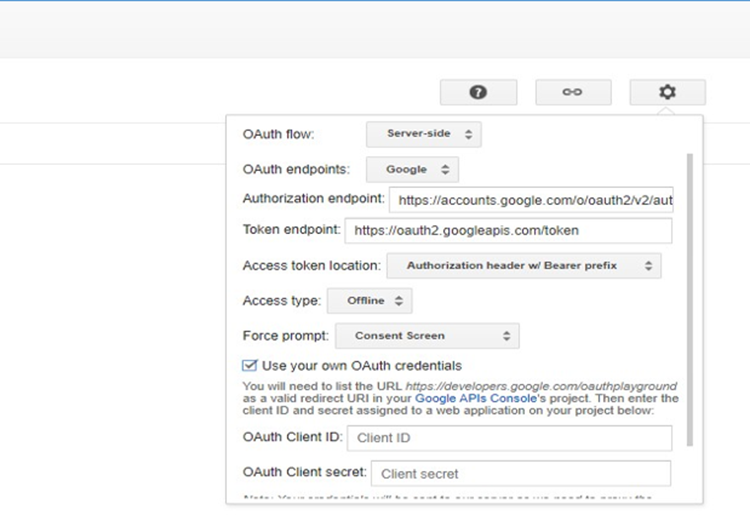
- Click on the Settings icon.
- Click on Use your own OAuth credentials and enter OAuth Client ID and OAuth Client secret generated from the previous step.
- Select the Select & authorize APIs. Select the desired scope you want for your application (like: https://www.googleapis.com/auth/drive ) > click Authorize APIs.
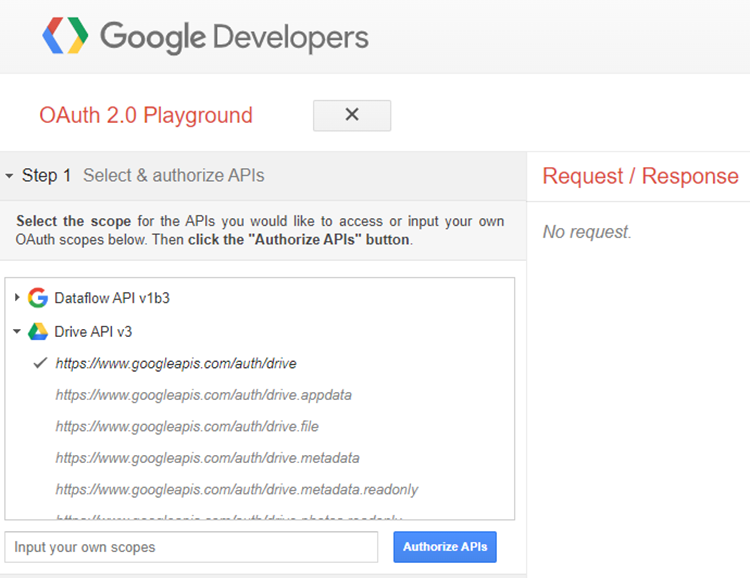
**Note: **Select appropriate permissions required to perform the specific actions desired by you.
- Choose an Account
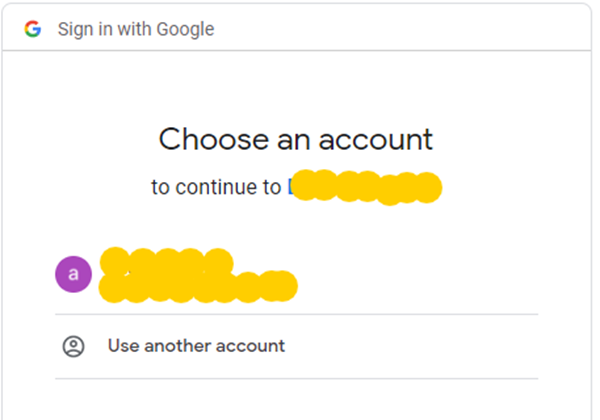
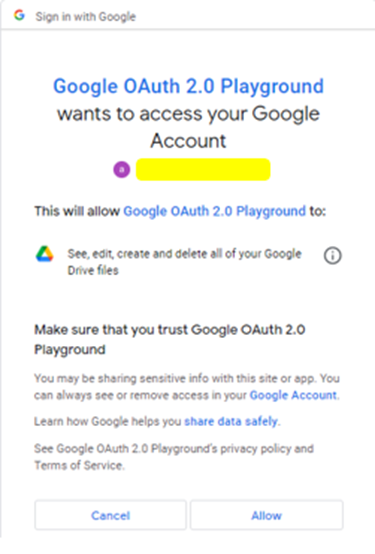
- Sometimes following screen appears > click Allow
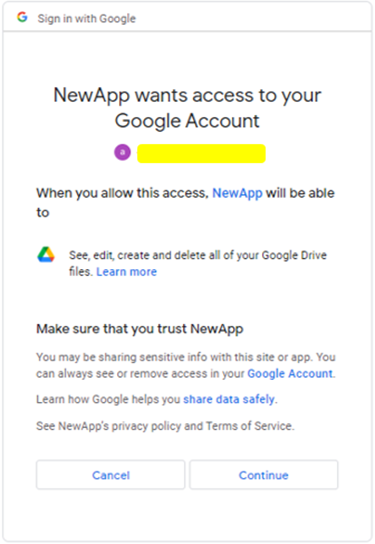
- Following consent screen appears, then click on Continue.
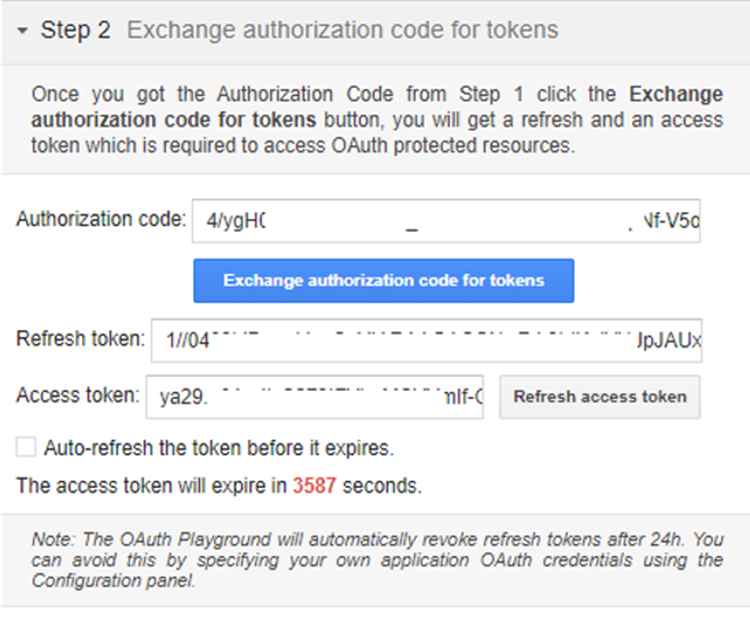
- Click on Exchange authorization code for tokens.
-
You’ll get the Authorization code, Click on the Exchange authorization code for tokens button.
-
Copy the Refresh Token.
Refresh Token Expiration
For more details on token expiration, refer to the: OAuth2.0 Documentation.