Gen AI
Description
This plugin step is utilized to call LLM APIs, enabling the use of various models from different providers, such as OpenAI, based on the configuration.
Reference Links:
OpenAI API Refrence link: https://platform.openai.com/docs/api-reference/chat
Example:
In the following example, We are extracting invoice number from invoice document using gpt-4o model of OpenAI.
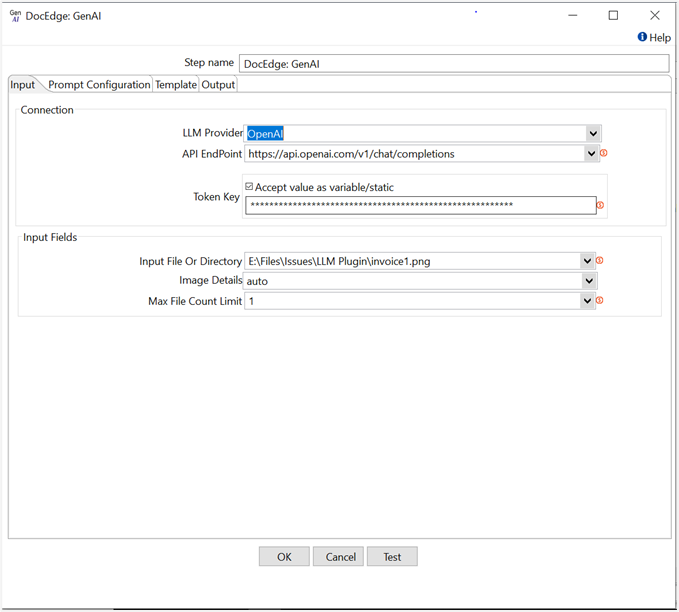
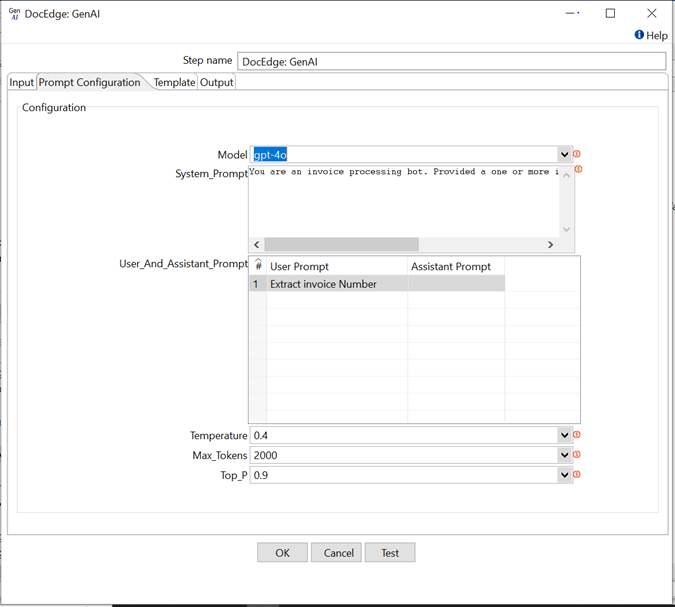
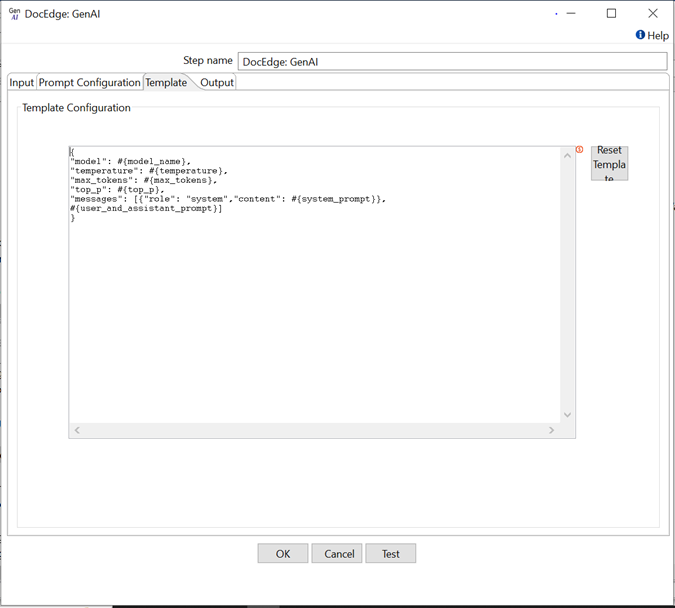
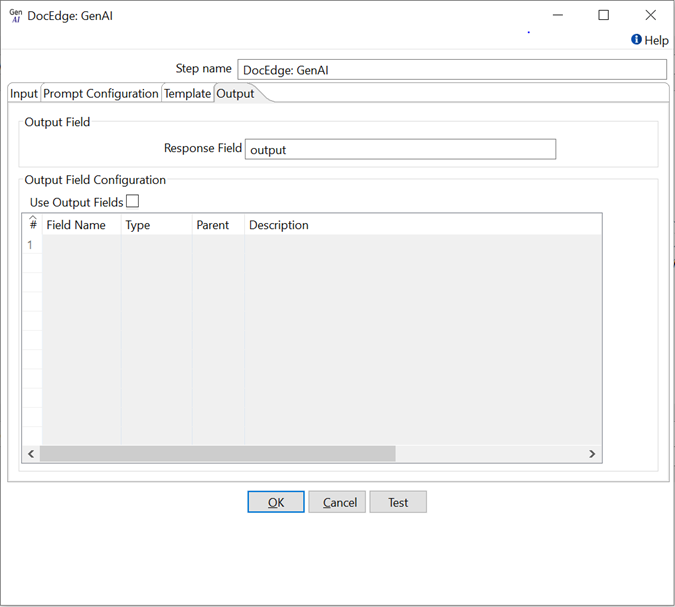
In the following example, we are extracting invoice number and table data(Using Output field configuration) from invoice document using gpt-4o model of Azure OpenAI.
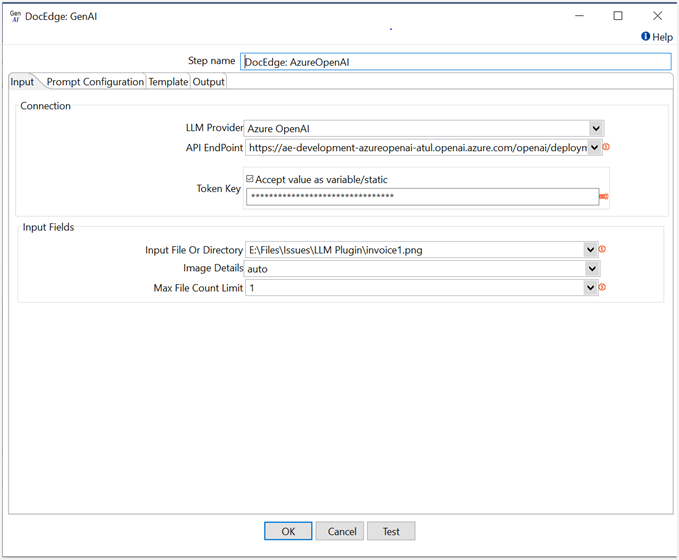
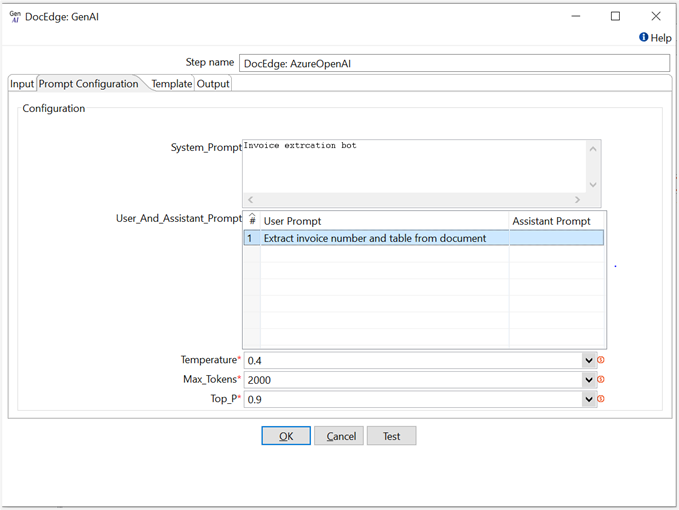
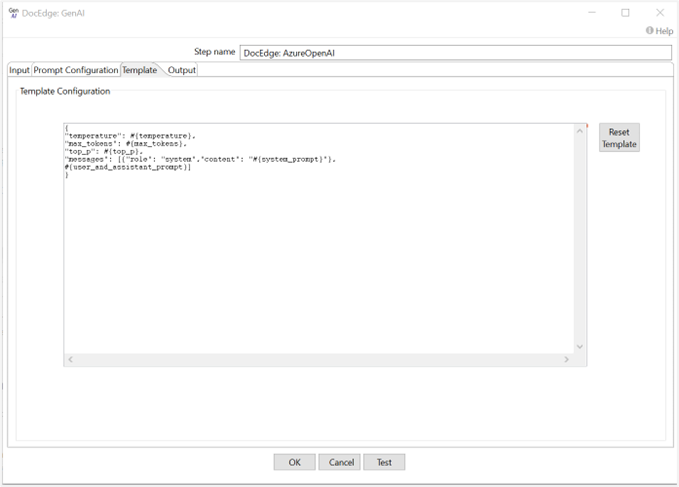
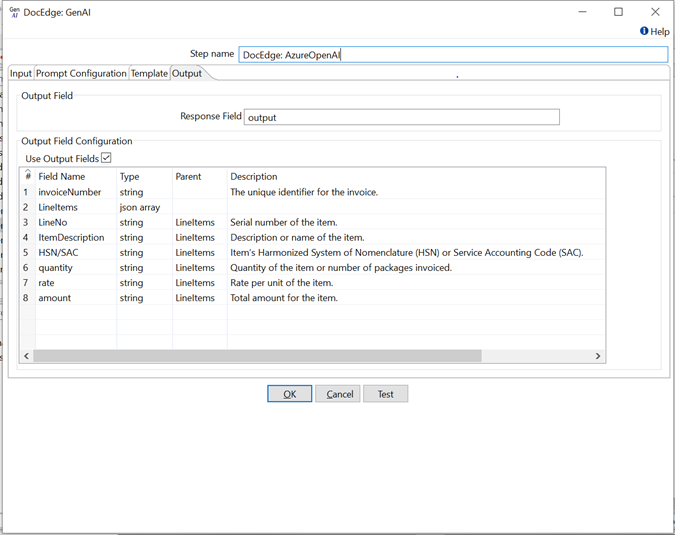
In the following example, we are extracting invoice number, PAN number and table data (Using Output field configuration) from invoice document using gemini-1.5-pro model of Google AI.
Data extraction prompt: Extract invoice number, PAN number and table from invoice document
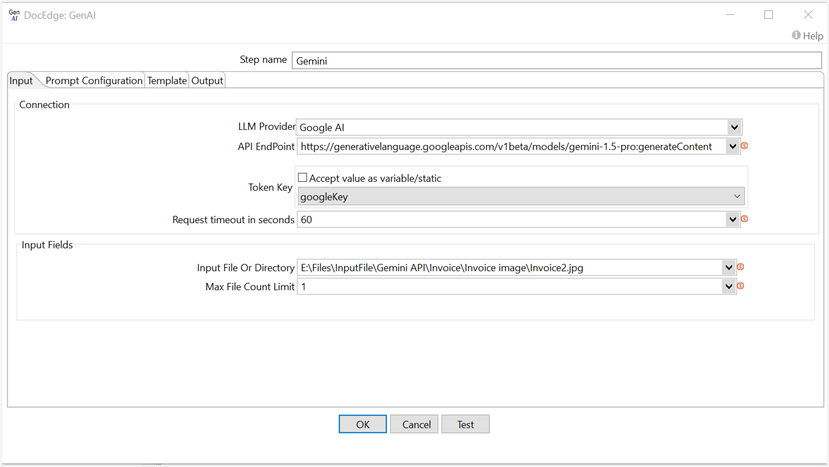
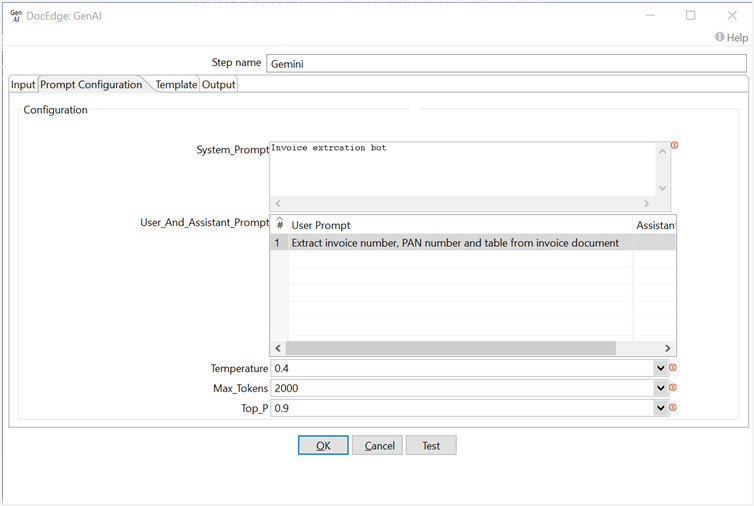
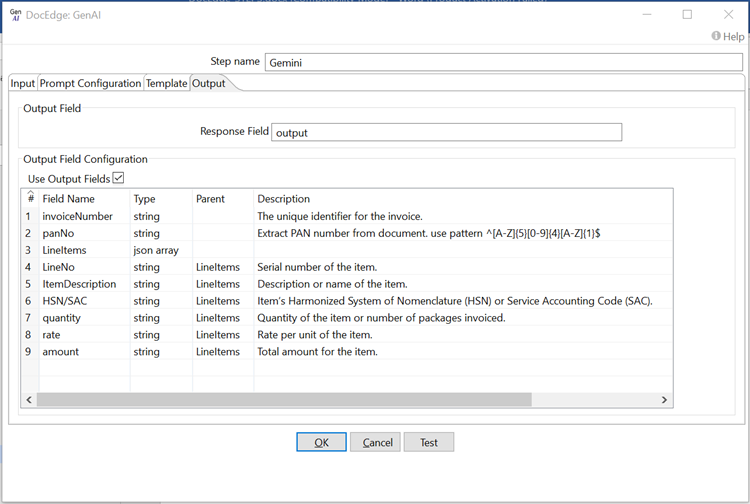
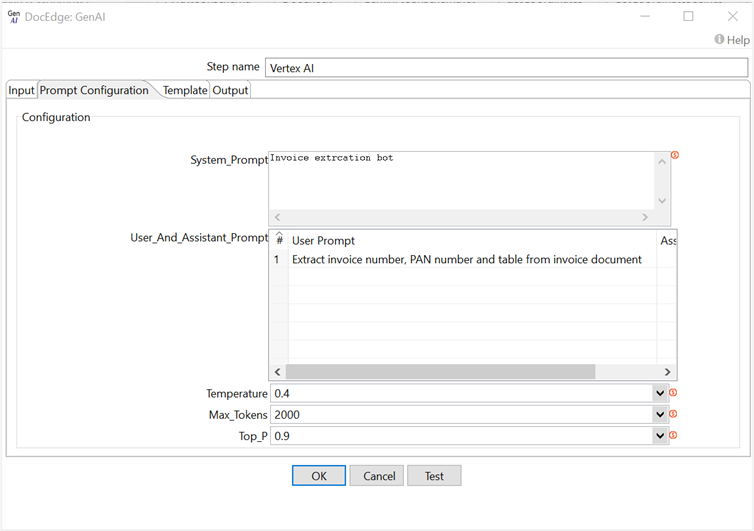
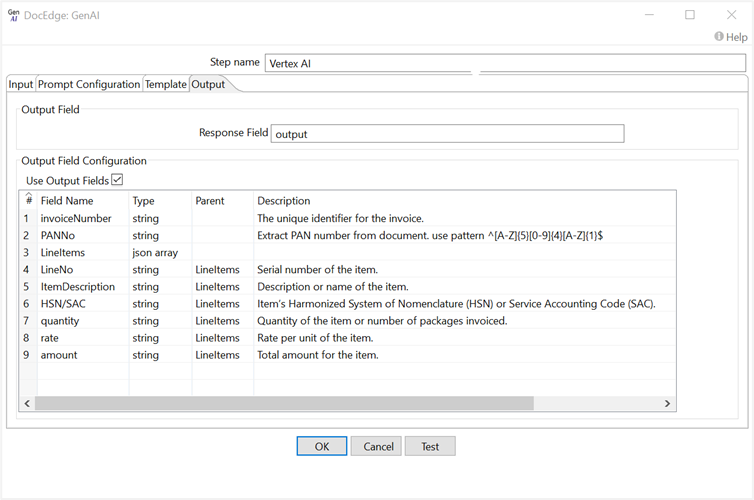
In the following example, we are extracting invoice number, PAN number and table data (Using Output field configuration) from invoice document using gemini-1.5-pro model of Google Vertex AI.
Data extraction prompt: Extract invoice number, PAN number and table from invoice document
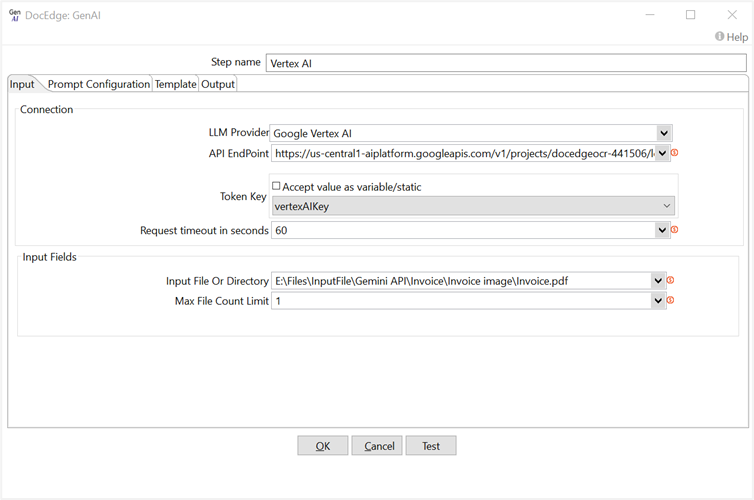
Configurations
| No. | Field Name | Description |
|---|---|---|
| 1 | Step Name | Name of the step. This must be unique in a single workflow. The field is mandatory. |
| 2 | LLM Provider | LLM Provider name. Default value: OpenAI. |
| 3 | API EndPoint | LLM provider API endpoint for accessing the service. The field is mandatory. |
| 4 | Token Key | API token key for authentication. If the checkbox Accept Value as variable/static is selected, then the password field appears as a text box and accepts static or variable values. OR If the checkbox Accept Value as variable/static is not selected, then the password field appears as a dropdown in which you can select a field from the previous steps. |
| 5 | Request timeout in seconds | API request timeout in seconds. Default value is 60 seconds. The field is mandatory. |
| Input Tab | ||
| 6 | Input File Or Directory | Input File Or Directory path. |
| 7 | Max File Count Limit | Limit count for processing files from the input directory. Default value: 1. |
| 8 | Image Details | This parameter controls the resolution in which the model views the image. Default value is auto. |
| 9 | Test | Click Test to verify the connection is established successfully by checking the provided credentials and connection details. |
| Prompt Configuration Tab | ||
| 10 | Model | Select the Model name. The field is mandatory. |
| 11 | System_Prompt | Overall behavior, tone, or role of the model for the conversation. It provides context or guidelines that influence how the model should respond. The field is mandatory. |
| User_And_Assistant_Prompt | ||
| 12 | User Prompt | Input or questions provided by the user. This is the text that the model responds to. The field is mandatory. |
| 13 | Assistant Prompt | Assistant prompt serves as the response to the user's input/prompt. |
| 14 | Temperature | Temperature value range is between 0 and 2. Higher values like 0.8 will make the output more random, while lower values like 0.2 will make it more focused and deterministic. Default value: 0.4. The field is mandatory. |
| 15 | Max_Tokens | The maximum number of tokens that can be generated. Default value is 2000. The field is mandatory. |
| 16 | Top_P | top_p value range is between 0.1 and 1. This parameter is used to control the diversity of the generated text. Default value is 0.9. The field is mandatory. |
| Template Tab | ||
| 1 | Template Configuration | Template Configuration is the default JSON template used to make requests to LLM APIs. The placeholder #{model_name} pulls values from the Configuration tab fields.You can also include input fields and variables in the Template Configuration, such as? {modelName} for input fields and ${modelName} for variables. |
| 2 | Reset Template | Click Reset Template, to replace the existing template with default template in Template Configuration. |
| Output Tab | ||
| 1 | Response Field | Response text from the LLM API. Default Response field name: OutputText |
| Output Field Configuration | Output field configuration allows us to obtain a structured output and include output fields in the response. | |
| 2 | Use Output Fields | Enable or disable the checkbox to use the Output Field Configuration. |
| 3 | Field Name | Output Field name. The field is mandatory. |
| 4 | Type | Select Type of Output Field, that is, string, json array, integer, Boolean, number. The field is mandatory. |
| 5 | Parent | Parent of Output Field. Parent Field type should be json array |
| 6 | Description | Provide a description of the Output Field to retrieve its value in the response. |
Supported Input File Extension:
| No. | LLM Provider | Extensions |
|---|---|---|
| 1 | OpenAI | jpg,png,jpeg |
| 2 | Azure OpenAI | jpg,png,jpeg |
| 3 | Google AI | pdf,jpg,jpeg,png,txt,json,csv,html,css,py |
| 4 | Google Vertex AI | pdf,jpg,jpeg,png,txt,json,csv,html,css,py |