Get Table
Description
This step is used to extract table and its text.
Reference Links:
PDF debugger Tool Jar link: https://www.apache.org/dyn/closer.lua/pdfbox/3.0.2/debugger-app-3.0.2.jar
This Jar used to find PDF coordinates.
Example:
Table extraction from PDF using Manual mode with table and column co-ordinates.
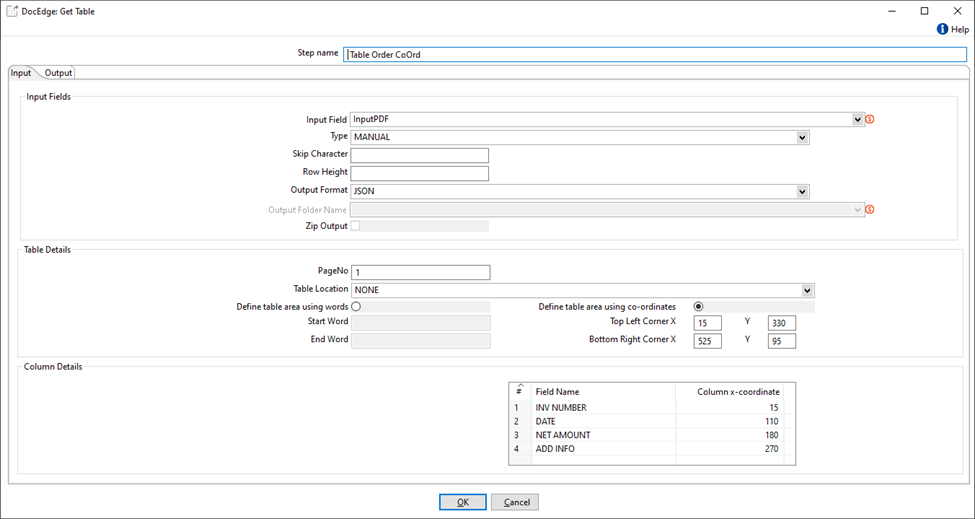
Table extraction from PDF using Auto mode.
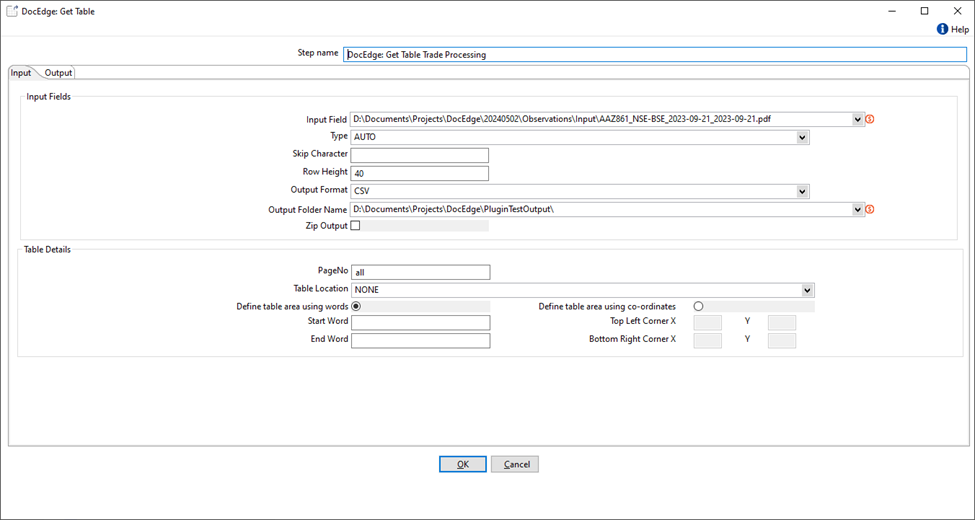
Table extraction from PDF using Manual mode with table start/end word and column headers.
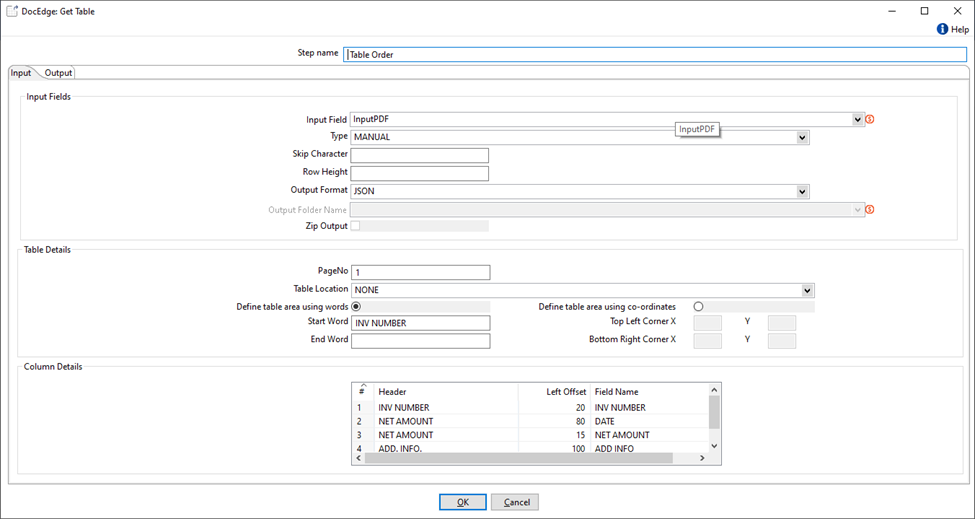
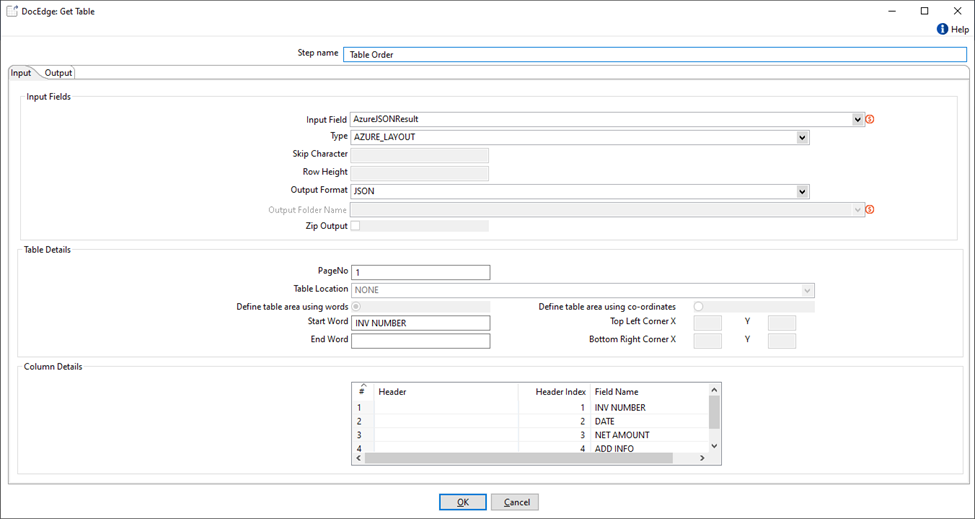
Table extraction from Azure Response JSON with table start/end words and column headers.
Configurations
| No. | Field Name | Description |
|---|---|---|
| 1 | Step Name | Name of the step. This name must be unique in a single workflow. The field is mandatory. |
| Input Fields | ||
| 1 | Input Field | Input PDF file path OR Azure Response JSON using prebuilt-layout model. The field is mandatory. |
| 2 | Type | AUTO – Automatically detects tables from PDF. This option works with only PDF file. MANUAL – User need to specify table and column boundaries to detect the table properly. This option works with only PDF file. AZURE_LAYOUT – This is used only when the input is Azure Response JSON. The field is mandatory. |
| 3 | Skip Character | Users can specify a character that should be skipped from the extracted table. Note: The character will be skipped from the headers as well as contents of all the extracted columns. |
| 4 | Row Height | Sometimes the height of the row in a table is greater than standard height. In such cases providing row height helps correct extraction of table. |
| 5 | Output Format | Three output formats are supported – • CSV – Extracted table contents will be available in one or more files with .csv extension and format • EXCEL – Extracted table contents will be available in single file containing one sheet per table with .xlsx extension and format. NOTE: This format is not available when the input is Azure Response JSON. • JSON – Extracted table contents will be available in a single JSON output field. |
| 6 | Output Folder Name | This field is used only when Output Format is CSV/EXCEL. Only a folder path is allowed here. Output files with names same as input file name and extension as specified in output format will be created in the folder selected in this field. |
| 7 | Zip Output | This field is used only when Output Format is CSV/EXCEL. If the checkbox is checked, all the output csv or xlsx files will be zipped together and that zip file will be created in the given output path. |
| Table Details | ||
| 1 | PageNo | Specify Page No for which the configuration being added. If same configuration is used for all pages specify “all”. If same configuration is used for multiple pages specify pages as comma separated string – “1,3,5”. If same configuration is used for a page range specify range – “1-10”. If same configuration is used for a page range but last page no is unknown, use range as “3-end” i.e. for all pages between page no. 3 to end page. |
| 2 | Table Location | Define the actual table location write Start Word or Top left corner of page. If table starts at the same location as specified by Start Word or Top left Corner use option NONE, otherwise use correct option from LEFT, RIGHT, UP or DOWN. This field is used only when input is PDF file. |
| 3 | Define table area using words | This option is used when user wants to define table using start and end words. |
| 4 | Start Word | PDF Input: If start word is specified it is searched in PDF and its co-ordinates are used as start co-ordinates of the table. If start word is null page start is considered as table start. Azure JSON Input: Start word is searched in table definitions and if found then the table extracted. |
| 5 | End Word | PDF Input: If end word is specified it is searched in PDF, and its co-ordinates are used as end co-ordinates of the table. If end word is null page end is considered as table end. Azure JSON Input: End word is searched in table and if found then the table extraction is stopped. |
| 6 | Define table area using co-ordinates | This option is used when user knows the start and end co-ordinates. Please note that these co-ordinates must be extracted using the Camlot UI application called Excalibur. This option is available only for PDF input. |
| 7 | Top Left Corner X | Specify Tabletop left corner x co-ordinate. |
| 8 | Top Left Corner Y | Specify Tabletop left corner y co-ordinate. |
| 9 | Bottom Right Corner X | Specify Table bottom right corner x co-ordinate. |
| 10 | Bottom Right Corner Y | Specify Table bottom right corner y co-ordinate. |
| Output Tab | ||
| 1 | Output Field | NOTE: Before returning file paths for output files, a folder with current date time is created and all the output files are created in this folder. There are 3 types of Output formats available – • CSV – In this case, there could be multiple output files, hence Output folder path is returned. • Excel – In this case, single file is created as output file with multiple sheets if multiple tables are extracted. Hence Output file name with complete folder path is returned. • JSON - Output Json in the predefined format is returned. An additional output format of Zip file is available in case of CSV and Excel output format. If the “zip” checkbox is checked, all the CSV or Excel output files are zipped together to give single “.zip” output file. In such case, Output zip file name with complete folder path is returned. Default value: OutputValue |