Get Value
Description
This plugin step is used to get key value field from text,pdf, Azure json and google vision json.
Reference Links:
PDF debugger Tool Jar link: https://www.apache.org/dyn/closer.lua/pdfbox/3.0.2/debugger-app-3.0.2.jar
This Jar used to find PDF coordinates.
Example
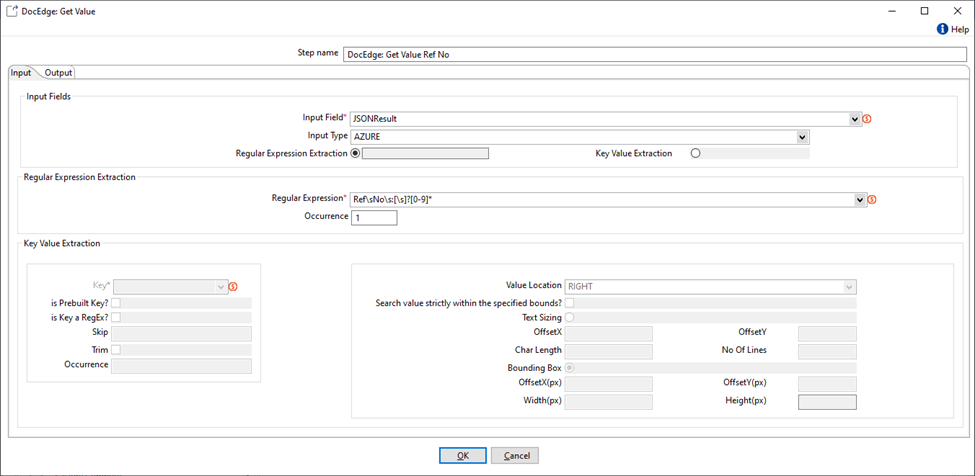
RegEx Extraction with Text as Input (Same configuration can be used for PDF, Google Vision or Azure as Input)
Extraction of value using RegEx is possible with all input types. User needs to specify the input source, source type and a valid RegEx to get the proper output
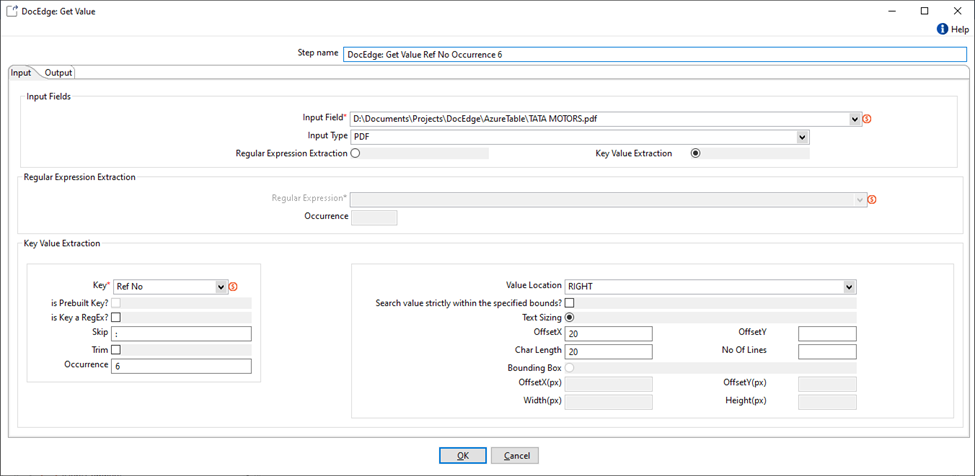
Key Value Extraction from PDF
Extraction of value from a digital PDF is possible by specifying a search word/phrase as key. The key can be a plain string or a regular expression. User needs to also specify the location of value with respect to key as well as other parameters like X/Y offsets, length and/or no. of lines.
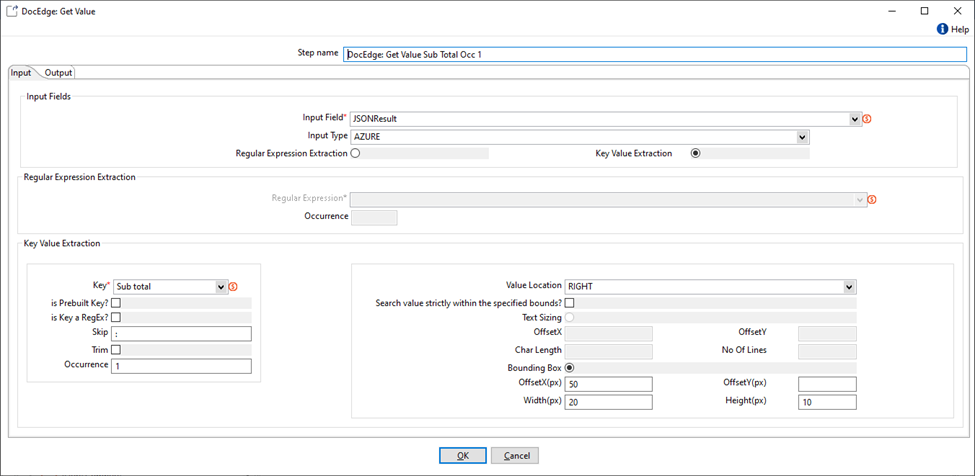
Key Value Extraction from Google Vision OR Azure
To extract a value from an image, it is first passed to google vision or Azure OCR. The JSON output from these OCRs is then considered as input for “Get Value” plugin. In this case also the extraction is done by specifying a search word/phrase as key. The key can be a plain string or a regular expression. User needs to also specify the location of value with respect to key as well as other parameters like X/Y offsets, width and/or height.
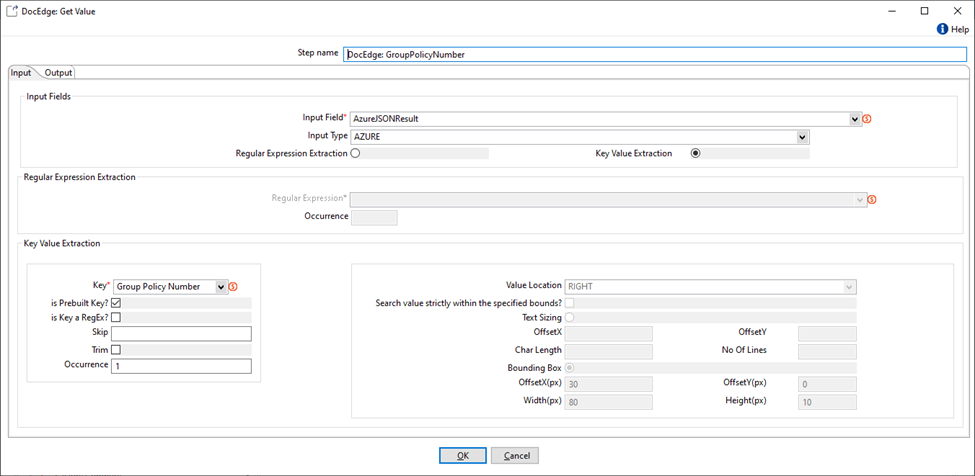
Key Value Extraction from Azure using prebuilt keys
To extract a value from an image, it is first passed to Azure OCR with parameter features= keyValuePairs. In this case also the extraction is done by specifying a search word/phrase as key. User needs to check the checkbox “is Prebuilt Key?” to use prebuilt keys feature. Other configurations for finding the value are not applicable here.
Key Value Extraction from other OCR engines
To extract value from an image, it is first passed to OCR Engine. The JSON output from this OCR is then considered as input for “Get Value” plugin. It is a prerequisite that this OCR output should be in the same format as AZURE OCR. The input type selected here is DOCEDGE_OCR. In this case also the extraction is done by specifying a search word/phrase as key. The key can be a plain string or a regular expression. User needs to also specify the location of value with respect to key as well as other parameters like X/Y offsets, width and/or height
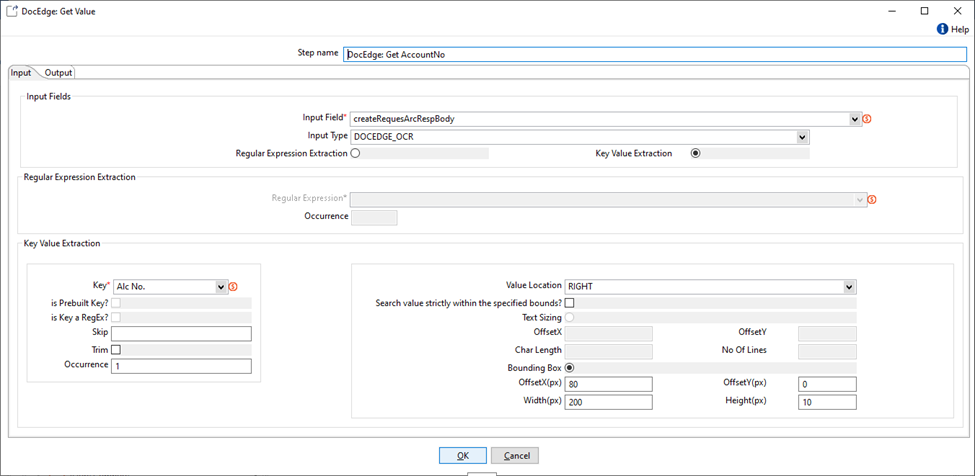
Configurations
| No. | Field Name | Description |
|---|---|---|
| 1 | Step Name | Name of the step. This name has to be unique in a single workflow. The field is mandatory. |
| Input Fields | ||
| 1 | Input Field | Input text from all input sources. The field is mandatory. |
| 2 | Input Type | Possible value TEXT, AZURE, PDF, GOOGE_VISION. Default value will be TEXT. The field is mandatory. |
| 3 | Regular Expression Extraction | Choose this radio button to utilize a RegEx pattern for searching for a value. It is selected by default. The field is mandatory. |
| 4 | Key Value Extraction | Choose this radio button to utilize config information like Key, Location, Offset etc. to find value. This option is not available when the input source is Text. The field is mandatory. |
| Regular Expression Extraction | This section below will be enabled only when the 'Regular Expression Extraction' radio button is selected. | |
| 1 | Regular Expression | Regular expressions will be used instead of a key value configuration. If found, the matched text will be returned as output. |
| 2 | Occurrence | If Regular Expression returns multiple matches, occurrence field decides which match is to be returned. If “Occurrence” field is empty all matches will be returned as comma separated string. |
| Key Value Extraction | This section below will be enabled only when the 'Key Value Extraction' radio button is selected. | |
| 1 | Key | Key is the search word/phrase that is to be searched in given source. The field is mandatory. |
| 2 | Is prebuilt key? | This checkbox is added to use Prebuilt Keys from Azure response. It is enabled only when input type = AZURE. When this checkbox is checked, all the value configurations will be disabled. |
| 3 | Is Key a RegEx? | This checkbox is added to allow users to specify the key as RegEx. When this checkbox is checked, the key is searched for as a Regular Expression and not as exact match. |
| 4 | Skip | Specified values that need to be skipped from output value. You can specify single characters like special symbols that need to be removed from output. |
| 5 | Trim | If check – remove right and left whitespaces from value. If uncheck get output value along with whitespaces. |
| 6 | Occurrence | If multiple matches of a key are found, occurrence field decides which match is to be returned. If “Occurrence” field is empty all values will be returned as comma separated string. The field is mandatory. |
| 7 | Value Location | Specify the position of the value for a particular key. Options include UP, DOWN, LEFT, and RIGHT. The field is mandatory. |
| 8 | Search value strictly within the specified bounds? | When this checkbox is checked, the value will be searched strictly within the given bounds. |
| 9 | Text Sizing | Select this radio button if you wish to obtain the value for a specific key using its position. This option is available only when the input source is PDF. The field is mandatory. |
| 10 | OffsetX | Offset value of x coordinates. The field is mandatory. |
| 11 | OffsetY | Offset value of y coordinates. The field is mandatory. |
| 12 | Char Length | Specify the length of characters to be extracted as the value for a specific key. The field is mandatory. |
| 13 | No Of Lines | Specify the number of lines for the value if it is multi-line text, such as an address. The field is mandatory. |
| 14 | Bounding Box | Select the bounding box radio button if you wish to use coordinates for the text value. This option is available only when the input source is Google Vision or Azure. The field is mandatory. |
| 15 | OffsetX(px) | X coordinate value in pixels. The field is mandatory. |
| 16 | OffestY(px) | Y coordinate value in pixels. The field is mandatory. |
| 17 | Width(px) | The width of the bounding box for a particular value, measured in pixels. The field is mandatory. |
| 18 | Height(px) | The height of the bounding box for a particular value, measured in pixels. The field is mandatory. |
| Output Tab | ||
| 1 | Output Field | Value of specified key. Default value: “Output Value”. If multiple values are found, they are returned as comma separated string |
| 2 | Output CoOrdinates Field | Coordinates of value for a specified key. Default value: “OutputCoOrdinates”. This is a JSON String that includes key, co-ordinates of key, value, co-ordinates of value, page number on which the value is found and height and width of that page. If multiple values are found Array of such JSON Strings is returned. Also, if key is found but value cannot be extracted then value is returned as blank string and co-ordinates calculated according to the given configuration are returned. |