GUI: Universal Actions
Description
Universal Actions performs low-level robot actions that operate at the screen coordinate level rather than through element locators. Use this step when standard GUI steps cannot interact with a control — for example, clicking at exact screen coordinates, performing drag-and-drop between two points, or reading and writing text at the current cursor position. It supports actions such as Click At, Double Click At, Right Click At, Middle Click At, Hover At, Drag Drop, Set Value At Current Position, and Get Value From Current Position. Because these actions rely on fixed screen coordinates, you must maintain the same screen resolution and scaling factor during both recording and execution.
Configurations
| Field Name | Description |
|---|---|
| Step Name | Name of the step. The name must be unique in a single workflow.The data type is string, and the field is mandatory. |
| Action Information | Click to open the action information dialog. Select the field details, as required. Click OK, and the selected Action Information details appear in the tabular formats |
| Action Information Fields: | |
| Action Type | Available actions for Action Type: 1.Set Value At Current Position: It allows the user to set the given text in the control. 2.Get Value From Current Position: This is used to read the text from the current position. Note: This will work on the current cursor position on the active screen. It may not work with non-editable,read-only, disabled, and masked fields. This will require the clipboard access of the system. 3.Double Click At: This is allowing the user to perform the Double click operation at the given X and Y coordinates 4.Middle Click At: This is allowing the user to perform the Middle click operation at the given X and Y coordinates 5.Right Click At: This is allowing the user to perform the Right click operation at the given X and Y coordinates. 6.Hover At: This is used to perform the mouse move operation at the given X and Y coordinates . 7.Click At: This is allowing user to perform click operation at given X and Y coordinate. 8.Drag Drop: This is allowing user to perform drag and drop operation at given Source and Destination point. Note: The UI controls must be at the same X and Y coordinates during record time and execution time. To achieve this, keep the exact screen resolution and scaling factor at record time and at execution time.Action Type: Set Value At Current Position |
| Action Type: Set Value At Current Position | 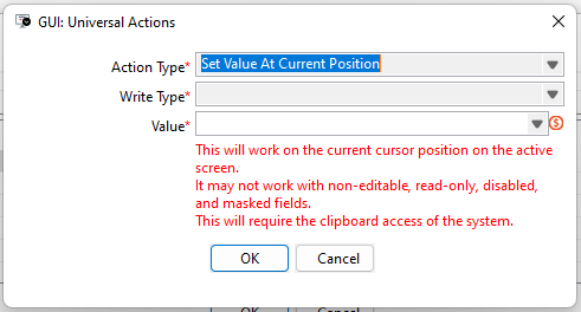 |
| Write Type | Select an option from the list: Append – Adds text to the end of the existing text. Insert At Start – Adds the text at the start of the existing text. Replace – Replaces the existing text with new text. Current Caret/Cursor Position – Select to write the given text value at the current cursor position. Note: This will work on the current cursor position on the active screen without the element data. It may not work with non-editable, read-only, disabled, and masked fields. Mandatory: It is a mandatory field. |
| Value | Provide the text to perform the Write Text operation. It is a mandatory field. |
| Action Type: Get Value From Current Position | 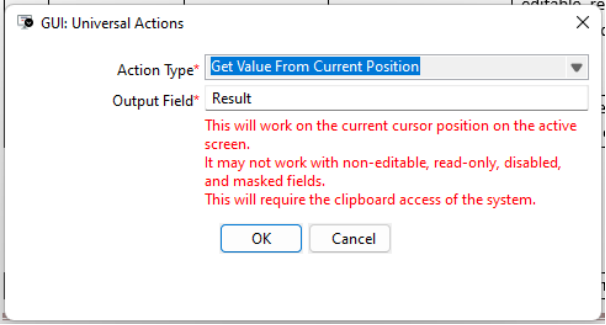 |
| Output Field | It is a field to define the output variable name. The default output variable name is “Result”.It is a mandatory field. |
| Action Type: Drag Drop | 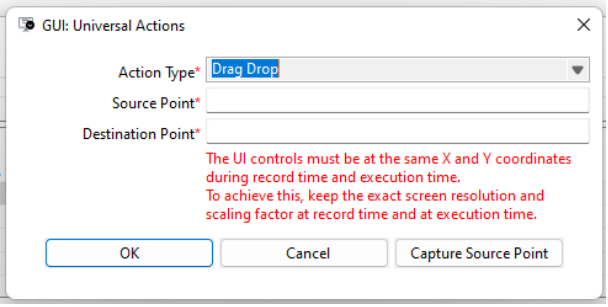 |
| Source Point | Specify the (x,y) coordinates of the Source point. To select the Source Point use ‘Capture Source Point’ button. It is a mandatory field. |
| Destination Point | Specify the (x,y) coordinates of the Destination point. To select the Destination Point, use ‘Capture Destination Point’ button. It is a mandatory field. |
| Action Type: Double Click At, Middle Click At, Right Click At, Hover At, Click At | |
| X-Coordinates | Provide a valid x coordinate of the active screen.It is a mandatory field. |
| Y-Coordinates | Provide valid y coordinate of the active screen.It is a mandatory field. |
| Button: Capture Coordinates | Click to select the specific coordinates on the active screen.It is a mandatory field. |
| Wait Before Action (In Seconds) | Specify a Timeout value for the action to be performed. |
| Step Description | Provide more information about the selected / chosen action.It is a mandatory field. |