GUI Automation
GUI Automation plugin steps are used for automation of Web, Windows and Java Applets applications, on Windows and Linux OS.
Note:
- Web technology works on Windows and Linux OS.
- Java and Windows technologies work on Windows OS only.
- Workflows designed with:
- Either Windows or Java technologies must run sequentially.
- A combination of Windows, Web, and Java technologies must run sequentially.
- Web technology can run parallel.
- In cases where multiple rows are passed to a step, it is recommended to either use Windows/Java GUI steps within a child-workflow or employ sequential row-passing mechanisms such as Loop step.
- For Java Technology, Security Warning popup that appear before opening the applet from web needs to be handled using GUI: Special Key Actions
- For Incognito Mode, make configuration changes in extension. Refer Appendix: Web extension installation.
- If any non-Web GUI step is added in the workflow after Start browser step, then either Explicit Delay or Web wait until step needs to be added after start browser step.
- When using Java technology, the target application should be visible on active screen.
- For Java/Applet Automation - Kindly open the applet target application by double clicking using windows automation steps.
- In the plugin, the headless mode in the plugin is supported for Web technology only.
-
You cannot create workflows, which have a combination of steps from both Legacy Web GUI and new GUI Automation plugins.
-
If you are automating webpages or web applications that might display ads, you will need to either design your automation to handle the ads or use an ad blocker extension to ensure your automation runs smoothly.
-
To upgrade from current GUI Automation version to version 3.19, complete the following steps in AE server and then upload the latest jar:
-
Sign in as Sys Admin. Go to System Settings and enable the Maintenance Mode.
-
Disable the workflows and then delete the GUI Automation plugin. For details, see the AutomationEdge System Administrator's Guide.
-
The following browser versions are supported for GUI Automation/GUI Spy in Release 4.5.
| Browser Support | OS | Chrome | Firefox | IE | Microsoft Edge |
|---|---|---|---|---|---|
| Release 4.5 | Windows | 110 and above | 110 and above | 11 | 80 and above |
| Linux | 110 and above | 110 and above | - |
- Installing Browser Extension is mandatory.
- Browser Extensions are available on EPD. Download and install the required extensions.
GUI Spy
Use GUI Spy to perform a web or Window Automation. To open go to, Process Studio Toolbar > Tools > Spy > GUI Spy, GUI Spy pop-up window opens.
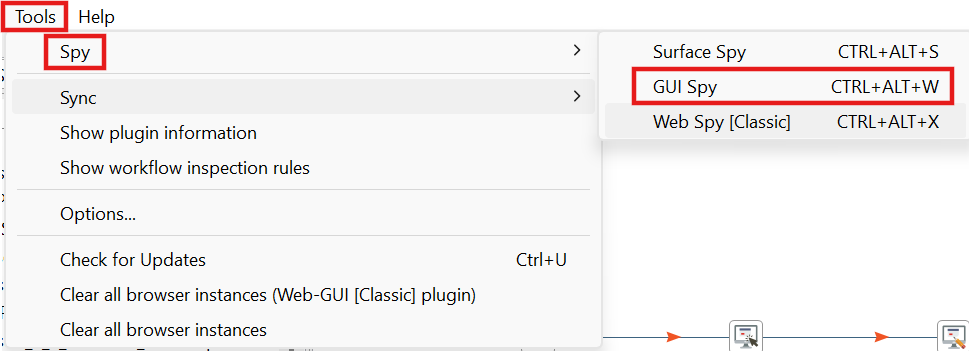
The GUI Spy dialog gives options to operate in:
- Web Automation
- Windows Automation
- Web Automation + Windows Automation
Depending on the selection, GUI Spy window changes.
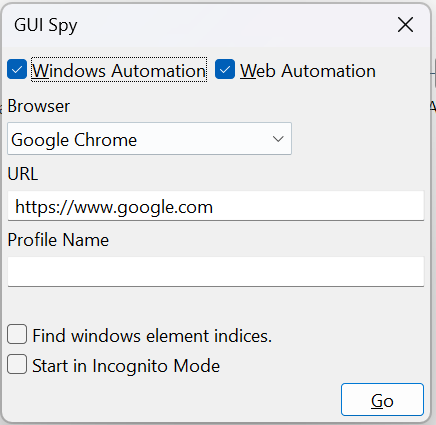
If you select Windows Automation checkbox, then you can work with both Windows and Java technologies.
-
Select the Find windows element indices checkbox, if you want to search for the windows elements.
-
Select the Start in Incognito Mode checkbox, if you want to start the browser in the incognito mode. Else, the browser will start in the normal mode.
Note: The incognito mode will work only if you select the Web Automation checkbox.
How to Use
Web Automation
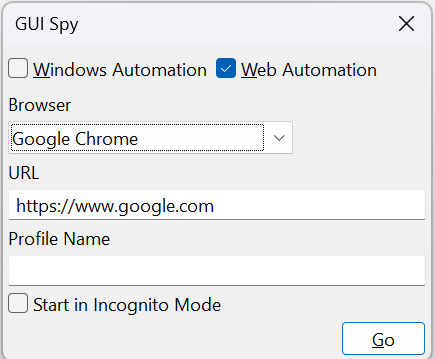
- Select required Browser from the list. Supported browsers are - Google Chrome, Microsoft Edge and Mozilla Firefox.
- Enter URL of web application to spy and perform actions.
- Specify Profile directory path to save all the directories and click Go.
- Click Start in Incognito Mode checkbox to open browser in Incognito Mode.
- Click Go, the selected browser will open with GUI Spy toolbar. Using GUI Spy toolbar, you can build a workflow with GUI Automation plugin steps. For more information on tool icons, see section Appendix: GUI Spy toolbar.
Windows Automation
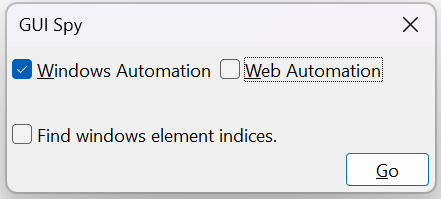
Select Find windows element indices checkbox to find the indices element and click Go
Compatibility:
Windows 7/8.1/10, Windows Server 2008/2012/2016
Prerequisites:
Microsoft .NET Framework 4.8 or above
Check Plugin Support:
-
You may check if your target application elements are supported by Windows Application GUI Plugin steps.
-
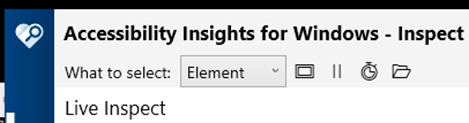
Verify the target application elements against "Accessibility Insights for Windows" application.
-
You may check only for Element accessibility. Choose the criterion, Element from the list as seen in the following image:
- Get more details in the following video, [https://www.youtube.com/watch?v=BIu9ONdMGGg]
-
Use GUI Spy to build a workflow with GUI Automation plugin steps for Windows.
-
AutomationEdge Workflows with GUI Automation Windows steps should be marked Sequential.
-
If the field appears as a widget, then it can handle both:
- Text (static value or environment variable)
- Combo (drop-down containing values from previous steps)

OR
- If the field is a text box, then you can provide static values only.

OR

- If
 is available, then support is provided for selecting environment variables or static values.
OR
- If dropdown is available, it supports available static values only.

- To capture an element inside an iframe using the spy tool, first click inside the iframe or on the specific element, then click the spy button to retrieve the element’s information. It is recommended to use the iframe XPath captured using the spy tool.
- The iframe Xpath field is available in the following steps: GUI: ComboBox Actions, GUI: Capture Web Page, GUI: Get Values, GUI: Inject JavaScript, GUI: JS Events, GUI: Mouse Actions, GUI: Set Values, GUI: Web Download Image, GUI: Web Element Condition, GUI: Web Loop Table, GUI: Web Page Scroll, GUI: Web Switch Window, GUI: Web Wait Until, GUI: Web Table
Limitation:
- GUI Recorder is not working as expected in case of few sites/elements. At times it skips or generates duplicate steps.
Note: You may put additional delays for browser automation Firefox or while running GUI WFs on Linux OS.
Common action buttons:
| Common Buttons | |
|---|---|
| Help | Click to see the Plugin description and configuration details. |
| OK | Click to accept configurations. |
| Cancel | Click to discard configurations. |