Surface Actions: Configure OCR provider
- In the step, click Configure Provider, the Surface Actions dialog appears.
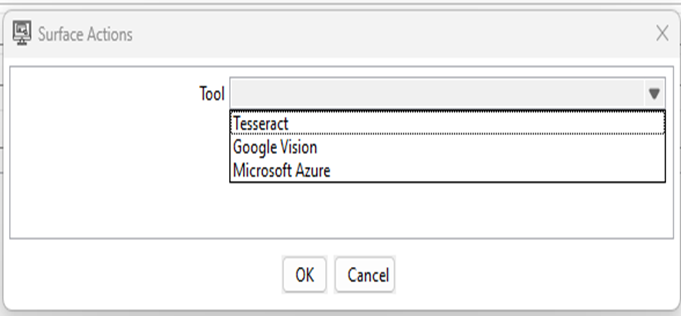
- In the Tool list, select the OCR provider from the list. Available options are:
- Tesseract
- Google Vision
- Microsoft Azure
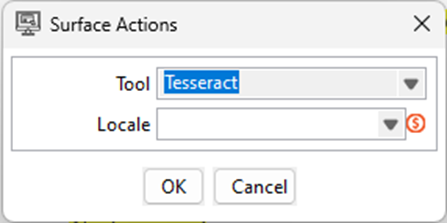
- The configuration fields will change depending on the tool you select: Tesseract
Before configuring Tesseract, download the required locale (.traineddata) file from the web. The System Administrator can upload the file through File Management → Files on the AutomationEdge Server. English language is available by default.
For Tesseract, configure the following field details:
| Field Name | Description |
|---|---|
| Locale | Select the required language for OCR processing from the list. Notes: • By default, only the English language file, that is, eng.traineddata is included in the tool.• To support other language(s) in the Locale list, place additional language files in the tessdata folder within the folder where the JAR is placed.For example, hin.traineddata for Hindi. The languages of added files will be available in the Locale list.• Make sure the language file follows the format and is compatible with Tesseract OCR. Allowed format: <lang-code>.traineddataFor details, see: https://github.com/tesseract-ocr/tessdata/tree/main |
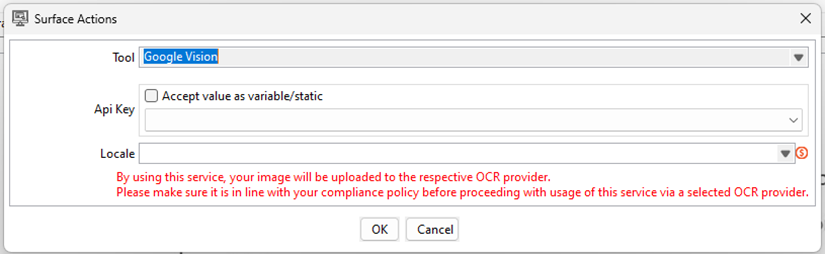
Google Vision For Google Vision, configure the following field details:
References:
-
Create a Google Cloud Vision API key: https://cloud.google.com/docs/authentication/api-keys?hl=en&visit_id=637051029162974596-3924725435&rd=1#creating_an_api_key
-
Add restrictions to API keys: https://cloud.google.com/docs/authentication/api-keys#api_key_restrictions For Google Vision, the following field will be available to configure:
| Field Name | Description |
|---|---|
| Api Key | Specify valid Azure Document Intelligence service key. Note: • Select Accept value as variable/static to use the API key as a static value or from an environment variable in the API key box. • Clear the checkbox to use the API key from the previous step. |
| Locale | Specify the language code, for example, en.Reference link: https://cloud.google.com/translate/docs/languages |
Microsoft Azure
For Microsoft Azure, configure the following field details:
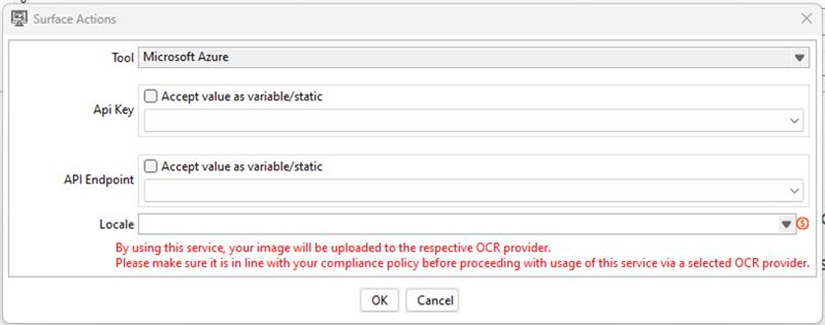
To create resources, see: https://learn.microsoft.com/en-us/azure/ai-services/document-intelligence/how-to-guides/create-document-intelligence-resource?view=doc-intel-4.0.0
For Microsoft Azure, the following field will be available to configure:
| Field Name | Description |
|---|---|
| Api Key | Specify valid Azure Document Intelligence service key. Notes: • Select Accept value as variable/static to use the API key as a static value or from an environment variable in the API key box. • Clear the checkbox to use the API key from the previous step. |
| API Endpoint | Specify the valid Document Intelligence service endpoint. Notes: • Select Accept value as variable/static to use the API Endpoint as a static value or from an environment variable in the API key box. • Clear the checkbox to use the API key from the previous step. |
| Locale | Specify the language code, for example, en.Or Specify a BCP 47 language tag, for example, en-US.For details, see: https://learn.microsoft.com/en-us/azure/ai-services/document-intelligence/language-support/ocr?view=doc-intel-4.0.0&tabs=read-print%2Clayout-print%2Cgeneral |