Web GUI [Classic]
Web-GUI [Classic] plugin steps are used for automation of web applications, on Windows and Linux based OS.
Important:
-
AE has deprecated the Legacy Web-GUI [Classic] approach and recommends using it only for the following scenarios:
-
Design automation to run in the Internet Explorer browser or IE mode in Microsoft Edge browser.
-
Make changes to the existing (legacy) automations, which have not been migrated to the new approach.
-
-
You cannot create workflows, which have a combination of steps from both, Web-GUI [Classic] and new GUI Automation plugins.
-
To resolve Chrome browser compatibility issue (for browser version 137 or above) update startup scripts for AE-Agent v8.x and Process Studio 8.x as follows:
The flag, ignoreDeprecatedExperimentalOptions, ensures that older, unsupported browser com-mands are not sent, which allows the agent to work correctly with recent versions of Chrome.
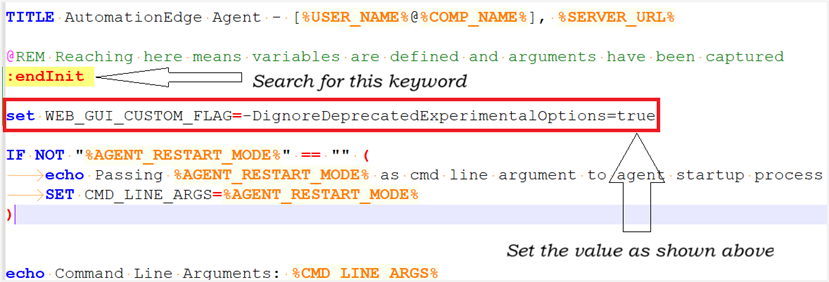
For AE-Agent, update the flag in startup.bat as follows:
Step 1:
- Search for: endInit
- set WEB_GUI_CUSTOM_FLAG=-DignoreDeprecatedExperimentalOptions=true
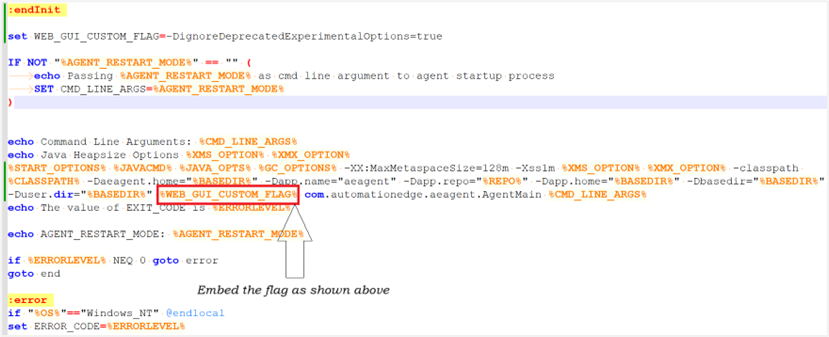
Step 2:
- In the file, search and embed the flag as follows:
Similarly, in the process-studio.bat file, set the WEB_GUI_CUSTOM_FLAG as shown in the following screenshot, if required:

Update the following in the file:

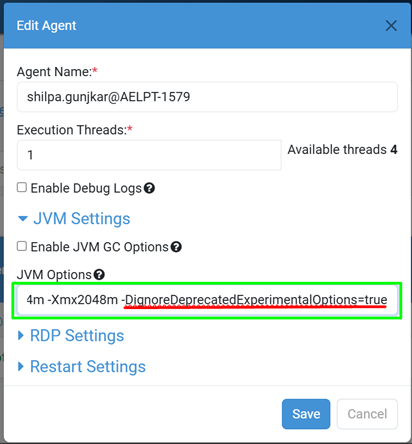
As an Admin, you can also set the flag, -DignoreDeprecatedExperimentalOptions=true directly through the Agent Settings option in the AE UI. For details, see Edit Agent Field Details section in the AutomationEdge User's Guide.
The following browser versions are supported for Web-GUI [Classic] / Web Spy [Classic] in Release 4.2.
| Browser Support | OS | Chrome* | Firefox | IE | Microsoft Edge |
|---|---|---|---|---|---|
| Release 4.2 | Windows | 110 and above | 110 and above | 11 | 110 and above |
| Linux | 110 and above | 110 and above | - | - |
Chrome and IE drivers are available on EPD. Download the required version and the System Administrator can upload the driver through File Management → Files on the AutomationEdge Server.
Recommendation: If you want to use IE as your browser, but your 64-bit system is slow, then use the IE Mode 32-bit browser option instead of IE Mode 64-bit.
Steps to configure Chrome driver:
Upload the latest browser drivers for Web-GUI [Classic] plugin as follows:
i. Upload the latest browser drivers, for example, <CHROME<VERSION>.zip> for the plugin, using Plugin Management on AutomationEdge UI. For details, see File Management in the AutomationEdge System Administrator guide.
ii. Once uploaded the driver is available for both Process Studio and Agent. For Process Studio, additionally, sync the plugins so that the drivers are available for automation.
Web Spy [Classic]
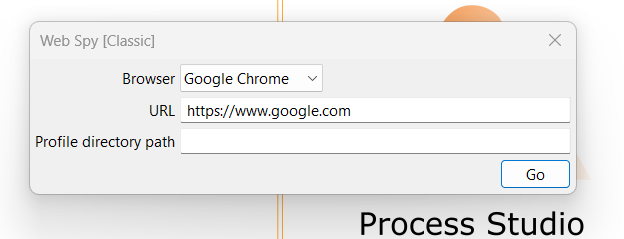
Web Spy [Classic] is used to build workflows with Web-GUI [Classic] plugin steps for web applications.
References:
The working of the Recorder feature of Web-Spy [Classic] and GUI Spy is the same. To understand how to work with the feature, see Project 8 in the AutomationEdge_R7.7.3_ProcesStudio_Activity_Guide.
Check that %SystemRoot%\System32\Wbem is added to the system path variable. If it is not already added, provide the path in the system path variable.
Common Buttons: The following actions are common across all steps:
Help : Click to see the Plugin description and configuration details.
OK : Click to accept configurations.
Cancel : Click to discard configurations.