Start Browser
Description
Use the step to initiate the web browser and navigate the specified URL.
Notes:
- The Exit Browser step closes only the browser launched by the specific workflow.
- The Start Browser step registers the launched browser process using a unique key (the driver name combined with the workflow instance ID).
- The Exit Browser step uses the key to identify and terminate only the correct browser.
- A fallback operating system command (PowerShell on Windows or pkill on Linux) targets the exact browser process using the remote debugging port if standard termination fails.
- Closing Process Studio no longer terminates running automation browsers.
- Entering 0 in the Delay field triggers a default delay of 30,000 milliseconds (30 seconds).
- The step auto-converts path values containing forward slashes (for example, D:/Folder) to backslashes (D:\Folder) on Windows.
Important:
Workflows containing multiple Start Browser steps require different web drivers selected for each step.
Configurations
| Field Name | Description |
|---|---|
| Step name | Name of the step. The name must be unique in a single workflow. |
| Web browser name | Select browser name from the list. Available browsers name: • BROWSER1 • BROWSER2 |
| Start node | Select Start node to set this step as start node. No other input steps are connected to this step. |
| Browser Configuration | |
| Browser | Select web browser to initialize from the list: • Mozilla Firefox • Google Chrome • Internet Explorer -with Ignore IE Protected mode checkbox (Refer Note 3) • IE Mode 32-bit • IE Mode 64-bit • Microsoft Edge |
| Web URL | Specify the URL to navigate to after the web browser initializes. |
| Default download directory | Specify default download directory. Every browser has a default directory path for downloading files. This feature lets you overwrite the default download directory. After you specify a new default directory, the browser saves all downloaded files in that directory. Notes: • The setting is only effective for the current browser instance. • The field is available only if you select Browser as Mozilla Firefox or Google Chrome or Microsoft Edge. • If you specify the Profile directory path, then the Default directory path will not be considered. • The field ignored when the checkbox Create / Use Existing Instance is selected. |
| Profile directory path | Specify the mandatory profile directory path for the selected browser. If Create / Use Existing Instance checkbox is selected: • If User data directory is blank, specify the full profile path. The step uses the parent folder as the user data directory (--user-data-dir) and the last folder as the profile directory (--profile-directory). • If the User data directory field contains a value: specify only the profile name (for example, Default or Profile 1). Example: User data directory = D:\Browsers\Auto Profile directory = Profile 1 The step opens Chrome with: --user-data-dir=D:\Browsers\Auto --profile-directory=Profile 1 Important: Use the field when you want to open the browser with some existing settings that are already applied in the browser with the help of profile. • For Mozilla Firefox, you must specify the Root Directory path. To get the Root Directory path, type Mozilla Firefox: about:profiles, in the browser's address bar. A list of Local and Root directories appears. Select and specify only the relevant Root Directory as your Profile directory path. • For Google Chrome, type chrome://version/ and for Microsoft Edge, type edge://version/ in the browser's address bar and select Profile Path as the Profile directory path. • If you are using a custom browser profile for Microsoft Edge or Google Chrome (not the standard Default, Profile 1, so on.), ensure that your profile folder is located one level inside another directory. Following are examples of correct Profile folder paths: • Microsoft Edge: D:\EdgeProfiles\MyEdgeProfile • Google Chrome: D:\ChromeProfiles\MyChromeProfile A profile folder placed directly at the root will not work. Always keep the profile directory inside a parent folder. Following are examples of incorrect Profile folder paths: • Microsoft Edge: D:\MyEdgeProfile • Google Chrome: D:\MyChromeProfile Notes: • The field is not available if you select browsers as Internet Explorer or IE Mode 32-bit or IE Mode 64-bit. • When using the option, only one Web GUI workflow can be run at a time. In addition, none of the browser instances should be open, including normal browser window while running workflow because browser locks the profile directory and does allow access to the profile details when browser is already opened. • The field is not supported on Linux. |
| Maximize browser window | Select Maximize Browser Window to open the web browser in a maximized state. By default, the browser does not open maximized. |
| Ignore IE Protected Mode Settings | Select Ignore IE Protected Mode Settings checkbox to ignore the IE in the protected mode settings. Note: The field is available only if you set Browser as Internet Explorer, IE Mode 32-bit and IE Mode 64-bit. |
| General Settings | |
| Page load timeout (in milliseconds) | Specify the page load timeout in milliseconds. Page Load Timeout is the maximum time the web browser waits for a web page to finish loading before it stops and displays an error. The Web URL Navigation step can override the page load timeout. |
| Delay (in milliseconds) | Specify the delay in milliseconds for the workflow to execute. Delay adds a wait time before locating and performing any action on a web element step. Otherwise, the workflow may throw an error. |
| Retry count | Specify the retry count. The Retry Count defines how many times a Web-GUI [Classic] step should reattempt execution when an error occurs. The specified count is applied globally to all steps in Web-GUI [Classic]. • To modify the retry count defined in the Start Browser step, use the Web Set Retry Count step. • All steps added after the Web Set Retry Count step will use the updated retry count. • To skip retries for specific steps, set the retry count to 0 using the Web Set Retry Count step. Following steps are excluded from the functionality of Retry Count: • Begin • End • CloseWindow • Robot Handling • SetDelay • SetRetryCount • URL navigation |
| Clear all browser instances | Check Clear All Browser Instances to clear all browser instances before starting the browser. When you run a Web-GUI [Classic] workflow from Process Studio, the browser session doesn't close automatically. The browser may stay open even if an error occurs or if you close it manually or unexpectedly. If you close the browser manually, the browser driver remains active. When you run the workflow again, the Start Browser step shows an error because the browser is already initialized. Similarly, in case Browser terminates abnormally then you need to clear browser driver instance before you can start a new browser session. Note: The option is also available on the Tools -> Clear all browser instances (Web-GUI [Classic] plugin). |
| Notify on browser version change | Select Notify on Browser Version Change to send a notification to the Workflow Administrator and Tenant Administrator when the browser version changes. Notifications are sent only if valid email addresses and SMTP settings are configured |
| Custom Chrome/Edge Options: | Use the tab to connect to use the same browser instance across multiple workflows runs (until Exit Browser is reached). Supported browsers: Google Chrome and Microsoft Edge. Note: For Firefox, this checkbox reuses the profile folder, so your login state stays saved. But Firefox still opens a fresh window on each workflow run. It does not attach to a running browser the way Chrome and Edge do. |
| Create / Use Existing Instance | Select the checkbox to launch Google Chrome or Microsoft Edge with debug port and connect to the running browser instead of opening a new one. The same browser instance is reused across workflow runs until the Exit Browsers step runs. |
| Debug Port | Specify the debug port of Chrome or Edge browser instance. Example: 9222, 9333, 9555. Notes: • The field is available if the Create / Use Existing Instance checkbox is selected. • Each parallel browser requires a unique port. • Must be an integer (no letters, no decimals). • Must be in the range 1024–65535 (lower ports are reserved by the OS). The field supports static or environment variable value and the field is mandatory. |
| User data directory | Specify the folder that Chrome or Edge uses to save cookies, cache, history, login sessions, and saved profiles. Example: D:\Browsers\AutomationProfiles\Chrome9222 Note: Ensure the folder exists or is creatable and writable. The field accepts variable, static values or previous step field. |
| Chrome/Edge Options: | The table defines the specific arguments and preferences. Add rows to configure the Type, Key, and Value. Add an Exit Browser step at the end of the workflow to clear the previously set Arguments and Preferences for the next run. Examples: • Run Chrome in kiosk-printing mode (no print dialog, immediate print): ○ Type: Argument | Key: --kiosk-printing | Value: (blank) • Set browser window size: ○ Type: Argument | Key: --window-size | Value: 1280,800 • Disable the "Save password?" prompt: ○ Type: Preference | Key: credentials_enable_service | Value: false • Set default download folder (normal mode only): ○ Type: Preference | Key: download.default_directory | Value: D:\Automation\Downloads • Disable Chrome's "safe browsing" check: ○ Type: Preference | Key: safebrowsing.enabled | Value: false • Use a Process Studio variable in the value (path): ○ Type: Preference | Key: download.default_directory | Value: ${Internal.Entry.Current.Directory}/downloads |
| Type | Select the options type from the list. • Argument: Select Argument to add a command-line flag, for example, --kiosk-printing or --window-size • Preference: Select Preference to set a browser preference value. For example, credentials_enable_service. |
| Key | Specify the argument flag includes the leading dashes for example, --kiosk-printing Or, Specify the preference name, for example, download.default_directory Note: Do not use --remote-debugging-port, --user-data-dir, or --profile-directory as keys. The step adds these arguments by default. |
| Value | Specify the value for the preference. The value is required for preferences but optional for arguments.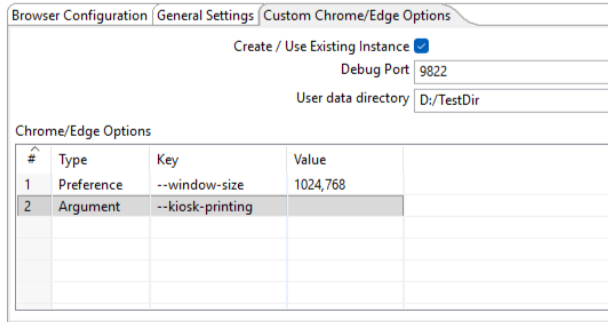 |
Note
- In case of multiple Initialize Web Driver steps in single process/workflow, make sure different drivers are selected.
- If delay is specified as 0, default considered is 30 seconds.
- In case of IE, starting version 7, notion of 4 Security zones; namely Intranet, Internet, Trusted Sites and Restricted Sites was introduced. The following two scenarios are to be noted in Web-GUI [Classic] using IE.
- The default behavior in Web-GUI [Classic] using IE is to check "Enable Protected Mode" settings for all the zones and throw an error when this setting is different for any two zones.
- In Web-GUI [Classic] with IE When "Enable Protected Mode" settings are different for different security zones and you navigate from one URL in one zone to another URL in different zone having a different setting for "Enable Protected Mode", IE internally launches a new process and from that point on, automation fails as it loses the process handle.
In case of Web-GUI [Classic] "Ignore IE Protected Mode Settings" checkbox has been introduced in Web-GUI "Start Browser" step and Web Spy [Classic] to handle the two scenarios above.
- When "Ignore Protected Mode Settings" is CHECKED in Web GUI "Start Browser" step and Web Spy [Classic]. "Enable Protected Mode" setting check for different zones is ignored and it starts without error no matter what "Enable Protected Mode" settings for different zones are.
We already have the feature to start Web-GUI [Classic] with an initial Browser URL. If during entire automation, browser doesn't navigate to some other URL but URL specified as initial Browser URL, zone switching never happens and automation works fine.