Publish a Project
Publish a project
You can publish your project as a zip to AutomationEdge server.
For details on how to view, modify, and activate the workflow on an AE instance after it is published through Process Studio, see AutomationEdge User’s guide.
You can publish the project from Project Studio in the following ways:
- Ensure that you select the main workflow or process for your project before you publish it.
- You can also create or update a workflow for publishing through the contextual menu.
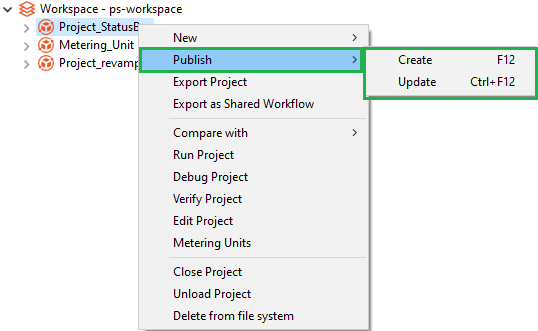
Publish project through Create
Use to publish a project for the first time.
If workflow inspection rules are configured for the selected project, then you will see appropriate warning or error messages. You can also review if the project has any warnings or errors through the Inspect Project option before publishing.
To publish project using Create:
-
In the Project Explorer, select the project that you want to publish.
-
Click File and select Publish. The sub-menu appears.
-
Select Create. The Publish confirmation (psp/psw) pop-up appears.

Publish confirmation pop-up
-
If you select the Add resource file(s) to ZIP archive checkbox and click Yes. The Add resource files to ZIP archive dialog appears.
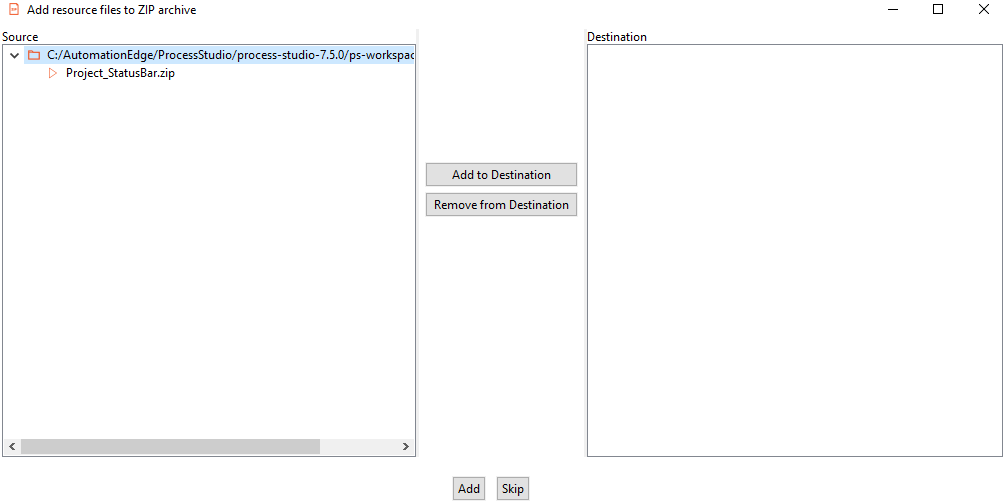
Add resource files to ZIP archive dialog
To add the resource files to ZIP archive:
-
Select the resource files in the Source pane, and then click Add to Destination. The files are added to the Destination pane.
NoteClick Remove from Destination, to remove the files from the Destination pane.
-
Click Add, to add the selected files to the ZIP archive. Else, click Skip. The Workflow Details dialog appears.
However, if you do not select the Add resource file(s) to ZIP archive checkbox, then the Workflow Details dialog appears.

Workflow Details dialog
-
Enter the field details.
Field Description Name Enter a name for the workflow to be published. Description Enter a description about the workflow. Category Select the category of the workflow.
Note:
The default category that appears in the list depends on the preference you selected in the AE server’s Preferences 🡪 User Preferences 🡪 Default Category for Workflow. For details, see the Preferences section in AutomationEdge User’s guide.
For example, if you selected Information Technology as the default category for the workflow in AE server, then you will see the same category when publishing the workflow. However, you can change the category in the Process Studio, if required.
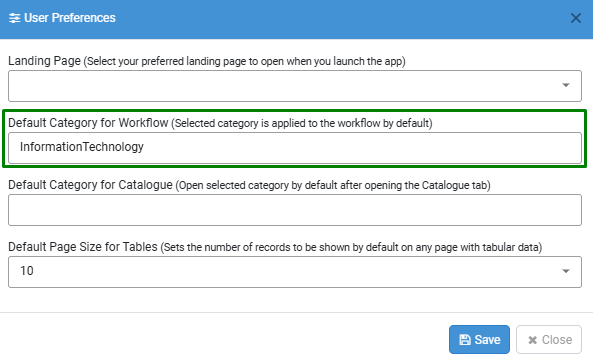

Version Tag Enter a version number for the project. Checkboxes Assisted Select the checkbox if the selected workflow or process is an assisted workflow. RDP Enabled Select the checkbox if the selected workflow or process will run on Controller Agent machine. Set default value(s) as Configuration parameter value(s) Select the checkbox if you want to set default values as configuration parameter values.
Publish project through Update
Use to update a published project and republish it.
If workflow inspection rules are configured for the selected workflow, then you will see appropriate warning or error messages. To understand the impact of rules on publishing, see the following screenshot:
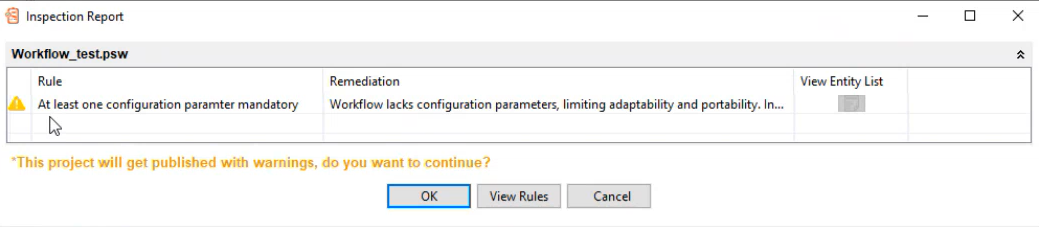
For more information about inspection rules, see Workflows 🡪 Inspection in the AutomationEdge User’s Guide.
To publish project using Update:
-
In the Project Explorer, select the project that you want to republish.
-
Click File and select Publish. The sub-menu appears.
-
Select Update. The Publish confirmation (psp/psw) pop-up appears.
tipIf you select the Add resource file(s) to ZIP archive checkbox in the pop-up, the Add resource files to ZIP archive dialog appears. For details, see Publish project through Create.
-
Click Yes. The Workflow Details dialog appears.

Update Workflow Details dialog
-
Enter the field details.
| Field | Description |
|---|---|
| Select workflow | Select the updated workflow that you want to republish. |
| Version Tag | Enter a version number for the project. |
| Set default value(s) as configuration parameter value(s) | Select the checkbox if you want to set default values as configuration parameter values. |
- Click Update. A message confirming that the workflow is updated successfully appears.