Create and Delete a Project
Projects appear in the Project Explorer under the open workspace. Projects contain workflows, processes, resources, and connections.
Create a new project
Create a new project that will have workflows, processes, and files that you can use to complete your business tasks.
Create a new project through File menu
You can create a new project using the New option available in the File menu.
In addition, you can also click  available on the status bar and create a project.
To create a new project:
-
In Process Studio, click File and select New. The sub-menu appears.
-
Select New Project. The Create Project dialog appears.
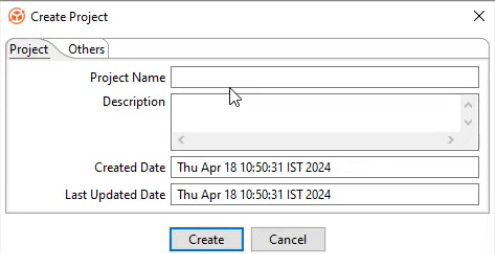
Create Project dialog
-
In the respective tabs, enter the field details.
Field Description Project tab: Project Name Enter the name of the project.
NOTE: It is recommended not to use special characters in your project name.Description Enter a description of the project. Created Date Displays the project creation date and time. Last Updated Date Displays the date and time when the project was updated. Others tab: Associated Process Name Specify the name of the process that you want to associate with the project.
After publishing the workflow successfully, you can see the associated process name in the Update Workflow page in AE server. For more information, see the Workflows 🡪 Workflow List section in the AutomationEdge User’s Guide.Associated Process Code Specify a process code based on which the user must name the step or entry in the workflow or process.
For more information on how to configure a process code rule, see the Workflows 🡪 Inspection section in the AutomationEdge User’s Guide.Tags table NOTES:
- You can specify a maximum of five tags.
- Tags can contain alphanumeric characters, hyphens, and underscore. However, spaces in tag names are not supported.
For example:
Supported tag name: google-1.
Unsupported tag name: google 1.
- The tags added through the Process Studio are at project level and are available in the AE server after the workflow is published.
Important:
Tags on the AE server will not be updated during a workflow update.
Therefore, if you need to modify the tag details, then you can do so through AE server only. The tags are updated at the workflow level. For details, see Work with Workflows in the AutomationEdge User’s guide.
Tags edited directly on the AE server will not be synchronized with the Process Studio project.Tags Specify tags for the project. Providing tags can help with faster search for a project or workflow. -
Click Create. The new project appears under the open workspace in the Project Explorer.

New project in Project Explorer
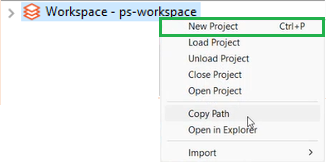
NoteYou can also create a project through the contextual menu.
Delete a project
You can delete a project and supporting resources permanently from the file system.
To delete a project:
-
In the Project Explorer, select the project that you want to delete, and right-click on it. The contextual menu appears.
-
Select Delete from file system, a confirmation dialog appears. Click Yes to delete the project folder and supporting resources permanently from the file system.