Add an Exchange Cloud configuration
To use Exchange Cloud configuration, you must have Microsoft account. Create an account through the Azure AD portal. For details, see Appendix 17: Office 365 Registration for Grant Type Refresh Token in the IT Plugin Reference Guide.
To configure an Exchange Cloud configuration:
-
Go to Settings -> Email Configuration. The Email Configuration page appears.
-
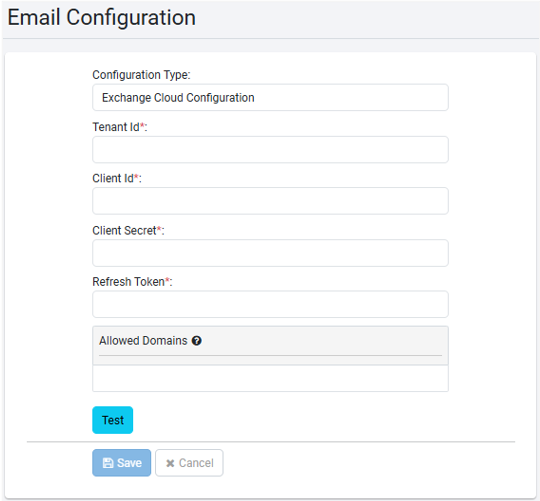
Click Add, and in the dialog select Exchange Cloud Configuration as type of configuration. The email configuration fields appear.
-
Enter the details, as required.
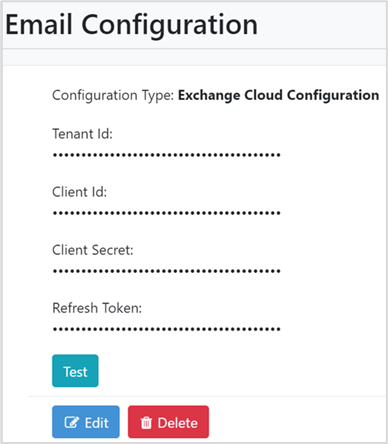
Note:Access your Microsoft account to fetch the details. The details appear encrypted in the fields.
-
Enter the details, as required.
LDAP / Microsoft Account Configuration Fields
Field Description Host* Enter the host name or IP address of the LDAP server. For example, Gmail. Tenant Id Copy-paste your Microsoft account tenant ID. Client Id Copy-paste the client ID of the application created in your Microsoft account. Client Secret Copy-paste the client secret password generated in your Microsoft account. Refresh Token Copy-paste the refresh token generated in your Microsoft account. '*' indicates the fields are mandatory.
-
Click Test, to validate the Exchange Cloud connectivity. A message confirming the success of the connectivity appears.
-
Click Save. The Exchange Cloud Configuration details are saved.