GUI Automation
In the chapter you will learn, how to enable Java Access Bridge (JAB), install and download JAB 2.0.2. Reference URL: JAB 2.0.2
Install Java 1.8 32-bit
Install Java 1.8 32-bit on the machine, recommended to download Java SE Development Kit 8u202
Enable Java Access Bridge
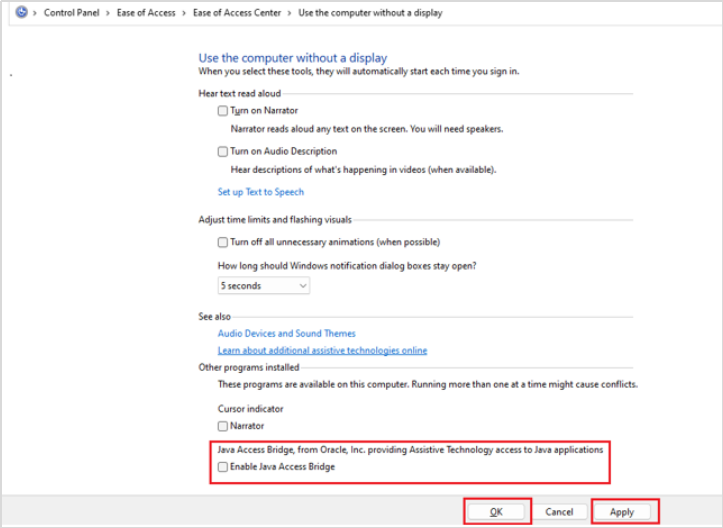
To enable JAB: 1.Click Start → Control Panel → Ease of Access → Ease of Access Center → Use the computer without a display. The details page appears. 2.In the details page, scroll down and then select Enable Java Access Bridge checkbox. JAB is enabled.
Download Java Access Bridge 2.0.2
1.Download Java Access Bridge 2.0.2 from Java Access Bridge Home Page. 2.Copy the following files to the specified destination directories:
- %WINDOWSHOME% is the directory where Microsoft Windows is installed (for example, C:\WINDOWS).
- %JAVAHOME32% is the directory where your JDK or JRE for 32-bit systems is installed. The following are examples of directory names for Java SE 8u202 32-bit systems:
- JDK: C:\Program Files (x86)\Java\jdk1.8.0_202
- JRE: C:\Program Files (x86)\Java\ jre1.8.0_202
| Java Access Bridge File | Destination Directory |
|---|---|
| WindowsAccessBridge-32.dll | %WINDOWSHOME%\SYSWOW64 |
| WindowsAccessBridge-32.dll | %WINDOWSHOME%\SYSTEM32 |
| WindowsAccessBridge-64.dll | %WINDOWSHOME%\SYSTEM32 |
| WindowsAccessBridge.dll | %WINDOWSHOME%\SYSTEM32 |