GUI: Universal Actions
Description
GUI: Universal Actions step allows user to perform robot actions.
Configurations
| No. | Field Name | Description |
|---|---|---|
| 1 | Step Name | Name of the step. The name must be unique in a single workflow.The data type is string, and the field is mandatory. |
| 2 | Action Information | Click to open the action information dialog. Select the field details, as required. Click OK, and the selected Action Information details appear in the tabular formats |
| Action Information Fields: | ||
| I. | Action Type | Available actions for Action Type: 1.Set Value At Current Position: It allows the user to set the given text in the control. 2.Get Value From Current Position: This is used to read the text from the current position. Note: This will work on the current cursor position on the active screen. It may not work with non-editable,read-only, disabled, and masked fields. This will require the clipboard access of the system. 3.Double Click At: This is allowing the user to perform the Double click operation at the given X and Y coordinates 4.Middle Click At: This is allowing the user to perform the Middle click operation at the given X and Y coordinates 5.Right Click At: This is allowing the user to perform the Right click operation at the given X and Y coordinates. 6.Hover At: This is used to perform the mouse move operation at the given X and Y coordinates . 7.Click At: This is allowing user to perform click operation at given X and Y coordinate. 8.Drag Drop: This is allowing user to perform drag and drop operation at given Source and Destination point. Note: The UI controls must be at the same X and Y coordinates during record time and execution time. To achieve this, keep the exact screen resolution and scaling factor at record time and at execution time.Action Type: Set Value At Current Position |
| Action Type: Set Value At Current Position |  | |
| I | Write Type | Select an option from the list: Append – Adds text to the end of the existing text. Insert At Start – Adds the text at the start of the existing text. Replace – Replaces the existing text with new text. Current Caret/Cursor Position – Select to write the given text value at the current cursor position. Note: This will work on the current cursor position on the active screen without the element data. It may not work with non-editable, read-only, disabled, and masked fields. Mandatory: It is a mandatory field. |
| II | Value | Provide the text to perform the Write Text operation. It is a mandatory field. |
| Action Type: Get Value From Current Position | 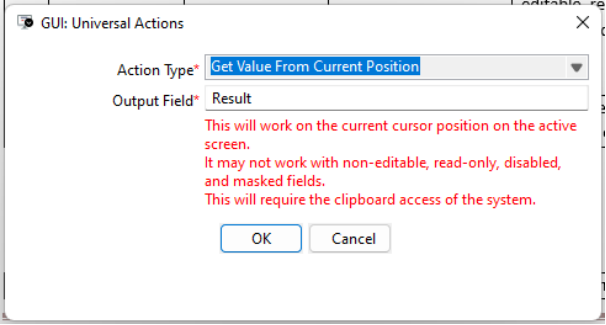 | |
| I. | Output Field | It is a field to define the output variable name. The default output variable name is “Result”.It is a mandatory field. |
| Action Type: Drag Drop | 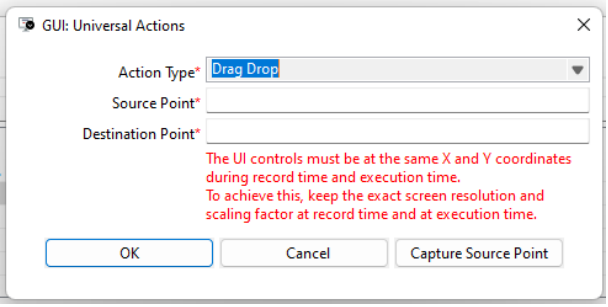 | |
| I. | Source Point | Specify the (x,y) coordinates of the Source point. To select the Source Point use ‘Capture Source Point’ button. It is a mandatory field. |
| II. | Destination Point | Specify the (x,y) coordinates of the Destination point. To select the Destination Point, use ‘Capture Destination Point’ button. It is a mandatory field. |
| Action Type: Double Click At, Middle Click At, Right Click At, Hover At, Click At | | |
| I. | X-Coordinates | Provide a valid x coordinate of the active screen.It is a mandatory field. |
| II. | Y-Coordinates | Provide valid y coordinate of the active screen.It is a mandatory field. |
| III. | Button: Capture Coordinates | Click to select the specific coordinates on the active screen.It is a mandatory field. |
| 3 | Wait Before Action (In Seconds) | Specify a Timeout value for the action to be performed. |
| 4 | Step Description | Provide more information about the selected / chosen action.It is a mandatory field. |