Azure AD: O365 App Registration
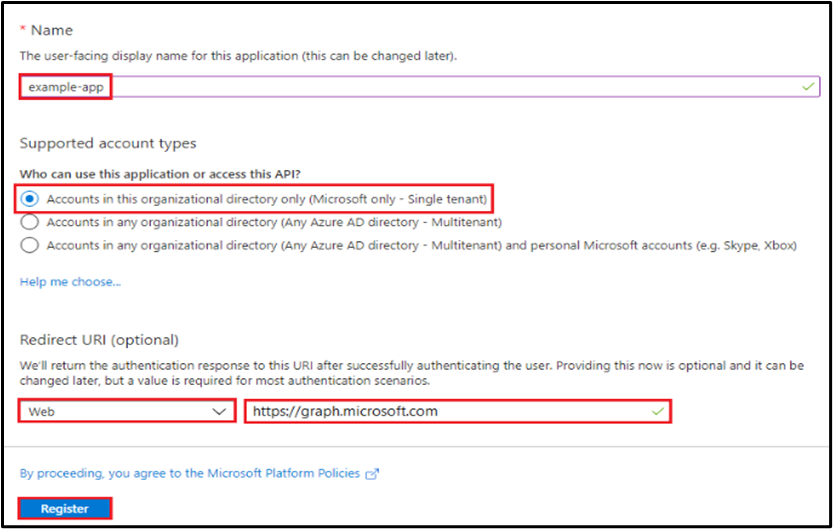
This appendix walks you through Office 365 app registration in Azure AD, client secret creation, and API permission setup for the Office 365 plugin.
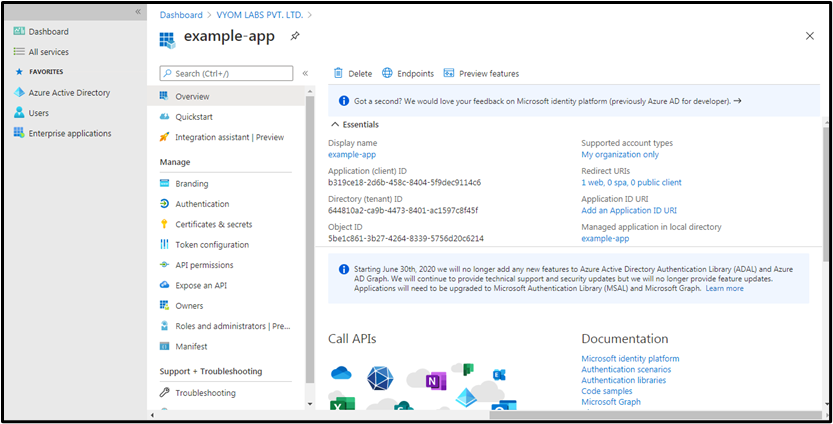
- Upon registration, fetch Tenant ID and Client ID for the App as seen below.
Creating Client Secret
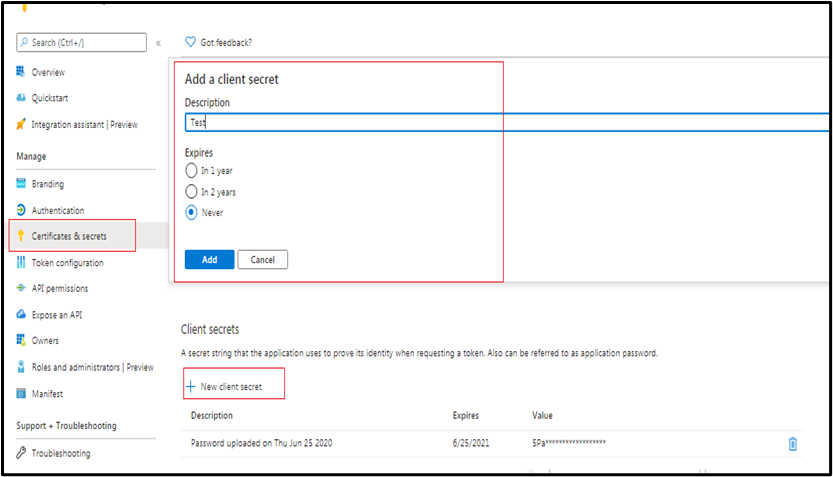
- Click on Certificates and secrets
- Click on New client secret
- Enter Description
- Select one of Expires Radio Button
Provide API Permission
- Click on API Permission.
- Click on Add Permission.
- Click ‘Microsoft Graph’ as highlighted below on the top right corner.
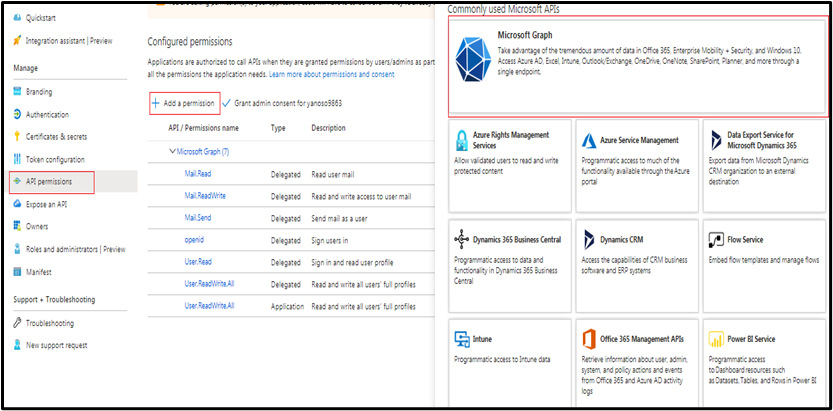
- Click ‘Delegated Permissions’ or ‘Application permissions’ as required and as mentioned in the Plugin Step documentation.
- Provide all required permissions for the Plugin steps to execute. The permissions required are mentioned in the Plugin steps.
Consent for Permission to App
Grant admin consent
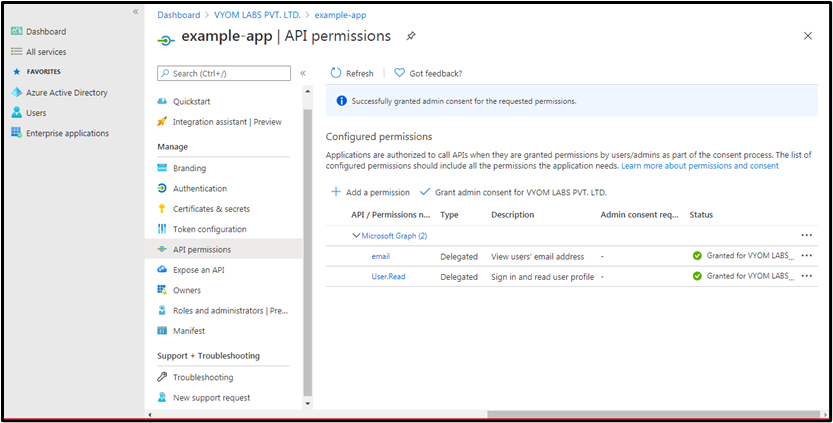
You need to Grant Admin consent to the app to access all accounts data, for all Plugin steps except email related steps. Users can request Azure AD administrator to grant admin consent. The following screenshot shows an Administrator view with option to Grant Admin consent.