Link a Repository to Git and SVN
Integrate Process Studio with source code control systems, such as Git and SVN. You can create and link to multiple repositories and maintain process and workflow versions.
Prerequisites
-
For Git, initialize and update an online or local repository.
-
For SVN, initialize a local or remote repository. There are additional prerequisites for SVN, such as
- SlikSVN on Windows:
-
Download SlikSVN Windows Command Line Client,Slik-Subversion-1.9.7-x64 from (https://sliksvn.com/download/ or https://sliksvn.com/pub/) and install it.
-
Fetch a library file and copy
C:\\Program Files\\SlikSvn\\bin\\libsvnjavahl-1.dllto Process Studio pathlibswt\\win64 (64-bit)or tolibswt\\win32 (32-bit).
- SlikSVN on Linux (Debian or Ubuntu):
-
\$ sudo apt-get install libsvn-java -
Append
/usr/lib/x86_64-linux-gnu/jni/to LIBPATH in process-studio.sh as follows:LIBPATH=\$LIBPATH:/usr/lib/x86_64-linux-gnu/jni/export LIBPATH
-
For more information on how to install libsvn-java 1.9.X on Ubuntu 14.04, see < https://tecadmin.net/install-subversion-1-9-on-ubuntu/>.
To link a repository to Git and SVN:
-
Click View, and select Perspectives, the sub-menu appears.
NoteYou can also select the perspective options using,

-
Select Git/SVN. If no repository is linked yet, a message asking for adding a repository appears.
-
Select Yes, and the Add Repository dialog appears.

Add Repository dialog
-
Enter the details.
Field name Description Name Enter a name of the repository. Description Enter a description of the repository. Directory Select the directory path where the local Git or SVN repository to be linked is present. Type Select the type of linking you want, that is, Git or SVN. NoteIf the repository is already linked, then you can directly view the operations performed on the repository.
-
After linking the repository, a confirmation dialog appears. Click Yes, and you can view the operations performed on the repository.
Perspective toolbar
This section explains the tools used in the Git or SVN perspectives.

Perspective toolbar
When performing actions, such as Push you will need to enter credentials. Click  to view the password.

Credentials dialog
| Toolbar icon | Description |
|---|---|
 | Use the option to add, open, edit, clone, or remove a project. The following options are available: - Open - Add - Remove - Edit - Clone |
 | Use to provide the path of the remote repository. The name of the remote repository should be origin. |
 | Use the option to sync the opened, local, and remote repository, and is equivalent to git pull. Note: - In SVN, use Update instead of Pull. - The behavior of this tool varies depending on the configuration of origin and branches. |
 | Use the option to sync the opened, local, and remote repository, and is equivalent to git push. Note: - In SVN, the option is unavailable. - In Git, the behavior of this tool varies depending on the configuration of origin and branches. |
 | Use the option to check out, create, delete, merge, and push branches. - Checkout: switch between branches. - Create: create a new branch. - Merge: merge multiple branches. The following are the options for merging: - Recursive: Use the option when you want to keep changes from your own and remote branches. In case of conflicts, they need to be resolved manually. - Ours: Use the option when you want to keep changes from your own branch and discard remote branch changes. - Theirs: Use the option when you want to discard your own branch changes and keep the remote branch changes. Note: - For a Git repository, files are saved as .ours or .theirs. - For SVN repository, files are saved as .mine, .rXX, and .rYY. - If there are conflicts when you merge the branches, you can resolve them by selecting the file in Changed files and then selecting Stage. Commit these changes. - To abort the merger, select Discard changes. - Delete: delete a branch. - Push: push a branch to origin or remote repository. |
 | Use to tag the branches. The functionalities are the same as those of the Branch. Note: Merge option is unavailable. |
 | Use to refresh the view. |
Changed files
In this section, you can work on the files in the repository.
You can view the new or modified files in the Changed files pane. A new file added to the repository has
 icon against it. A modified file has
 and removed file has
 icons against it, respectively.
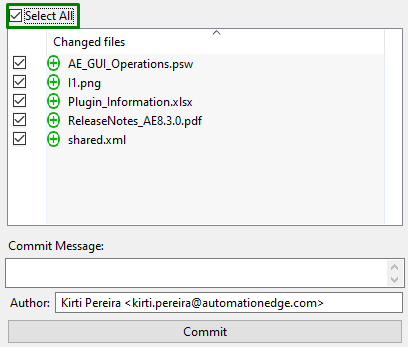
Changed files pane
To commit a file:
-
In the Changed files pane, select the checkbox against the files that you want to commit.
-
Select individual file to view its details in the stage pane, then enter a comment in Commit Message.
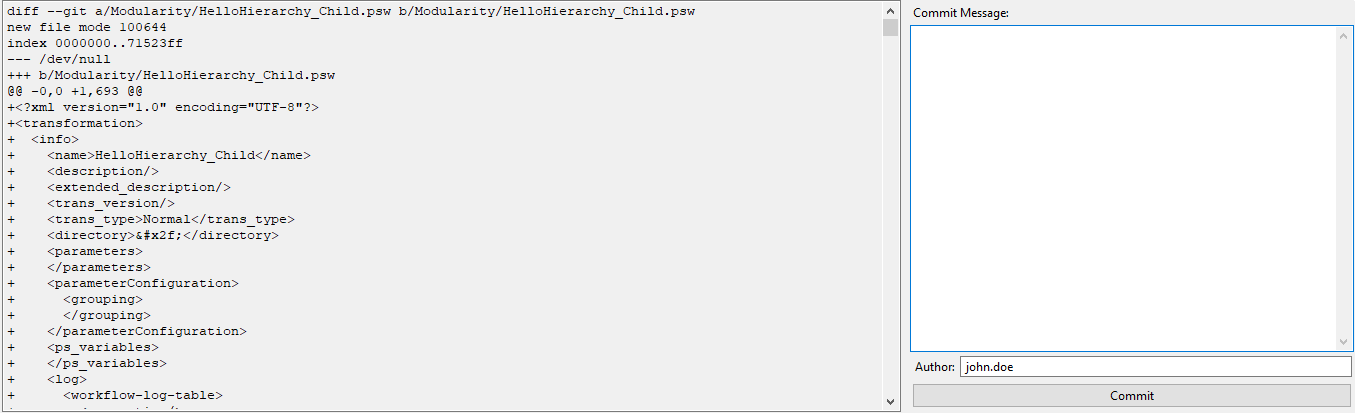
Stage pane view
-
Click Commit. The changes are committed to the working branch.
- The commit action aborts, if you click Commit without adding a comment in the Comment Message box.
- To commit all files at once, click the Select All checkbox.
- In the SVN perspective, committing the file pushes the updates to the remote repository.
- In Git perspective, click Push, to commit the updated branch to the repository. The changes are now available in the remote repository.