Debug Log
Description
Debug Log writes selected workflow variables and fields to the log files for real-time troubleshooting and monitoring. When a workflow runs on AutomationEdge, the output goes to the Agent log (or the Request log in version 8.1 and later); when it runs in Process Studio, the output goes to the Process Studio log. This step is useful during development and testing to inspect data values at specific points in a workflow. You can control the verbosity with log-level settings (DEBUG, INFO, WARN, ERROR) and target specific variables or fields to keep log output focused and manageable.
If you run the workflow through AE UI version 8.0 or earlier, the step writes logs to the Agent log files. In version 8.1 and later, the step writes logs to the Request log files.
Configurations
| Field Name | Description |
|---|---|
| Step Name | Specify the unique step name for a single workflow. |
| Log Level | Select the log level values from the list. The values are in ascending order of severity. The step will collect logs at the level selected or at higher level of severity. Available values: DEBUG, INFO, WARN, ERROR Base level is governed by the agent logger setting in the log4j2.xml file located in the agents conf folder. All logs at a higher level than this setting will be visible in Agent log file. In case of Process Studio, the base level is governed by the ProcessStudioLogger setting in the log4j2.xml file located in the process studio distribution conf folder. All logs at a higher level than this setting will be visible in Process Studio Log file. |
| Variables Tab | |
| variables | Specify variables to be logged in. To create a list of variables, use commas to separate the values. |
| Fields Tab: | Contains table to accept fields to be logged in. |
| Name | Name of field to be logged in. |
| Type | Auto populated once the field name is selected. It is not editable. |
Note: Secret variables are logged as ‘XXXX’
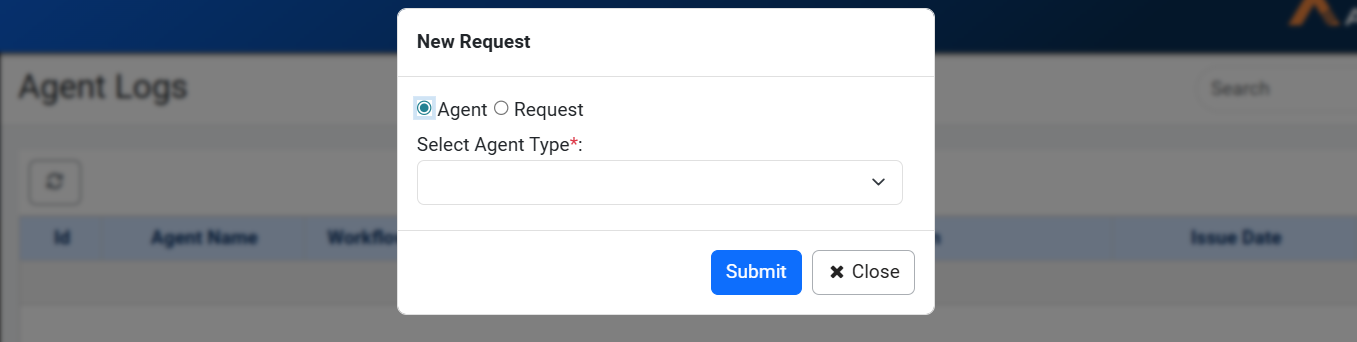
You can access Agent Logs from the AutomationEdge Agent Log menu. Debug logs are included as part of the Agent Logs. To view them, go to the Logs menu and select the Agent Logs sub-menu in AutomationEdge. You can also obtain Agent Logs by clicking the New Request button in the top-right corner. Select the source at the Agent or Workflow level, as shown in the screenshot below.