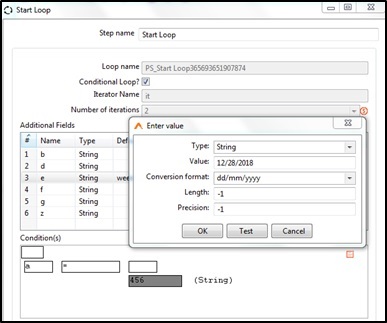
Start Loop
Description:
Start Loop defines the beginning of a repeating block within a workflow. It executes the steps between itself and its paired Continue Loop step multiple times for each input row, either for a fixed number of iterations or until a dynamic condition is met. The loop runs single-threaded — other input rows wait until the current row finishes all its iterations. You can define additional fields that persist across iterations and remain available after the loop ends, while any other fields created inside the loop are discarded after each iteration. Start Loop produces two output hops (true and false), letting you route rows that continue looping separately from rows that exit the loop.
Configurations:
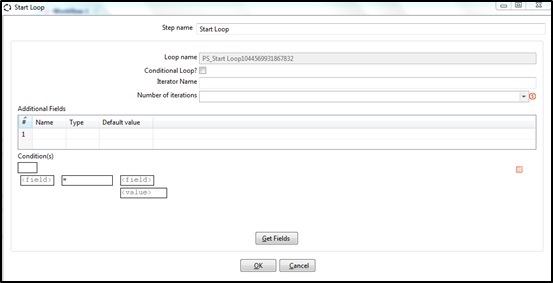
| Field Name | Description |
|---|---|
| Step Name | Name of the step. This name has to be unique in a single workflow. |
| Loop Name | A Loop Name generated automatically. |
| Conditional Loop? | Enable check box if you want to loop based on a condition. If enabled Iterator name below is disabled. |
| Iterator Name | This field is enabled Conditional Loop above is not checked. Provide an iterator name. |
| Number of iterations | Provide an integer value for number of iterations for each row. |
| Table: Additional Fields1 | This table is used to create user defined additional fields. Additional fields are added as columns to the row. They are permanent and visible even after the loop is over. Note: Any fields created within a loop are not permanently available after loop execution. Only Additional fields specified in Loop Start are available even after loop execution. |
| Name | Provide names of all additional fields you want to define. |
| Type | Select a data type for the additional field. |
| Format | Select a format for the data Type selected above. |
| Default value | Provide a default value for the additional field. |
| Set empty string? | Select Y or N. If default value is not provided set ‘Set empty string?’ to Y. This sets a null value as an empty string. |
| Block: Conditions | Conditions Block is a set of five fields. These fields can be populated with Previous field, Addition fields or Static values. Click the field to populate a value as a toggle or from a popup that comes up. The first field specifies a toggle for a condition. Leave it default to blank or click once to toggle it to NOT. The second is the field to compare. The third field is an operator The fourth field is the field to be compared against or alternately specify a static value in the sixth field to be compared against. Click on the small rectangular icon on the right hand side of the block to add a condition. You can Add a condition with the following operators: OR, AND, OR NOT, AND NOT, XOR. Multiple condition list by icon on right side. Right click on a condition to get a pop-up menu with the following options: Edit condition, Delete condition, Add sub - condition, Move condition to sub-condition |
| Button: Get Fields | In the Conditions Block above only previous fields are available. Click Get Fields to make Additional fields also available in the conditions block. |
Conditions Block Description:
- The first field is a Boolean and value can be set to null or NOT. This field acts like a toggle field and changes values upon click. The possible values are null or NOT.
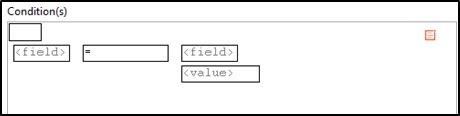
- Null condition
- NOT condition

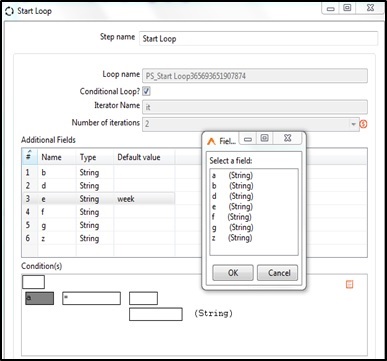
- In the second field User defined Additional fields can be selected.
- In this case ‘a’ is selected and is assigned a value 2. It can also be assigned a field value.
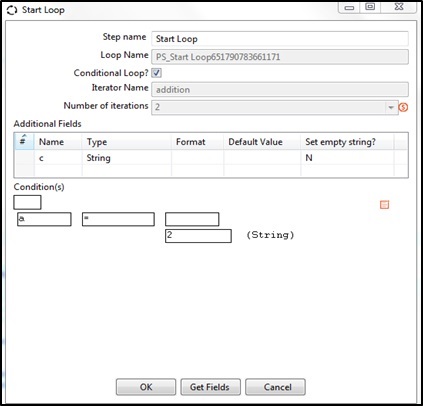
- Multiple conditions can be added using the Add condition on the right.
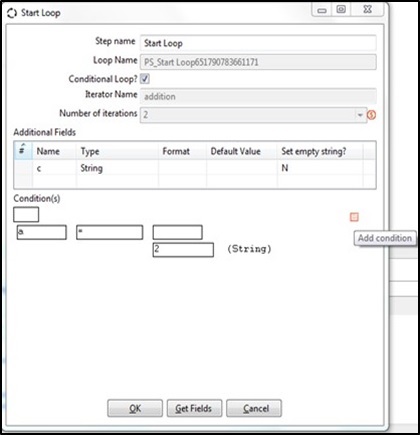
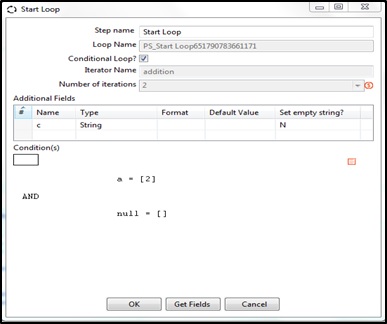
- In the snapshot below the first condition has been added and ready to add the second condition. Click on the null condition to populate it.
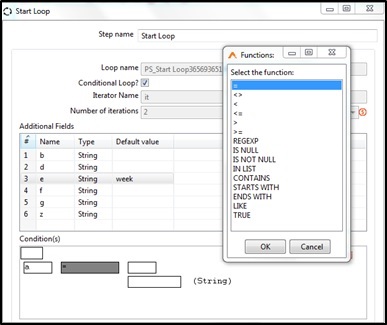
- In the third field select operational functions.
- In the fourth field previous step fields or Additional fields can be set. Values can be set either in the fourth step or in the fifth fields.
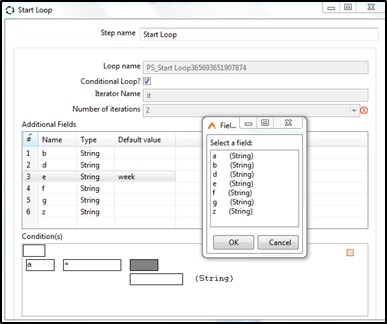
- In the fifth and final field provide a static value along with conversion format.