Continue Loop
Description:
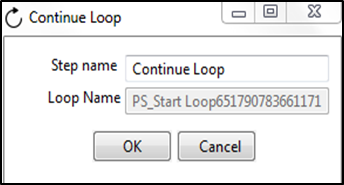
Continue Loop sends the current row back to its paired Start Loop step to begin the next iteration. Process Studio creates this step automatically when you add a Start Loop step, and the two always work together. Before forwarding the row, Continue Loop increments the loop counter and carries forward any additional fields defined in Start Loop. Place this step at the end of the loop's true path so that each iteration completes and returns for the next evaluation of the loop condition or iterator count.
Configurations:
| Field Name | Description |
|---|---|
| Step Name | Name of the step. This name has to be unique in a single workflow. |
| Loop Name | It automatically picks up a loop name based on the Loop Start step it is connected to. |
| Button: OK | Click OK button to accept configurations. |
| Button: Cancel | Click CANCEL button to discard configurations. |
Schematic representation of a Workflow with Loops
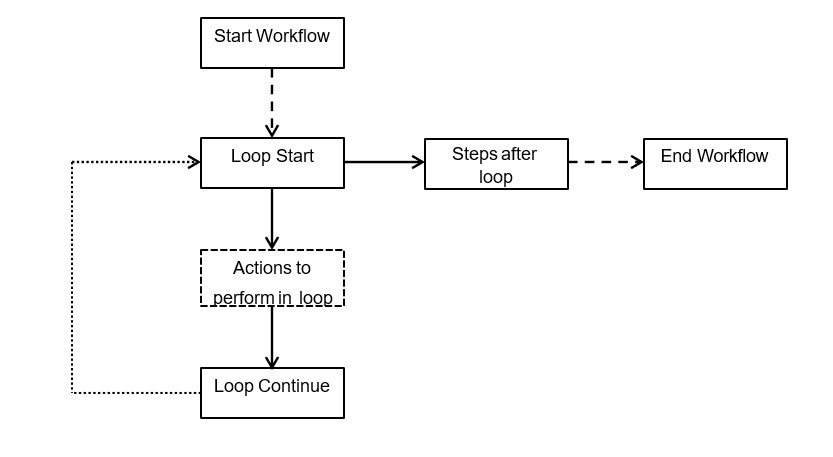
Sample Workflows: Simple Loop
Following is a demonstration to create a Simple Loop workflow.
- Create a new workflow and save it as SimpleLoop
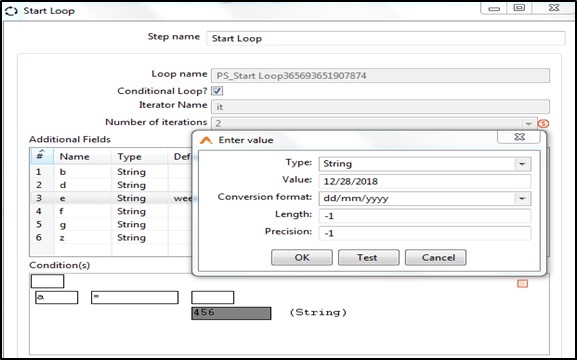
- Add a Data Grid step with meta data as shown below.
- Add data in the data tab.
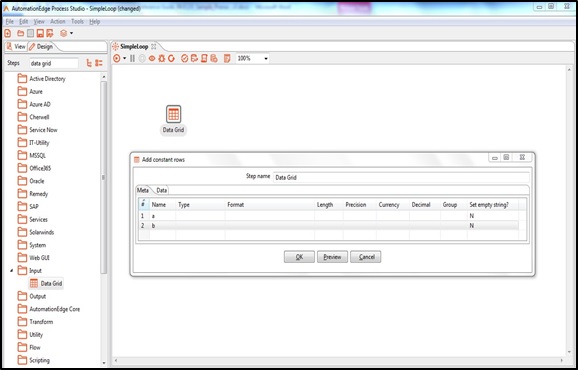
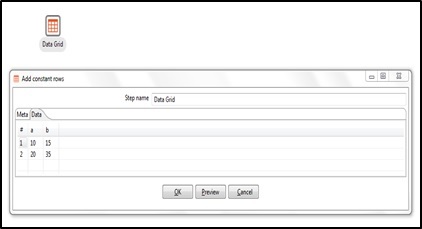
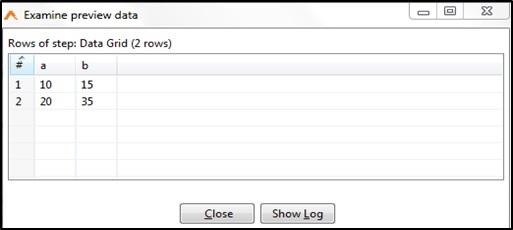
- Click Preview button to view the records.
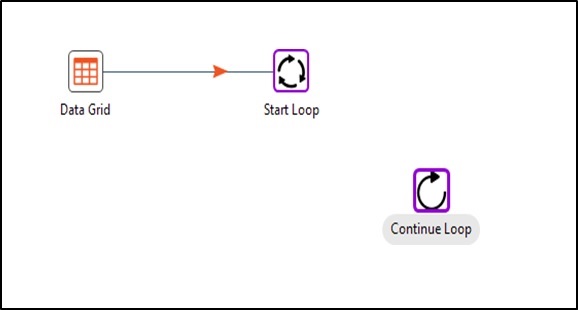
- Always Drag and Drop Start Loop Step or double click Start Loop. When you do this automatically a Continue Loop step is also created for you in Process Studio. These steps always exist in combination.
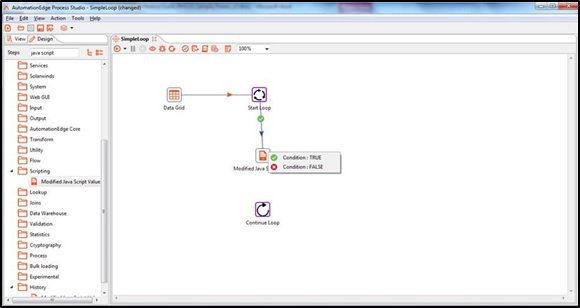
- Add a Modified Java Script step between Start Loop and Continue Loop. Whenever you create a Hop from Start Loop it is terminated with ‘Condition: TRUE’ or ‘Condition: False’. No Hops are allowed from Continue Loop.
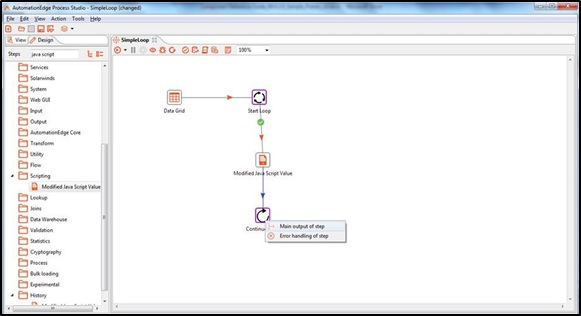
- Join Modified Java Script to Continue Loop as shown below.
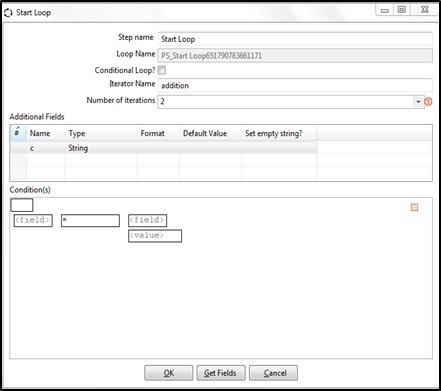
- Configure Start Loop. All the fields of Start Loop have been explained in the Configurations table.
In this example we do not have a condition, instead we have created an iterator
‘addition’ with number of iterations for each row equals to 1.
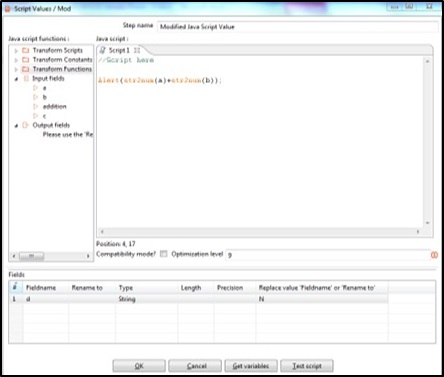
- Configure Modified Java Script as shown below to add two field values.
- Leave Continue Loop configurations as it is or alternately specify a Step name.
- Add a Text file output step. Draw a Hop with Condition: FALSE. This completes creating both Condition: TRUE and Condition: FALSE Hops.
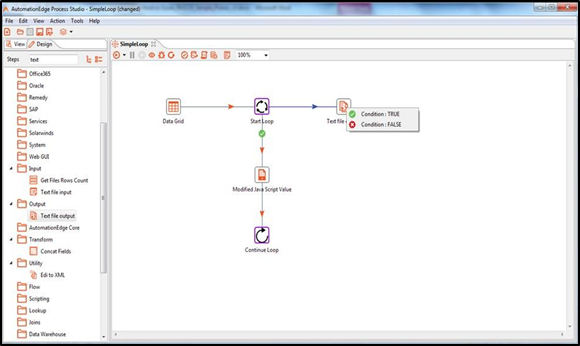
- This is the complete workflow. You can now run the workflow.
This workflow introduced you to how to use Loop step in a workflow.
Sample Workflows: Nested Loop
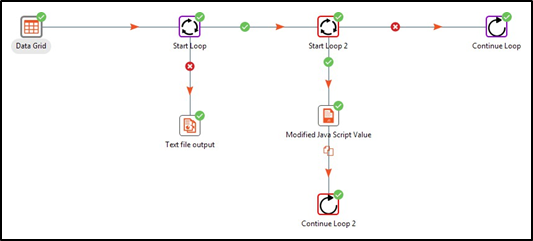
Nested Loop can be considered as a loop in a loop. The following picture depicts a Nested Loop. In the screen shot the parent loop steps are ‘Start Loop’ and ‘Continue Loop’ as seen below. The child workflow steps are ‘Start Loop2’ and ‘Continue Loop2’.
Validations for Workflow with Loop steps
- If the workflow is using switch case for path decisions inside loop or error handling, all of them must end with Loop Continue Step.
- Both the steps must be present and connected properly in the workflow.
- Infinite loop will not be verified.
- Cannot have Blocking Steps in the loop
- Steps like Merge Join, Join Rows which wait for all rows before execution start will not be allowed in the loop.
- Row generating steps like Microsoft Excel Input are not allowed in a loop. However, Web Loop Table is allowed in a loop.
- The following steps are also not allowed in a loop, Identify last row in a stream, Send Email, Intermediate Status and Exit Browser
Sample Workflows: Break Loop
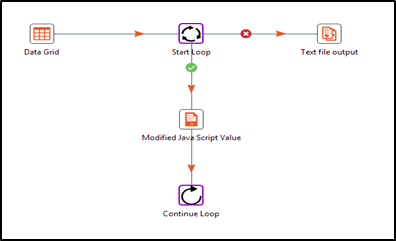
Nested Loop can be considered as a loop in a loop. The following picture depicts a Nested Loop. In the screen shot the parent loop steps are ‘Start Loop’ and ‘Continue Loop’ as seen below. The child workflow steps are ‘Start Loop2’ and ‘Continue Loop2’.
Validations for Workflow with Loop steps
If the workflow is using switch case for path decisions inside loop or error handling, all of them must end with Loop.