Azure OCR
Description
Use the step to extract text and data from PDF and image files using Azure Document Intelligence. You can route these extraction requests directly to Azure endpoints or securely through the AE Gateway.
Prerequisites:
- Mandatory to create a Document Intelligence resource in the Azure portal. refer- https://portal.azure.com/#home
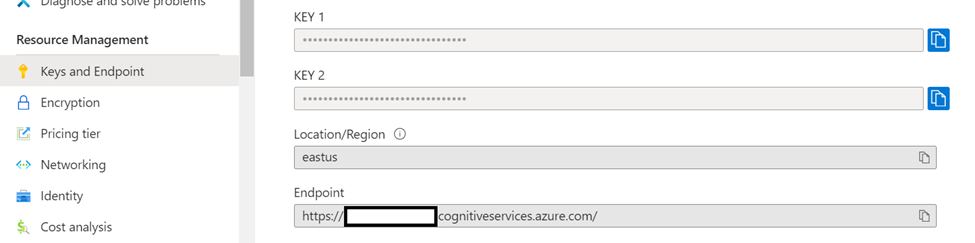
- Obtain your Key and Endpoint from the Resource Management section in Azure, see following image:
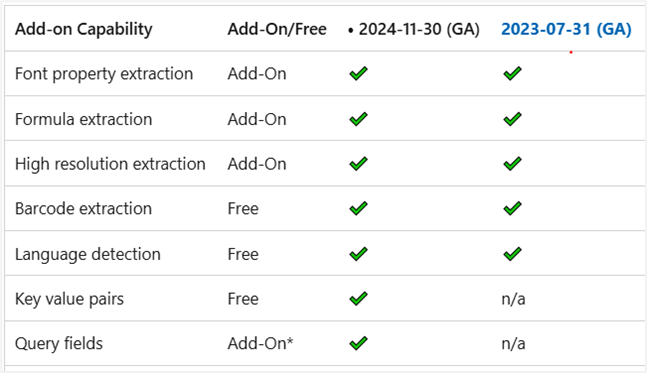
Processing Details: • Polling and Retries: Document processing is asynchronous. When you submit a request, the step waits for the service to finish. If the document requires more time, the step makes additional attempts to retrieve the result. If processing remains incomplete after these attempts, the step raises an exception. • Supported API Versions: 2024-11-30 and 2023-07-31.
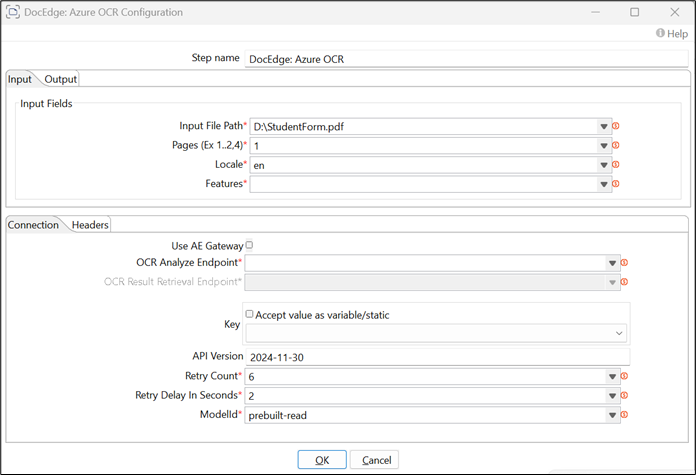
Example Usage: specify the Input File Path parameter contains the file path, to extract data from a specific page, enter 1 in the Pages field. Specify en for the Locale, and barcodes are decoded if present in the document. Please provide the API Endpoint and Key created on the Azure portal. Here, a prebuilt-read model is utilized for text extraction.
Common Troubleshooting:
- 401 Access Denied: Your subscription key or API endpoint is invalid. Verify your key and ensure you are using the correct regional API endpoint for your Azure resource.
{
    "error": {
        "code": "401",
        "message": "Access denied due to invalid subscription key or wrong API endpoint.
        Make sure to provide a valid key for an active subscription and use a correct regional API endpoint for your resource."
    }
}
- ModelNotFound: The requested model does not exist. Verify that you entered the correct prebuilt model name (e.g., prebuilt-document) or custom model ID.
{
    "error": {
        "code": "NotFound",
        "message": "Resource not found.",
        "innererror": {
            "code": "ModelNotFound",
            "message": "The requested model was not found."
        }
    }
}
To learn more about error code, refer following: https://learn.microsoft.com/en-us/azure/ai-services/document-intelligence/v3-error-guide?view=doc-intel-4.0.0
Reference Links:
API – Azure POST Request
https://learn.microsoft.com/en-us/rest/api/aiservices/document-models/analyze-document?view=rest-aiservices-v4.0%20(2024-11-30)&viewFallbackFrom=rest-aiservices-2023-07-31&preserve-view=true&tabs=HTTP#contentformat
API – Azure GET Request
https://learn.microsoft.com/en-us/rest/api/aiservices/document-models/get-analyze-result?view=rest-aiservices-v4.0%20(2024-11-30)&tabs=HTTP
Azure Document Intelligence Service
https://learn.microsoft.com/en-us/azure/ai-services/document-intelligence/?view=doc-intel-4.0.0
Configurations
| No. | Field Name | Description |
|---|---|---|
| 1 | Step Name | Name of the step. This name must be unique in a single workflow. The field is mandatory. |
Input tab
Use the Input tab to specify the document file path and define your extraction preferences, such as specific pages or language hints.
| No. | Field Name | Description |
|---|---|---|
| 1 | Input File Path | Specify the local path to the file you want to process. Use workflow variables (e.g., ${invoicePath}) to dynamically pass file paths. The field accepts static or environment variable value and the field is mandatory. |
| 2 | Pages (Ex 1..2,4) | Specify a 1-based list of page numbers to analyze. Example: 1-3,5 or 7-9. The field is mandatory. |
| 3 | Locale | Specify a language hint to improve text recognition using a language code (e.g., en) or BCP 47 language tag (e.g., en-US). Leave blank to auto-detect languages. The field is mandatory. |
| 4 | Features | Specify specific features to extract. For example: • Enter barcodes to decode barcodes and QR codes. • Enter keyValuePairs to extract text as key-value pairs Note: This requires using prebuilt-layout or prebuilt-document in the ModelId field. The field is mandatory. |
Connection
Use the Connection tab to configure network routing, authentication credentials, and API behaviors.
| Field Name | Description |
|---|---|
| Use AE Gateway | Select to route requests through the AE Gateway. Enabling this disables the Key field and uses the gateway token for authentication. Notes: • If selected, the Key field is disabled. • Supports Google Vertex AI and Azure OpenAI LLM providers. |
| OCR Analyze Endpoint | Specify the Azure Document Intelligence endpoint URL. If using the AE Gateway, specify the gateway URL. The field is mandatory. |
| OCR Result Retrieval Endpoint | Specify the AE Gateway URL used to retrieve the final analysis results. Note: The field is available only if the Use AE Gateway checkbox is selected. |
| Key | Specify your Azure Document Intelligence service key. If the checkbox Accept Value as variable/static is selected, then the password field appears as a text box and accepts static or variable values. OR If the checkbox Accept Value as variable/static is cleared, then the password field appears as a dropdown in which you can select a field from the previous steps. The field is mandatory. |
| API Version | Specify the Azure API version to use. Supported versions are V4(2024-11-30) and V3.1(2023-07-31). Default value: 2024-11-30 |
| Retry Count | Specify the retry Count for Azure API. Default value: 6. The field is mandatory. |
| Retry Delay In Seconds | Specify the Azure API Retry Delay. Default value: 2. The field is mandatory. |
| ModelId | Specify the type of model to use for OCR. For a list of supported models, see the Azure Document Intelligence overview. The field is mandatory. |
Headers
Add custom HTTP headers to include with every API call.
| Field Name | Description |
|---|---|
| Header Key | Specify a unique HTTP header key (for example, api-version, api-key, or x-tenant-id). Important: Do not add an Authorization key if you use AE Gateway mode. The system automatically sets the Authorization: Bearer <gatewayToken> header. Adding it manually causes a duplicate-header error. Note: Header key must not be null/empty. Duplicate header keys are rejected. |
| Header Value | Specify the corresponding value for the header key. Note: Header value must not be null/empty. |
Output tab
Use the Output tab to define the workflow variables where the system saves the extracted results.
| Field Name | Description |
|---|---|
| JSON Output Var | Specify the variable name to store the complete JSON response. Default value: JSONResult |
| Text Output Var | Specify the variable name to store the extracted plain text. Default value: OCRTextResult |